Finding video resources online

For online educational video resources (and clips of people falling over) you can’t beat YouTube. I know there are lots of other sources like Vimeo, TeacherTube and so on but this post is unapologetically YouTube biased.

Of course, the easiest way to find a video on a particular topic is to put keywords into the search field. Once you have found one appropriate video, this will often lead to others, as using the sidebars and checking other videos uploaded by that user are also useful search techniques. Beyond that, there are channels that show the videos of particular organisations and websites dedicated to connecting you with videos on particular topics.

Using the search field

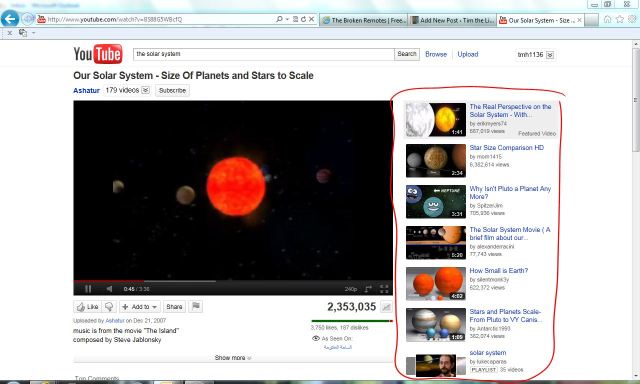
You can conduct a keyword search of the titles and descriptions of videos on YouTube by putting the keywords into the search field (arrowed above). Like many search fields, this has been set up so that you can search for exact terms by putting your terms in inverted commas (e.g. “the solar system”), which will drastically reduce the number of results.

You cannot use the search field to search for a user. If you want to find videos by a specific user, put their name at the end of the URL after a backslash (e.g. www.youtube.com/aitkenonline).

Other ways to find videos

Once you have found a video, YouTube makes suggestions of other videos that might also be appropriate. These videos appear on the right-hand side of the screen (framed above).

You can also see other videos that have been uploaded by the user by using the method above or clicking on their username, which appears in blue just below the video.

Browsing

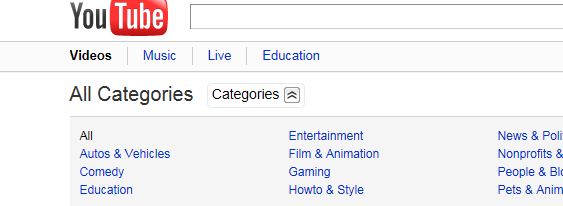
Next to the search button is the Browse link. This takes you to the All Categories page. Clicking on the Categories button next to the All Categories heading will expand the categories menu. You can waste months drilling down into the different categories and finding distraction after fascinating distraction. Here is the link to the education category.

Channels

Videos of different organisations can be viewed through their channel. These too are accessed by putting the username at the end of the URL (e.g. http://www.youtube.com/user/MontyPython). Organisations advertise their channels on their own websites but there is also a list of education related channels here. Beware though, some of these channels, like the BBC channel, are not available in Australia.

Websites

There are loads of websites (blogs mainly) that aggregate videos about a given topic. One such blog is Open Culture. These work by the blogger selecting videos from YouTube and imbedding them in the post.  If you know of any that are relevant to your subject, please let me know about them in the comments below.

YouTube.com/teachers

If you want to go into the issue in more detail, YouTube have created a page especially for teachers. Check it out!

Posted in YouTube | Leave a comment

Term Planners on eWS

Don’t forget you can write and submit your term planners through eWorkSpace! If you are having trouble working out how to do it, check out this post or come and talk to me about it directly.

Posted in Curriculum Maps, eWorkspace, Term Planners | Leave a comment

Conducting research online

Whether it is in the primary or secondary classroom, conducting a successful research activity for our students depends on the way that we manage the various elements of research in our classes. This begins by creating tasks that are open-ended, introducing research skills in a staged, organised manner and providing them with the resources to properly use and reference the material that they gather in their research.

Framing the task

When writing the task, consider if the questions that you are asking have one, correct answer. If so, you might be creating a ‘copy and paste’ assignment where students have no alternative but to grab the information somewhere and then repeat it verbatim in their final piece. To avoid this, ask questions that the internet doesn’t have a ready answer for.

Being asked to find Captain Cook’s date of birth, for example, doesn’t ask us to work with the information that we are gathering whereas asking us to compare Captain Cook’s date of birth to that of other explorers allows us to consider whether Cook was born during an earlier (or later) period than other explorers; and, whether he was older (or younger) than other explorers during the time that he completed the work for which he was renowned.

Using Bloom’s Taxonomy when writing a task can help to frame questions that allow for various levels of interpretation of the information for which the student is searching. There are many sites around that include, not just Bloom’s Taxonomy, but also lists of questions that relate to each level in it (like this one).

Carrying out the research

Once you have created the task, consider how you are going to address the teaching of research skills throughout the completion of it. Various research skills systems have been created and most of these use a six-stage process. These go something like: define the task, locate the information, select the resources, organise the information you have gathered, present your work and then carry out some sort of evaluation. The Ergo site, run by the State Library of Victoria, has this process neatly mapped out here.

Define the task

During the defining stage, it might help the students to do some brainstorming. The PCs at the school have a brainstorming program on them called Inspiration. If you want to use something else (that the students can use at home without the program), try Bubbl.us.

Locate the information

The most common places that students will go to for their research are Google and Wikipedia. If you have carefully written your task (see Framing the Task above), this will not be a problem as most of the work will be done in their heads on interpreting the information that they find. You might like to set parameters, however, that include finding evidence from particular types of sites (.gov), finding information from a specific number of sources, using primary and secondary sources of information or asking the students to find conflicting information and decide which they agree with.

In order to carry out targeted searches using Google, they can use this page which contains some Google basics and this one for some more advanced stuff. For the more visual of us, check out these two videos.

If you want to send the students to a site that organises information by topic, try the Digital Librarian.

Selecting resources

This stage usually happens at the same time as the previous one as students appraise the resources as they find them. It is important that the students undertake some critical analysis on the sources they are using. One of the many evaluation techniques is Radcab which can be used to evaluate whether the sources that they have found are any good. It’s a vehicle (tehehe) for source evaluation.

Organising the information

The most important part of this stage is to ensure that the students have transformed the information that they have gathered. Once again, if you have framed the question well, this will not be a problem.

Another important element of this is ensuring that the sources used are properly referenced. The school has subscribed to an online reference generator that can be accessed from the library tab in eWS.

Presentation

Consider non-paper ways for the students to submit work as this will allow them to more easily integrate multimedia into their assignments. Also, aim to give them a few, limited options for the way that they can present their assignments – giving them open slather won’t give you time to teach them how to create the presentation (this is how you do it in PowerPoint, this is how you do it with Movie Maker…) and will ensure that they fall back on what they already know.

Evaluation

Get the students to reflect on the work that they have created or evaluate the work of others by publishing the work online and calling for comments. You can also create a survey (either using the quiz tool in eWS or on SurveyMonkey) where the students can participate in some self-reflection.

Posted in Google, Referencing, Research Skills | 1 Comment

Sharing Links – Sqworl

Sharing links with our students can be a real challenge. You can shorten long URLs using sites like bitly and TinyURL, if you have a class blog you can put your links on there (eWS allows you to put URLs in the Publication Area too!) or if your students are familiar with using your Delicious account you can put them there. Teaching Generation Now blog has just shared another way to deal with this problem – Sqworl.

What does it do?

Sqworl allows you to share multiple URLs (called ‘groups’) with one link. These groups can be easily organised around a topic so you can give your students one link that directs them to the Sqworl page where you have all of the resources you have gathered on that topic. TGN shares this example (pictured above) of a collection of typing practice sites for primary students.

How do I use it?

TGN have put up really detailed instructions for how to create an account (it’s free!) and use Sqworl here.

How impressed? This impressed…

I have created a Sqworl that gathers all the links referred to in this post here.

Posted in Delicious, Sharing Links, Sqworl | 1 Comment

YouTube: AitkenOnline

Aitken College on YouTube

Aitken College has a YouTube channel!!!

How do I get there?

To access the channel, go to the following URL: www.youtube.com/aitkenonline

Contributing to the channel

If you have anything that you would like me to publish on YouTube, please get the video to me and a list of the students in it and I will take care of it.

We are looking for examples of great student work, class projects and any resources that you are creating for your students. If you have anything like that lying around or would like some ideas about what to make or how to use the channel in your classes, see me.

Posted in AitkenOnline, YouTube | Leave a comment

Creating Curriculum Maps in eWorkSpace

If you are looking for a whizzbang way to do your Curriculum Maps, do them in eWorkSpace.

Why would I want to do that?

By creating your Curriculum Map in eWorkSpace you have all the fields already worked out for you – all you have to do is enter the information. This alleviates troublesome formatting issues when working with tables in Word.

eWorkSpace also allows you to add resources and assessment tasks directly to the map so that you (and your colleagues) can find related information easily.

Creating your Curriculum Maps in eWorkSpace puts you one step closer to having all of the information for your classes (roll, parent communication, lesson plans, resources, blogs and assessment tasks) in the one place.

How do I set up a Curriculum Map in eWorkSpace?

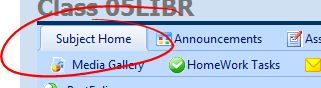
To set up your Curriculum Map, click on the class’s link on your eWorkSpace home screen> Click on the Subject Home button (pictured below) to publish your map for all the classes in that subject (for more on this, see this page)> Click on the Curriculum Maps button.

The Subject Home button

This will get you to the page where you can create a new map by clicking the Add new Curriculum Map button. Give your map a general name (either related to the timing of the unit, ‘Term x’, or the topic covered, ‘Weather’), leave all the settings as they are and then click ‘Save Map details’. To add sub-topics to the overall topic (Week 1, Storms, etc.) go into it by clicking its name and then click the Add new Row link. Here you can name the sub-topic, designate when it starts and tell eWS how long it will run for.

Once you have added a row, click the ‘Edit Map item’ button to add key questions, a description of the sub-topic and any assessments attached to it.

If you found all that a bit hard to follow, here it is in numbered dot points:

1. Click on the class’s link on your eWorkSpace home screen.

2. Click on the Subject Home button.

3. Click on the Curriculum Maps button.

4. Create a new map by clicking the ‘Add new Curriculum Map’ button.

5. Give your map a general name (either related to the timing of the unit, ‘Term x’, or the topic covered, ‘Weather’), leave all the settings as they are.

6. Click ‘Save Map details’.

7. Add sub-topics (Week 1, Storms, etc.) to the overall topic by clicking its name then click the Add new Row link.

8. Name the sub-topic, designate when it starts and tell eWS how long it will run for.

9. Use the ‘Edit Map item’ button to add key questions, a description of the sub-topic and any assessments attached to it.

Posted in Curriculum Maps, eWorkspace, Term Planners | Leave a comment

Sharing documents

Our computer network allows us to share documents more easily than ever before. This is because of innovations on the web and also the way that documents are created using applications such as Word. If you are interested in creating documents for sharing, consider the information below.

What type of document are you creating?

When communicating, we can currently choose from a range of presentation types from written text to video. The decision about which one will be the most appropriate comes down to the nature of the information and the size of the document you want to create.

Sizewise, the continuum goes from all text being the smallest, then text with some pictures, then mainly pictures, then audio and the biggest by far is video.This is an important consideration when creating documents as small documents can easily be shared over the web while larger ones may not even fit on a memory stick.

As a result, use a less is more approach. Think about what you really have to say and then decide the bast way to communicate it. If you have a lot to say, write it. If writing doesn’t suit your purpose you might need to make a series of short audio or video ‘episodes’ to convey your message as these can be more easily transferred from place to place.

While all of these documents can be shared using eWorkspace, you can also consider the following sites to share documents with your students or colleagues.

Sharing text or text + images

Text documents and PowerPoint presentations can be shared using the Publications Area of eWorkSpace. For more information on how to put stuff there, check out this post.

Google Docs allows you to import or create documents to share on the web. This means that they can be accessed by anyone (that you give access to the document), anywhere (that there is an internet connection) at anytime (ummm…yeah).

Google Docs has a Word type word processor and a PowerPoint type presentation maker but both of these have reduced functionality when compared to the MS versions. This impacts what they can do when you create the document in Google Docs and also which functions (templates, themes) they support when you import documents. What your documents may lack in pretty, however, they make up in accessibility.

Google Docs docs can be shared via a URL or embedded into many other types of web2 tools such as blogs and wikis by using the Share drop down menu at the top right-hand side of the screen. Say goodbye to memory sticks, not having the file to print, fax machines…

For some examples of documents that I have created or added to Google Docs, click here, here and here.

This will be much easier once we all have accounts through Google for our email but to use Google Docs, simply follow this link and create an account. The rest is pretty straightforward. Once you have created documents, you can determine who can see and edit them using the share button but remember, we should not be sharing publicly anything that identifies our students by name or any images of them (unless we have adequate consent.

Sharing images

Images can be shared through the Gallery section of eWorkSpace (I haven’t done a post on that yet). If you are looking for another avenue to share images, see below.

In order to share an individual image, just upload it to any number of sites custom-made for doing just that. You could create an account on flickr for example or, if you have a Twitter account, you could put it up on yfrog (pronounced like y’mum I guess…).

If you want to share a series of images, you could put them into a PowerPoint Presentation and share it through the Publications Area of eWorkSpace or create one using Google Docs

Sharing Audio

eWorkSpace has a function that plays mp3s using a quicktime player automatically. Students can listen to and/or download audio files depending on how you share them.

If you put it in the Media Gallery section, the students will be able to listen to it in the player that opens when they click the file’s icon (not link) but, when you use this feature, there is no opportunity for the student to download the file.

If you put it in the publications area, on the other hand, they can listen to it by clicking the file name (there is no icon) and download it by checking the box and clicking the Download Checked Files link. This will download it as a zip file so they will have to unzip it before they can put it onto their music playing device (iPod).

You can also post it elsewhere online and put a link to it from eWS (in a blog post for example). I have used posterous (although podomatic are pretty big too) for this and it seems pretty usable. For details about this and getting the recorder and downloading the necessary software, see this post: https://timthelibrarian.wordpress.com/2011/06/07/podcasting/

Sharing Video

Sharing video using eWS is much the same as audio (see above). Both using the Publication Area and the Media Gallery will launch a player that plays your video but only the Publication Area will allow you to download the video (as a zip file). I do warn you, though, that it is a bit crashy so make sure that you save anything you have open before you attempt this and give it a couple of goes as it may not work the first time.

NB: I have only tried this with .avi format video recorded from the Canon Digital camera from the library and edited using Movie Maker.

If you would rather share videos online, see this post: https://timthelibrarian.wordpress.com/2011/05/05/uploading-videos-to-youtube-etc/

The salient points

Text is small, images are bigger, audio is large and video is massive so if you want to share these over the network or internet, consider how the size of your document will affect its sharability.

…and…

We do not have permission to publish information about our students or images of them online.

Posted in Audio, eWorkspace, Google Docs, Images, Media Gallery, Publication Area, Video | Leave a comment

Online Whiteboards

An Online Whiteboard can be used as a collaborative space for your class. By accessing the whiteboard using a desktop or notebook, students and their teacher can create and work on this shared document in the whiteboard format.

Once you have created the whiteboard, all you need to do is share the link with your students and away you go.

Here are some examples of sites where you can go to create an online whiteboard.

Scriblink

This is the site that will come up first when you google ‘Online Whiteboard’. I haven’t put a link to it because the times that I have tried to open it it just immediately crashed IE and then put some junk on my desktop.

Dabbleboard

Dabbleboard is the second one to come up. This one works well and provides you with the ability to control elements once they are on the page. Use the freehand button to create drawings or deselect it to create shapes (it’s pretty good at guessing the shape you’re trying to make).

To share your whiteboard with others, click the ‘Invite Others’ link in the box on the right-hand side of the board (see the sharing links section at the bottom of this page).

CoSketch

CoSketch (pictured above) was the most popular in our little PLT trial session. It allowed all of us to collaborate on the board at once and updated itself reasonably frequently. The tools on the left-hand side allow you to change between a drawing tool and a text editor (which works by holding the cursor over the screen where you want to write, creating the text and then pressing enter to place it on the board).

The problem that I have found with this one is that, once something has been put on the board, I couldn’t work out how to edit or change it. One of the good things, on the other hand, is that you can scroll back through the additions that people have made and, by clicking on the entry, undo up until that point.

The Downside

While these boards are great for brainstorming and other collaborative tasks, there is minimal possibility of creating a board for use beforehand. This is because either the board is reset when the main user leaves or after a short time of inactivity (10 mins). There is also no ability to save the boards (in the free versions at least). If you want to create that sort of activity, you are better off to using Smart and the IWB in IT3.

These sites also lack the ability to easily attribute changes to individuals so, if someone graffitis on your board, it will be hard to work out who did it. On the upside, tracking back through the changes can mean that you can easily restore an earlier version of the board from before the offending change was made.

Posted in Online Whiteboards | Leave a comment

Staff ICT Check-up Sign Up Sheet

Sign up for your ICT check up without leaving your office! Just click this link, check your timetable, put your name next to the time that you want and hit save.

Posted in Check-ups | Leave a comment

Yet more Excel stuff

…and I have added a new section to the top of the post ‘How to basically function using Excel‘ on how to get Excel to show those leading zeros that disappear from the front of student numbers and so on.

Posted in Excel | Leave a comment