Gold Star PowerPoint

Teaching PowerPoint is not just about showing kids how to add a new slide and change the font size (although it is that too). We should be teaching some stylistic points so that our students don’t go out into the world making embarrasing, boring PowerPoints which they will be teased for and bullied in the workplace.

PowerPoints should be clear and easy to read, help the audience follow your talk and bring them back if they drift off for a bit. Your PowerPoint should also add to your talk but not dominate it. Everything about it from the amount of text to the design and animations should be minimal.

There are a great deal of resources available online about creating good and bad PowerPoints. These are of varying quality and some have conflicting messages (do use bullet points, do not use bullet points…). I have distilled some of these down into this post which you can share with your students.

Overall style

Use a consistent style throughout the presentation. This goes for background, font, colours, etc.

In a dark room, a light text on a dark background is better than a dark text on a light background. Both are better than dark on dark or light on light. Obviously. Yellow on dark blue works well.

Backgrounds should be of one colour. Having a graded effect can look good but also keep it to one colour (blue to darker blue for example).

Font, font size, colour

Sans serif fonts such as Arial, Calibri and Helvetica are easier to read than serif fonts such as Times New Roman and Cambria.

Use a font size that your audience can easily read. To check, stand two metres away from your computer and run through your presentation.

Overusing capital letters makes your PowerPoint hard to read. Similarly, only use bold or italics to emphasise a word – if everything is emphasised then nothing is.

Avoid fancy font styles and colours. Don’t write in red as it is straining on the eye and the colourblind portion on the audience won’t be able to see it well.

Content

Less text is better. Try to keep to less than 6 bullet points per slide and less than 10 words per bullet.

Address one concept per slide as you would paragraphs in an essay.

Transitions and animation

Transitions look nice. Go for it.

Regarding animations, Chad Orzel of the Uncertain Principles blog has this to say:

“There’s some setting in PowerPoint that assigns a random animation effect to each new item that appears, and students almost invariably go for this. Whenever I see it, I want to beat them senseless with an eraser.”

You can get a lot of mileage out of simple animation, revealing important information a little at a time, but the carnival of animation effects is incredibly distracting. Pick one effect, and stick with it. I recommend “Appear,” but I don’t object to some of the fade-in effects. The one where a text item drops from the top of the screen and bounces three or four times before settling into place should never, ever be used…”

Multimedia

Presumably you will be talking during your presentation so your presentation should keep quiet.

Videos may work on your computer and then not work on the computer that you are using to show the presentation, so don’t use them or check that they work beforehand. This applies to music too. Linking to YouTube will work as long as you are connected to the internet (but preload your video just to be sure).

Images can make your presentation look a bit more lively but if you have too many they become distracting. Try to keep it to one image per slide, don’t use an image as your background and don’t write over images.

Introduction and conclusion

You should have a clear topical theme throughout your PowerPoint which should be stated in your opening slides and reitterated in your concluding ones. Once you have done that you can put in an ‘Any Questions?’ slide if that’s appropriate.

Resources

I used these two resources when writing this – neither of which are any good to share with your students:

Tips on How to Make a PowerPoint from Utas & How to do a good PowerPoint Lecture from Uncertain Principles.

If you have any to contribute, please add them to the comments!
Posted in PowerPoint | Leave a comment

Podcasting

Some organisations have gone into podcasting in a big way. Podcasts allow you to create audio content which is then accessible to your audience wherever and whenever. This has obvious advantages for revision and also presents an interesting alternative to the oral report for our students.

This post explains the process of creating, transferring to your computer, editing and publishing your podcasts and at the end I will attempt to expose some of the billions of awesome podcasts that are out there for your information, inspiration and entertainment.

Do I really sound like that?

Kerri The school has a bunch of Sony IC Recorders that you can break into her office and steal now borrow from the library. They create a file in MP3 format which are easy to use. Once you have gotten your hands on one, follow these steps:

1. Make sure it has a charged battery in it.

2. Turn it on by sliding the Hold<.>Power switch to Power.

3. Set the date and time if you need to.

4. Press the Rec/Pause button to begin recording, talk at it and then press the stop button once you’re done.

I know it’s in here somewhere

To get the MP3 that you have created off the recorder, follow these steps:

1. Open the USB connector that lives inside the device using the slider on the back.

2. Plug that directly into your computer’s USB port or use the little extension thingy that comes with it.

3. Find the device by opening Windows Explorer (Windows key + E) – it is called ‘IC Recorder’ and will appear where you would find your memory stick.

4. Open the folder that you created your podcast in (it’ll’ve automatically put it in Voice>Folder 1 unless you told it otherwise), find the correct file and transfer it to your computer.

5. Once you have finished, delete the file from the recorder using Windows Explorer, turn off the device, remove the battery and sneak it all back into Kerri’s office return it to the library.

Chop and change

To edit your podcast, you need a program like Audacity which, at the time of writing, could be downloaded here (if it isn’t there anymore, just google Audacity and it’ll come up). While you’re at it, download LAME from here and follow the steps to install it so that you can keep things in MP3 format (otherwise Audacity’ll only be able to create WAV files or something). Once you have downloaded Audacity and installed it, do this:

1. Open Audacity go to File>Open and open your podcast file.

2. Remove long pauses by selecting a section of the audio (click, drag and unclick to select) and then hit the Delete key.

3. You can copy and paste by selecting some audio (above) and typing Ctrl + C (Copy) and Ctrl + V (paste).

4. There are many more functions and keyboard shortcuts that can be explored in the Edit menu and some other baffling options in the other menus (Auto Duck!?!).

5. Once you have edited your file to your heart’s content, save it as an MP3 by going to File>Export Selection and selecting ‘MP3 file’ in the drop down menu at the bottom of the screen beneath the file name.

Viola!

Where can I put it?

Now that you have a podcast ready for publication, you can publish it in eWorkspace using the Media Gallery tool (and if you’re having trouble using this, call me).

If you want to publish it to the world you will need to create an account at one of the many websites that hosts podcasts. I put mine up on posterous.com and you can listen to the embarrassing result here.

Information, inspiration, entertainment

If you are looking for podcasts to share with your students, you can’t do much better than the radio stations. The ABC have a range of podcasts of their various shows available online as do many others. There are also any number of podcasts that you can find by googling terms like ‘education’ and ‘podcasts‘ such as this Sixty Second Science podcast. Ace!

Want to see a teacher in action? Check out Andrew Douche’s Biology Podcast that he publishes for his (and everyone else’s) VCE biology students.

If you’re simply looking to be entertained, there are tonnes of podcasts that you can download from iTunes. Download iTunes here and click the podcasts link to search or trawl through their impressive list.

Share your podcasting experiences below!

Posted in Podcasting | 3 Comments

Adding links to the Online Learning pages

The ‘Adding Learning Objects from…‘ post isn’t clear enough about how to edit your online learning pages, so here are some more comprehensive steps. At the bottom of this document is the location of the How To stuff on the S drive.

1. Open My Computer (Windows key + E).

2. Open the K drive.

3. Open your year’s folder (i.e. Year 3).

4. Find the page that you want to edit (it will have the blue Internet Explorer logo on it).

5. Right-click the file and select Open With>Adobe Dreamweaver CS3

6. Add some text or an image to link from. You can do this by replacing some text (selecting the <<Insert Text Here>> text and then writing over it) or inserting an image (selecting the <<Insert Image Here>> text and pasting an image over it).

7. With the text or image selected, add the link by pasting it into the Link field at the bottom of the page.

8. Deselect the text or image (by clicking somewhere else on the page) and save it (File>Save)

9. Let me know and I will update the online version of the page.

How do I know if it has worked?

Once you have saved the page, follow these steps:

1. Open My Computer (Windows key + E).

2. Open the K drive.

3. Open your year’s folder (i.e. Year 3).

4. Find the page that you want to check (it will have the blue Internet Explorer logo on it).

5. Double click the file to open it with Internet Explorer – this will be the page the kids see when they go to their online learning page.

There are more comprehensive instructions on the S drive at: S:\Professional Learning Resources\WebPage Design

Posted in Online Learning | Leave a comment

Staff ICT Check-ups

At the last staff meeting I introduced the ICT check-ups. I am pleased by how many of you have gotten these back to me already – thanks very much!

If you want to recall what they are all about, I have put the talk on google docs along with the presentation slides (both have some hyperlinks to explore if you’re interested):

I am also really excited about this work in progress:

As you can see, it is the same rubric that many of you have completed but I have added hyperlinks to it. These take you to resources that help you progress to the next descriptor. If you have any resources that you would like to share to help fill out the rubric, please let me know!

What now?

If you have already done the rubric then I will be getting in touch about arranging a meeting to discuss what comes next. If you haven’t already done it, please try to have a look at it before the holidays – it definitely won’t take long.

Posted in Check-ups | Leave a comment

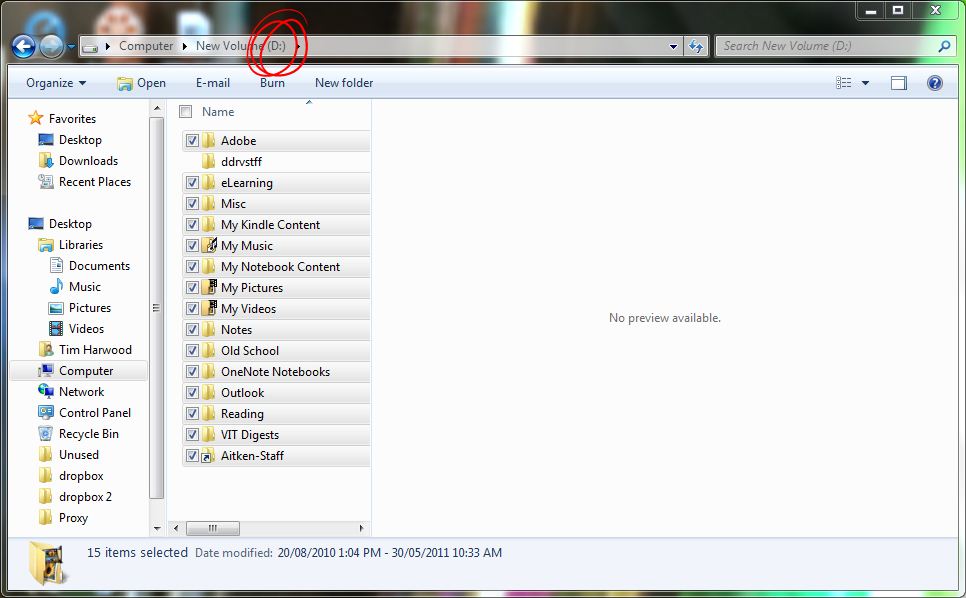
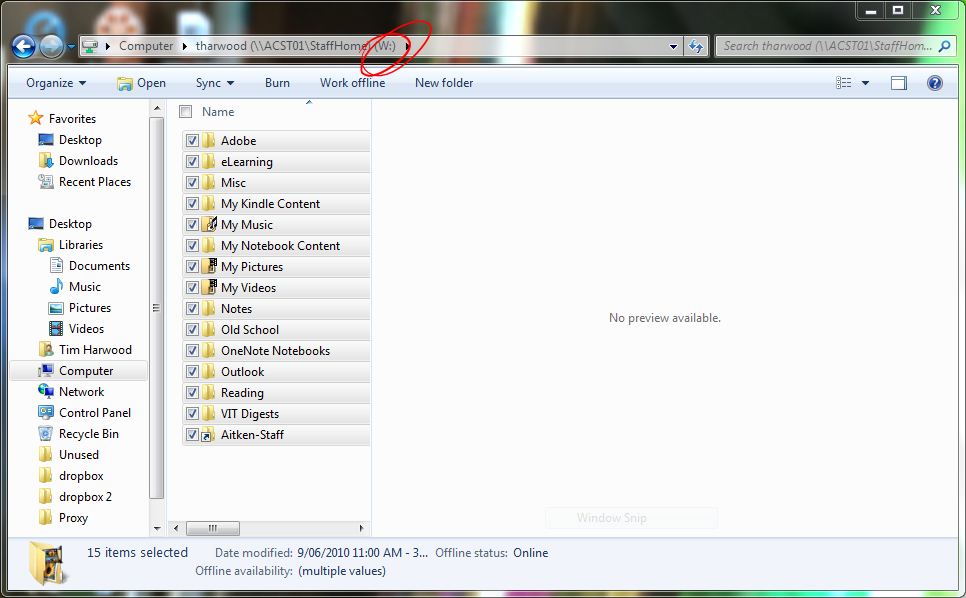
How to back-up your W:

Everyone on staff (and students too for that matter) should have a back-up of their W: somewhere – it’s just good computing.

Doing so is really easy, just follow the steps below:

1. Select everything in your W: and Copy (Ctrl + C).

2. Open up the drive that you want to back-up your W: to and Paste (Ctrl + V).

3. Once you have done this the first time your W: and your back-up will look the same. When you want to back it up again, just select everything in the W: and Copy as in step 1 and then select everything in your back-up and click paste as in step 2.

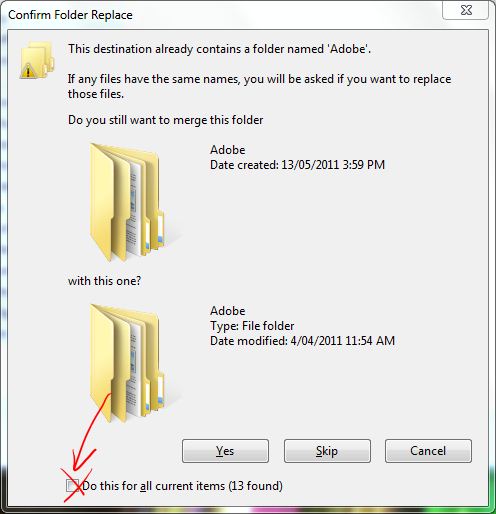
When you do this you may get this dialogue box:

Check the box indicated by the red arrow and then select ‘Yes”.

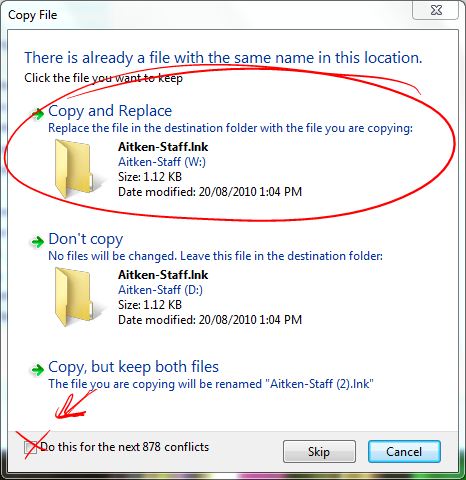
You will then get this dialogue box:

Once again, check the box indicated with the red arrow and then select “Copy and Replace” (circled) and it will overwrite your old back-up with the new one.

Done!

Posted in Back-up | Leave a comment

Why, where, how to blog

Blogs are a great communication tool. If you are still confused about what a blog is exactly, watch this video. Blogs can be used to provide instructional information to your students that they can access anywhere and can be used by your students to show the progress of a task from conception to execution. These are just two examples of ways that teachers have been using blogs. Moreover, they are easy to create and use and there are many free ways to begin.

Why?

In the above introduction I mentioned a couple of ways that teachers have been using blogs; however, these don’t touch on all the possibilities that blogging can provide. Because blogs are online they are available to staff and students anywhere at anytime. There is also the possibility of making very media-rich documents using a blog that can include photos, videos and links to other resources. Furthermore, blogs are a collaborative tool that be set up to allow many authors to work together on a single document or readers to contribute to your work.

Where? (and how)

The easiest way to set up a blog to use with your class is in eWorkspace. This can be done by both students and teachers and provides a password protected environment where an author can publish his or her work.

Blogs in eWorkspace are set up thus:

1. Click the class’s hyperlink

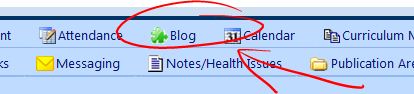
2. Click Blog

3. eWorkspace will take you to the page where you name and describe your blog. You will need to click the ‘Allow others to see this’ box.

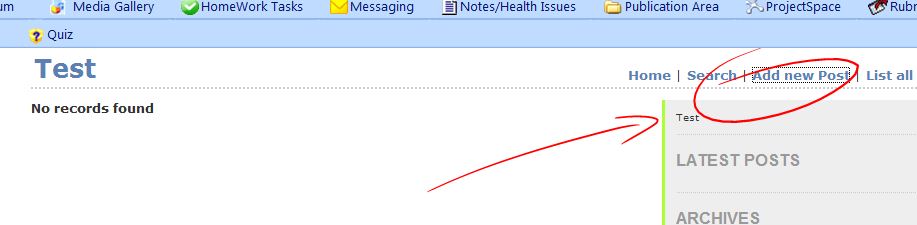
4. Your blog is now ready to use! On the right-hand side you will find a link where you can ‘Add new posts’.

This will take you to the screen where you can create posts and add media. It works much the same as Microsoft Word does so it is pretty easy to use. If you are having trouble identifying an icon just hover the cursor over it and a text box will appear to explain what it is. You can hyperlink text (or images or whatever) using the icon circled in the image below.

If you are feeling adventurous or would like a blog that looks a bit prettier, there are many sites that off free blogging. The two main ones are Blogger and WordPress but that is just the tip of the iceberg. You need to make sure that you consider the ESAUA when you set up your blog and also that you protect the students’ privacy.

Other people’s blogs

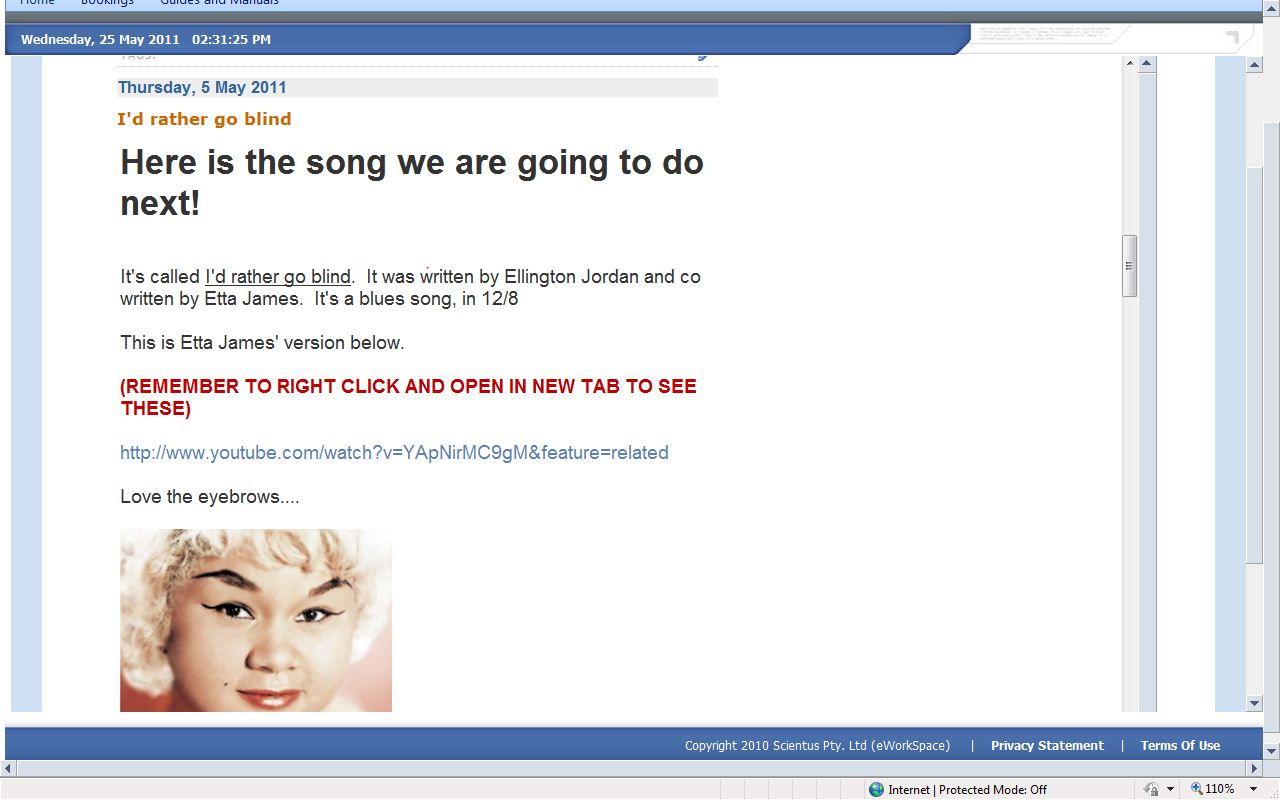
There are some great blogs out there if you would like to get some inspiration. Right here at Aitken Monet is writing a blog (pictured below) for her VCE music class where she shares links and gets feedback from her students.

There also are tons of blogs about eLearning (really!) and school libraries. Some examples are: Tech Tools for Teachers, Andrew Douch’s Weblog, Weblogg-ed and Hey Jude.

And pretty much any topic you care to imagine.

What are we going to do with it?

The three main things that I can come up with involve sharing information, collaboration and watching an idea develop.

My blog is mainly about sharing information. I don’t get people to contribute articles and people very rarely comment on my posts (sniff). However, by putting stuff on here, it allows you to access it anytime and anywhere and see step-by-step instructions, pictures and videos and links related to a topic.

But blogs don’t only have to be instructional. Students can use blogs to develop ideas, test hypotheses, create networks, analyse and synthesise information and much more.

If you have any ideas for using blogging in your classroom, add a comment below or bring them along to the blogging PD session!

Posted in Blogging | 2 Comments

Wiki privacy

I just got the following email from Laura H:

Hi All,

One of my kids Googled her name last week and found a link to one of my Wiki pages where she had posted the draft of her debating speech. In the speech it said “my name is…I am from Aitken College…” That quoted info was coming up on Google.

I contacted Wiki Support to have the link removed from Google and they’re onto it. In the meantime though, they sent me through the following instructions to make sure that my Wiki content won’t appear in search engines again:

1)      Go to your Wiki and select “manage wiki”

2)      Select Wiki Info

3)      Scroll down the page and uncheck ‘allow search engines to index my wiki’ then press ‘save’.

Thought you guys might find the instructions helpful too.

It is important that we remind our students that they should not be publishing their own names online as part of their school work and we should also follow these instructions so that this information is not coming up in Google searches.

Thanks Laura!

Posted in Digital Citizenship, Wikis | Leave a comment

What is the difference between a blog and a wiki?

The people at the internet have created these videos to tell us in plain English (albeit with a fairly strong American accent) what a wiki is and what a blog is.

Blogs:

Wikis:

The differences

Even though the two are both ways to publish information online, the main differences lie in their organisation.

A blog is organised as one long page of information whereas a wiki is a series of pages that inter-connect. As a result,

You would use a blog as a journal online where your most recent thoughts are at the top (like this blog).

You would use a wiki to display equally important information linked to from a central page (like Wikipedia).

Blog-like characteristics in wikis and wiki-like characteristics in blogs

While these differences are characteristics of the two applications, many blogs (such as this one) have an index along the side that keeps track of the topics covered. In the same vein, many wikis will have a box that shows the most recent contributions. So, yeah.

Hope this clears things up.

Posted in Blogs | Leave a comment

Black belt Google

I just found out about this one from Judy O’Connell’s blog Hey Jude. In her most recent post she talks about Google Images’ new sorting function (and our responsibility as educators to inform our students of their responsibilities as users of images with copyright).

Check out the video below to see it in action and visit Judy’s blog to find out more about making our students good digital citizens.

Posted in Digital Citizenship, Google, Google Images Sort function | Leave a comment

Online Student Profiles

The Guidelines

We have created some guidelines to make it easier to get students working online. These are published in full at the bottom of this post and also available in the publications area of eWorkspace.

Use eWorkspace

By far the safest and easiest way to get students working online is by using the eWorkspace. It is a very no-frills functional platform for creating forums, wikis, blogs faqs and so on – and you don’t have to create users at all because the students are already on it!

Privacy Issues

For privacy reasons, students should not be asked to publish their full names online. In other words don’t ask them to (or let them) set up an account where the username is Joe Bloggs of their name is Joe Bloggs. The formula to create a username for the students is in point 4 of the guidelines.

Publishing using their own names

If they do want to publish stuff themselves and put their name to it, if they have taken a nice photo and want to share it on flicker for example, they must do so outside of school hours and make sure that what they publish complies with the Electronic Services Acceptable Usage Agreement. Note that point 8 of the Agreement states: Publishing of unauthorised material that identifies or depicts Aitken College students, staff or activities, or reflects badly on the School’s image and reputation is not permitted.

How to create usernames

When using third party websites, whenever possible, create a teacher account that allows you to set up their usernames and passwords. When you do so, in order to avoid confusing them, use this format: tim15979 (first name student number). When you can’t set up their names for them, get them to follow the same formula and make sure they do so by building it into the assignments assessment criteria (eg. Successfully set up a correctly formatted username and password: X marks).

Some other (very important) things to consider

Do not use or allow the students to use their Aitken College password; make sure anything they publish complies with the Electronic Services Acceptable Usage Agreement; and, make sure that you and your students comply with the terms and conditions of the website that you are using especially regarding the use of copyright material and age requirements.

The Guidelines:

  1. When possible, use the applications available on eWorkspace (blog, wiki, projectspace, etc).
  2. Students should not be asked to publish work or create accounts online that reveal their full names.
  3. If a student desires to publish work online using their full names (to add that work to an online portfolio, for example), they can do so in their own time.
  4. Teachers should create accounts for their students whenever possible. This is often available when a site offers an educator subscription. When doing so, teachers should use the following format: student number, first name (tim15979). If this is not available, add a letter or number to the end. This will help to identify the student and avoid the students having to remember too many usernames.
  5. In the event that a student needs to create their own username and password the same format should apply (this can be easily built into the marking rubric for the task by adding a criterion such as ‘Created a username and password successfully – x marks’). Students should not use their personal accounts for the purpose of schoolwork.
  6. Students should not use their Aitken College password when creating accounts.
  7. At all times staff and students must comply with the Aitken College Electronic Services Acceptable Usage Agreement.
  8. Staff and students must comply with the Terms and Conditions of each website, particularly when these dictate the minimum age of the user.

Hope this helps!

Posted in Digital Citizenship, ESAUA, Online Profiles | 1 Comment