Tablet Kung Fu

At today’s PLT meeting we discussed a number of tools for use with the tablet PCs. In particular we discussed the snipping tool and problem solver, YouCam, writing on PowerPoint presentations and also the functions of the buttons on the tablet.

The Snipping Tool

The snipping tool is fairly straight forward as it only does one thing and that is to take a shot of the screen. Why is it better than hitting function+Prt Sc? Because you can more easily define the area that you want to shoot and then save it straight away in a variety of formats. I also like the way that you can write on you screen shot once you have captured it.

Using the snipping tool:

1. Search for the snipping tool in the search box at the bottom of the Start menu (if you use it often enough it will add itself to the list above the search box).

2. Decide on the area that you want to capture. The following comes from the Windows Homepage:

  • Free-form Snip.  Draw a free-form shape around an object.
  • Rectangular Snip.  Drag the cursor around an object to form a rectangle.
  • Window Snip.  Select a window, such as a browser window or dialog box, that you want to capture.
  • Full-screen Snip.  Capture the entire screen.

3. Once you have taken the snip and drawn on it ’til your heart’s content, you can choose whether you want to save it as a png(?), gif, jpg(!) or mht.

The Problem Steps Recorder

The Problem Steps Recorder is another Widows 7 device that allows you to capture the steps involved in carrying out a task on your PC. The advantage to using this is that it highlights the fields where you carried out an action and annotates each step automatically. The result is an html document that shows step-by-step the way that you did something.

Finding it can be a bit tricky but if you put ‘problem steps recorder’ into the search box in the Start menu it will come up as ‘Record steps to reproduce a problem’. Once you have opened it it will appear on screen and in your task bar.

1. Click ‘Start record’.

2. Carry out the task that you want to reproduce.

3. Once you have finished the program will automatically save the problem as a zip file for you to extract or share.

Here is a video on how it works from Tekzilla (thanks Titus!).

CyberLink YouCam

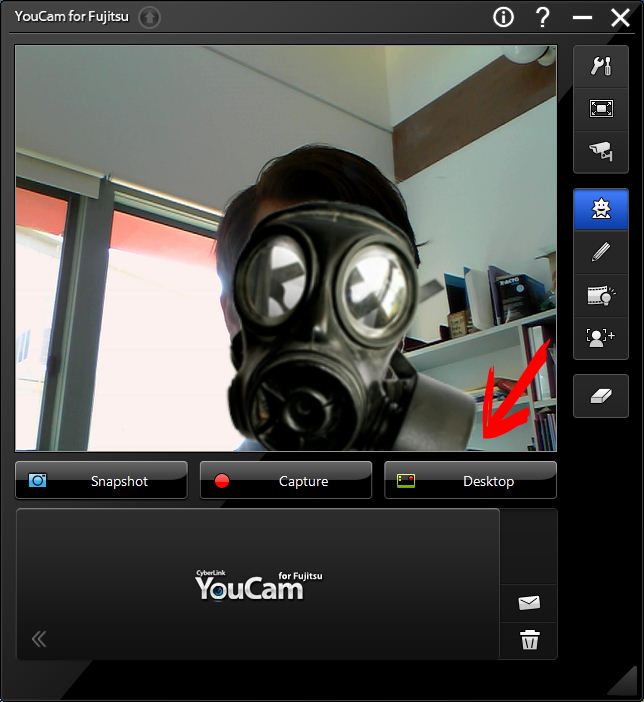
CyberLink YouCam allows you to take photos and record video from the inbuilt webcam and capture activity on the screen with sound.

To take a photo with your webcam click Snapshot. This will give you a 3 second countdown and then take a photo of whatever the camera is looking at.

To create a video using the webcam click Capture. This will give you a 3 second countdown and then record whatever the camera is looking at. Once you are done, click stop and it will save the video as in WMV format.

To capture the screen click Desktop. This will move YouCam to the bottom right of your screen and start recording once you press capture. Note that you can designate the area you want to capture in the options listed. Once you have finished click the stop button and return to the main screen by clicking ‘Restore’.

YouCam automatically saves your work somewhere and, in order to find it, just right-click on the icon of your file (at the bottom of the screen) and select ‘Locate File on Disk’. You can also configure YouCam to save to a particular location using the settings button pictured below.


Writing on PowerPoint presentations

To annotate a PowerPoint presentation follow these steps:

1. Make sure that, if you want to save the annotations, you save an alternative version before you start.

2. Start the presentation.

3. Press and hold the pen on the screen to open the pen options menu and change the function from pointer to pen.

4. Use the tablet up and down buttons (see below) to scroll through the presentation and the pen to annotate.

At the end of the presentation PowerPoint will ask whether you want to save these annotations.

The Tablet Buttons

There are five buttons on the tablet screen. In order to work out what they all do, have a play. If you are a more methodical type, then you can download the Fujitsu T730 User’s Manual here. The description of these buttons is on p.27.

Please share your uses of the tablets as well as how tos, YouTube videos, blog post, etc. on using tablet pcs in the comments below.
Posted in PowerPoint, Problem Solver, Snipping Tool, Tablet PC, YouCam | 2 Comments

Maintaining your online profile

To view the presentation slides for the talk on maintaining your online profile at Google Docs, click here.

For the notes on the talk, click here.

Posted in Digital Citizenship | 1 Comment

Uploading Videos to YouTube, etc.

Important!

Before you upload anything it is important to note that, while the students have consented to having their images published on the Aitken College website, we do not have permission to show them on third-party websites.

Uploading Videos

Creating and uploading a video is easy, far easier than creating a PowerPoint presentation for example. As a result, they can be an excellent revision tool or they can be used as an independent study exercise in our multi-ability classrooms. If you need more convincing, check out what the inspiring Andrew Douch is publishing here.

Ok, you’ve convinced me. What do I have to do?

Firstly you have to choose a site to host your video. YouTube is ace because everyone knows about it but the kids cannot access it at school, making it fine for revision, no good for in class stuff. The advantage of YouTube is that everyone is familiar with it but, as the other sites work pretty much the same, you won’t have any trouble using them either.

Alternatives to YouTube

Our students have access to TeacherTube and Vimeo while at school so this makes them excellent alternatives. As mentioned above, these work much the same as YouTube although TeacherTube in particular gives you a great deal more control over the hows and whos of your video’s viewing.

The Basics

Once you have created your video using a digital camera or the webcam on your laptop (or in any other way) and saved it to your drive it is easy to make it available online: choose a hosting site, sign up, click the upload link, browse for your video, adjust the preferences (below) and then click the upload button. 

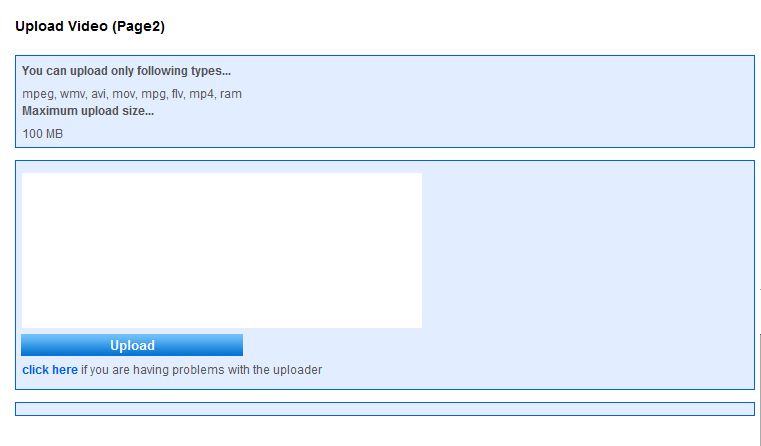
On TeacherTube this will take you to the following page:

In that big white square in the middle you will see the uploader. If it doesn’t appear (as has happened here) hit the click here link below and it will take you to a page that will work.

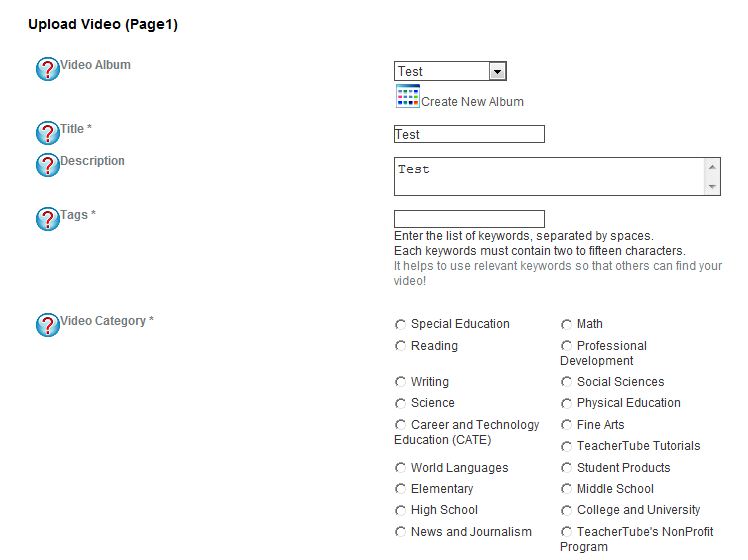
Once you have put your video on their it will give you the following options:

You will need to fill in all the fields marked with a star including categorising your video.

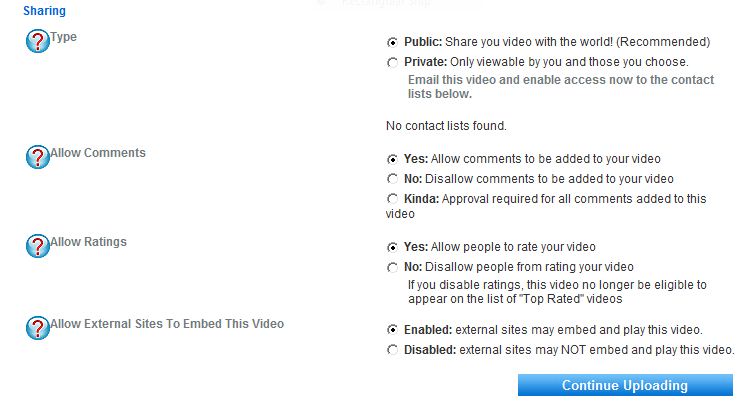
Once you have done that you can choose between the following options:

Which is ace because is allows you to choose who can view, comment on, rate and embed your clip.

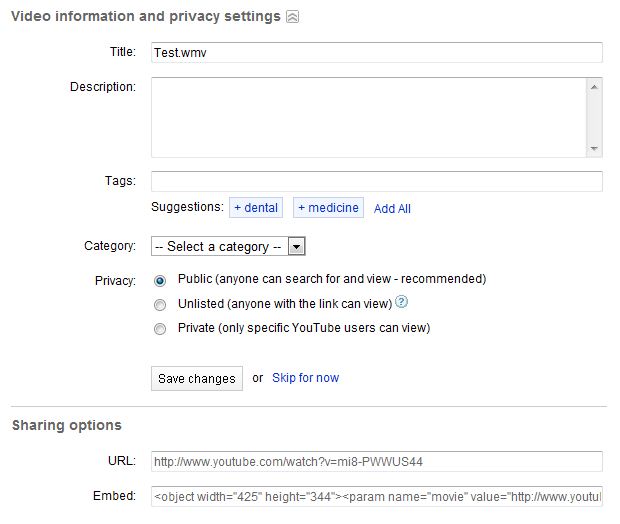
YouTube also has similar (but much more limited) controls over this depicted below:

And it is that easy: create the video, decide on the site, upload.

Don’t forget to let me know if you have put anything up!

Posted in Creating Video, TeacherTube, Uploading Video, Vimeo, YouTube | 3 Comments

Delicious bookmarks

Since I have just added an ace site to my Delicious page, I thought this would be a good opportunity to point out a few things about both sites.

What is Delicious and what is it for?

As we know, Delicious is a website where you can save your bookmarks. This means that if you are working on a few computers you will always have access to your favourite sites. It is also good if you want to share bookmarks with others (like your class) as the will only have to remember one URL.

How is it organised?

Once you have added a bookmark, you enter tags which allow you to find it again. These tags appear on the right-hand side of the screen in a truncated list with your top ten on top and a complete list below it (just click the arrow to expand). Because you add the tags these can be very personal. If you are creating a Delicious page to use with your students you can get tips on how to organise it here.

Don’t leave me hanging, what’s the other great site?

I have just added Google Directory to my bookmarks because it is like Google but if Google were run by humans and not robots. Take a look at it by clicking the link above or entering the not-very-helpfully-named URL: http://www.google.com.au/dirhp?hl=en 

The front page is very similar to regular Goolge but below the usual search box is a list of topics and, by selecting one of these topics, you will be taken to a page with more specific topics about the parent topic. Great for assignments!

And then everybody died. The End.

You can keep track of the stuff that I am bookmarking by taking a look at the Delicious Widget on the right-hand side of this page. It’s the one with the heading ‘delicious.com/tmh1136’ and is wedged between the Aitken Library Twitter feed (labelled ‘Aitken Library’) and the search box. The widget displays my five most recent bookmarks.

Happy holidays!

Posted in Delicious, Google, Google Directory | Leave a comment

Turning a Scanned Document into a Word Document

You would think it would be easy to work out how to turn a scanned document into a Word doc but it isn’t. Fortunately, it is easy to accomplish once you know what to do, just follow the steps below (borrowed from wikiHow):

1. Scan the page – our scanner will automatically save it as a PDF document.

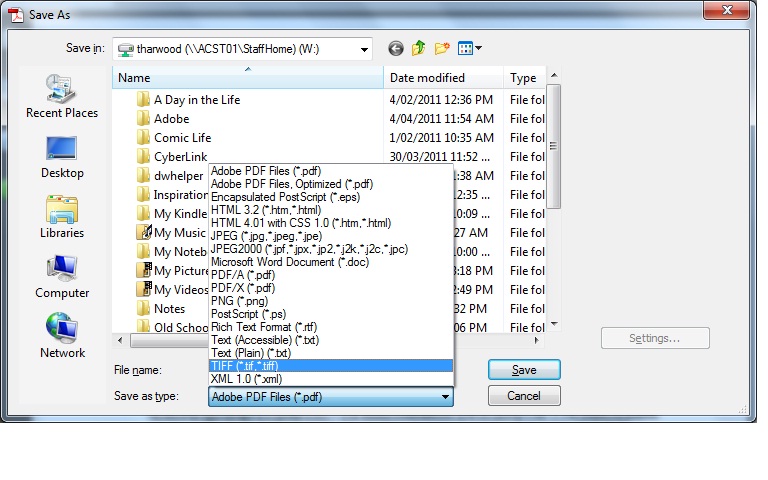
2. Open the PDF, go to File> Save As and in the ‘Save as type’ field, select TIFF (below).

3. Open Document Imaging: Start> All Programs> Microsoft Office> Microsoft Office Tools> Microsoft Office Document Imaging.

4. Go to File> Open and browse for the TIFF file.

5. Click the Tools menu and select the ‘Send text to Word’ option. This will open a dialogue box, ignore it by clicking ok.

6. Once it has completed this action it will open the document in Word that will, from experience, look like a bucket of smashed crabs so I will leave you with the pleasure of editing your document into something resembling words.

Posted in Scanning, Word | Leave a comment

ScreenCasting

There are heaps of programs out there that you can use to record the goings on on your screen (called a screencast). These programs are sometimes attached to your computer’s webcam but sometimes they aren’t. Nevertheless, they all work pretty much the same (by clicking record to record, stop to stop and so on) so really, it is just a matter of getting one and trying it out.

On a Tablet

All of the tablet PCs have CyberLink YouCam on them which has the option of recording your screen by clicking the ‘Desktop’ option.

Not on a tablet

If you haven’t got a tablet then you will need to download a program to make your screencasts for you. I recommend CamStudio as it is free and provides you with lots of options. You can download it by clicking this link. Once you have downloaded it you can check out one of the many online tutorials such as this one on YouTube. It’s great (sniff) because it … ummm … tells you how to set it up too. Or you can just play around with it.

Have fun with it!

Posted in CamStudio, CyberLink YouCam, ScreenCasting | 2 Comments

eWorkspace apps for the classroom

Our new eWorkspace has loads of applications that you can use in class with your students. From sharing resources to one to one communication, eWorkspace allows us to easily connect with our students in a closed environment.

While there are many applications on eWorkspace, this post will give you a brief description of the following tools: Blog, FAQs, Forum, Media Gallery, ProjectSpace, Wiki and Quiz.

Blog

A blog is an online journal that adds your most recent thoughts to the top of the list (and pushes previous thoughts down in doing so). Tim the Librarian is a blog so, as you can see, the most recent thing that I have added (this post) is on top and my previous posts follow on below.

Teachers and students can create their own blogs where they can create posts and comments, they can also comment on the blog posts of others.

FAQ

The FAQ (Frequently Asked Questions) application allows teachers to create a list of questions and their answers.

Students cannot add to or edit content created in this application.

Forum

A forum is a place where a topic (called a ‘Thread’) is created in order to be discussed. This can be used to post questions and receive answers (i.e. How do I get my chicken to lay eggs) or to hold a discussion on a particular topic (i.e. Why do chickens exist?).

Forums can be created by teachers and students. Anyone has the ability to reply to a thread once it has been created and respondents can reply to the thread in general or to individual replies.

Media Gallery

A media gallery is a place where you and your students can share image, audio and video resources.

Galleries can be set up and added to by both teachers and students. Preferences can be set on each gallery to allow others to view the collection and edit/contribute to the collection.

ProjectSpace

ProjectSpace lets you create an online space for selected students to share resources and communicate with each other about a project that they are working on as a group.

Teachers and students can add resources uploaded from their drives and create and contribute to discussions about the project.

Wiki

A wiki is an online database much like what we normally call a website. It has links to pages within the wiki and allows you and other users to create pages, link pages and comment on them.

Students and teachers can create wikis, add pages to them and contribute to each others.

Quiz

The quiz application allows teachers to create tests for the students to take online. These tests can involve essay style or multiple choice questions and eWorkspace gives you a great deal of control over the way that it administers this test (when the kids can take it, what they can see, whether they can see or take the whole test in one go, etc.).

Only teachers can set up and edit tests for the students to take.

Please contribute to the discussion below about how you have used these tools in the classroom.

Happy exploring!

Posted in eWorkspace | Leave a comment

Creating a markbook using Excel

Excel provides you with the opportunity to enter your marks into a spreadsheet that will then calculate the percentages and determine grades. This can be imported into Synergy making report writing quicker and easier.

By far the easiest way to do this is to get a markbook ready-made from a department head. Many departments have already made these and, in order to use them, it is just a matter of saving it somewhere, entering the students’ names and then filling in the grades as you mark.

It is not difficult to create one of these markbooks yourself though. To do so you will need to know how to get Excel to work out percentages, use a table to determine grades and use an equation to make the overall grades. To do so, follow the instructions below:

Percentages

The equation to create a percentage looks like this: =D4/25*100. In order to get there, do this:

  • Start with = so it knows it is an equation;
  • nominate the cell where you will enter the student’s mark (D4);
  • divide (/) by the total number of marks for the assignment (25);
  • times (*) 100 to get the percent

Fill down the column by clicking the plus at the bottom right of the active cell then drag this down the column and it will automatically adjust the formula for the other cells.

Grades

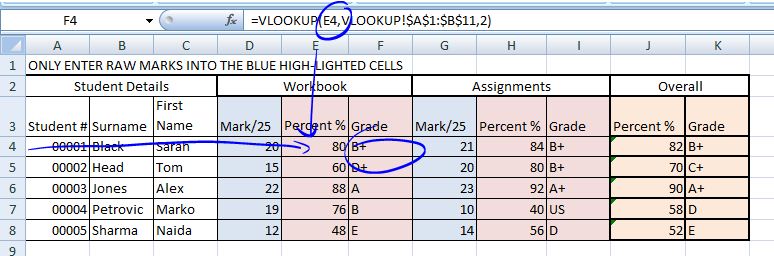
In order to get Excel to work out your grades, rename Sheet 2 to ‘VLOOKUP’ and insert a table with the scores and their corresponding grades then connect it to the appropriate cell with this formula: =VLOOKUP(H4,VLOOKUP!$A$1:$B$11,2)

The only thing that you have to change in this formula is to make the cell (in this case H4) lead to the right cell in your spreadsheet (the one that contains the percentage).

Fill down the column by clicking the plus at the bottom right of the active cell then drag this down the column and it will automatically adjust the formula for the other cells.

The Overall Percentage and Grade

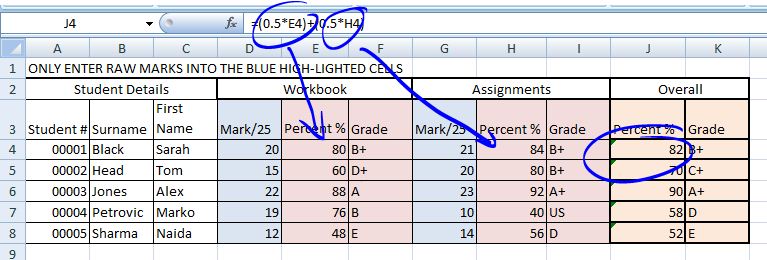
To get to the overall percentage you just have to add the percentages together relative to their weighting. For two percentages of equal weighting, the equation looks like this:

=(0.5*E4)+(0.5*H4)

Which means =(fifty percent (0.5) times (*) the mark for whatever (E4)) plus (+)(fifty percent (0.5) times (*) the mark for whatever else (H4)).

Unequal weighting looks like this:

=(0.25*E4)+(0.75*H4) where 0.25 equals 25% and 0.75 equals 75%.

Then you put in the VLOOKUP equation again to get the overall grade.

Good luck!

Posted in Excel, Markbook | 1 Comment

CyberSafety – Acceptable Usage Agreement

Regarding my earlier post about CyberSafety, the Electronic Services Acceptable Usage Agreement (ESAUA) is indeed on the S drive and is easily located in the Proformas folder (S:\Proformas\IT\Electronic Agreement Forms). It is worth familiarising yourself with this document as it covers ways that students can protect themselves and our network. There are several points in the agreement that are of particular relevance to my presentation at the staff meeting on the subject of CyberSafety and digital citizenship.

 CyberSafety

There are two points in the agreement that deal with protecting their identity and their electronic possessions:

1.   All users must login and logout correctly using their own name and password.

2.   Students must NOT attempt to find out or give away another person’s password, nor give away their own password.  Trespassing in other’s folders or files is not permitted.

By protecting their passwords online, they are protecting their identity. This means that other will not be able to create material in their name, nor will they be able to reach havoc with their stuff.

There are also points in the agreement that deal further with protecting their identity, respecting the privacy of others and protecting the reputation of the school online (Note: point 8 specifically refers to the publication of images of students): 

4.   All users must behave in a proper way when using the Internet and must not give other people any information about themselves, except with permission from a staff member.  This is both a safety and privacy issue.

7.   If students think there is something they have read or seen on the Internet which is not acceptable, they must tell their teacher immediately.  The problem must not be demonstrated to other users.  Downloading material that is drug-related, pornographic, of a violent nature or detrimental to the College is not permitted.

8.   Publishing of unauthorised material that identifies or depicts Aitken College students, staff or activities, or reflects badly on the School’s image and reputation is not permitted.

9.   Use of the Internet for any activity involving bullying, discrimination, harassment or breach of privacy will be dealt with accordingly.

Digital Citizenship

While at the school, our students should be taught not only how to keep themselves safe online but also how to be good digital citizens. This is a broad topic that involves recognising work that is not their own and obeying copyright laws among other things. In the agreement it is specifically covered in these points:

6.   In their school work, students must say where they found any information they use from the Internet or other online sources (Author, date and URL).

10.  Games are not to be used on any computer unless approved by the College.  (Downloading copyrighted games could result in legal proceedings).

While it is an emerging issue, copyright is something that students will be having to deal with throughout their lives and we need to be good role models when it comes to this. This involves ensuring that any material that we use in the classroom complies with copyright and that we don’t suggest to our students that we endorse breaching copyright in any way.

Posted in Copyright, CyberSafety, Digital Citizenship, ESAUA | 1 Comment

Referencing – Our problems solved!

Getting students to write bibliographies has always been a challenge and getting them to write one properly is even more so. Recently, academics have moved to using programs to generate their bibliographies and there is no reason why students shouldn’t take advantage of these time and trouble saving applications.

Fortunately, the State Library Association of South Australia has created a fantastic, user-friendly bibliography generator for students. You can have a look at it here.

The benefit of this one is that it provides a staged exposure to referencing by slowly introducing more options and detail over different age groups. Junior school students choose between 6 icons for categorising their material while senior students can choose from a list of more than sixty types of resources ranging from Film or DVD to Discussion group, listserv.

The site uses the Harvard Author-Date System and, once references are created they can easily be copied and pasted into a bibliography.

Using the site:

1. Go to http://www.slasa.asn.au/org/.

2. Choose your level (Grade 3-5 = Junior School, 6-9 = Middle School, 10-12 Senior School).

3. Select your material type from the list.

4. Complete the fields and press the enthusiastic ‘Create citation!’ button.

5. Copy the reference that it creates and paste it into your bibliography.

Let me know what you think!

Posted in Bibliographies, Referencing | 4 Comments