National Year of Reading

This year is the National Year of Reading!

(If you like the Jazzy Latin music and general presentation of this video, you can create one yourself using Animoto)

Says who?

According to their website: The National Year of Reading 2012 is a collaborative project joining public libraries, government, community groups, media and commercial partners, and of course the public.

Why?

Because, despite our high literacy levels, many people in Australia struggle with basic tasks like reading a newspaper or following a recipe. As a result, the folk at NYR are working to connect people with resources to help them develop their ability to read.

In addition to this the NYR site has resources for those with an already established love of reading and a desire for inspiration. These resources can be reached through the Love Reading link at the top of the page.

I’m in!

To join in on the NYR you can support the many well-established reading programs on offer such as the Premier’s Reading Challenge and CBCA Book of the Year Awards.

You can also visit the NYR website and check out the events they are running and the resources they have created and shared and connect your students to the same.

Finally, you can make your reading conspicuous by taking your book to class, reading with the kids, reading to the kids and talking about your reading (and their reading) with them.

Posted in Reading | Leave a comment

Student YouTubers

Aitken College has some very enthusiastic film-makers and vloggers who are putting their stuff up on YouTube.

Some of you might recognise the people behind Effective Fayul from your classes:

Others might know the owner of Quiet Space:

These kids have not only harnessed social media to a high degree but they have also spent hours learning how to edit their raw footage into the videos that you see on their pages.

If you see these kids around, let them know that they are being watched (it might make them more careful about what they put online), and tell them how impressed you are at their pursuit of self-directed learning opportunities! I’m sure they’ll like that.

To access a YouTube channel from a user’s name, just put it at the end of the URL thusly:

AitkenOnline: www.youtube.com/AitkenOnline

Posted in YouTube | Leave a comment

Anaphylaxis Training

Just a friendly reminder from the elearning coordinator that we all need to complete our online course before the session with the trainers on Monday morning.

To go directly to the login/create new account page, click here.

Don’t forget:

  • To write down your password somewhere handy because it is a doosey with numbers and capitals and non-alpha numeric stuff and…!
  • The course may take longer than you think (the pages are quite slow to load).
  • As Kim said, you should exit at the end of each module so that it saves where you’re up to. Otherwise, if the site crashes you will have to start from the start again.

Finally, make sure you print your certificate at the end of it to prove to the world that you are a partially trained anaphylexpert!

Posted in Anaphylaxis Training | Leave a comment

Further inappropriate use of… BBQ – Thank You!

A big thank you to everyone who was involved in running the BBQ yesterday. Well done, well run, well fed.

Ta!

Posted in Uncategorized | Leave a comment

Movie Maker update

The new version of Movie Maker (which many of our students will have at home) has done away with the Save Movie File option. Furthermore, files that are saved as projects are unfortunately not reverse compatible – they won’t work on our machines. This makes it more difficult for the kids bring a project they are working on at home and continue to work on it at school and it presents difficulties in showing the movie here at school.

Working on the film

The easiest way to manage this is to work on it either at home or at school – but not both. It might be possible to open and edit a project that has been created using our old version on their newer version at home but it certainly isn’t possible to do it the other way around.

Projects contain all the raw footage that go into making a film. If your students are at the end of the process and no longer need all of this footage (they just need to do some fine tuning, add titles, etc.), they can ‘publish’ the video as a WMV using the new version (below) and then import that file into the older version that we have.

Showing the movie (Publishing)

Movie Maker have updated their terminology so that now, in order to turn your film into a WMV (the format that will play on our PCs), you need to ‘publish’ the film. To do so, follow these steps:

1. Select File> Publish Movie.

2. Select This Computer from the list.

3. Click Next.

4. Name your movie and specify where you want it to go.

This will make a WMV version on your PC that can then be put onto a memory stick or burnt to a CD and submitted.

Posted in Movie Maker | Leave a comment

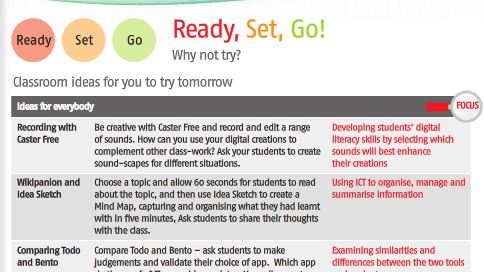
Free iPad apps from the DEECD iPads for Learning publication

The Department of Education and Early Childhood Development have put out a publication about iPad use in the classroom called iPads for Learning – Getting Started.

The document (pictured above) is best viewed on an iPad due to its formatting.

While there is a lot covered within it, possibly the best part is the list of apps that it recommends, describes and then provides lesson plan ideas for. The list contains both free and paid apps but here is a list of just the free ones if you want to try them out:

Personal/Organisation

None of the organisation apps are free – all three cost $5.59 each.

Collaboration/Visualisation

Both iDraft and Idea Sketch are free.

Creativity/Multimedia

Caster Free, Puppet Pals and PhotoPad by Zagg.

Arts

Groove Maker, Beatwave, RJ Voyager, Draw Free and Draw.

Maths

Quick Graph, Pocket CAS, Graphbook, Jumbo Calculator and Polldaddy.

English

iBooks (comes with it, I think) and Dictionary (from dictionary.com).

Science

Planets, SPARKvue, Brain Pop, Google Earth and Molecules.

Humanities

History Maps, Wikipanion and Wikihood.

News

ABC for iPad, BBC News, Getty Images, Reuters News Pro, Guardian: Eyewitness and AP: Associated Press.

More information

If you want to know more about what these apps do or how to use them in your classes, check out the original document here.

Posted in iPads | Leave a comment

Aitken College iPad basics

iPads are tablet computers that have captured this corner of the market. This post will look at the basics of iPads in relation to how they will be used at Aitken College.

How do I get one – to try

The best way to get you head around an iPad is to get your hands on one. Pat has about 5 iPads that have been set up for staff use. These will be available for borrowing as soon as the covers come. If you want to have a look at one before that, come and see me.

How do I get one (or thirty-one) – to use with my students

Once again, we are waiting on the covers and some maintenance work to get the docking stations in place before they can be taken to the classroom. Once this is done, you will need to book them and then get the key to the trolley. Once you have done this, just simply push the trolley to your room and away you go.

What do they do?

To do most things on an iPad you use the touch screen. As a result, it has very few physical buttons and features.  On the back, these are:

  • The on/off button on the back at the top left-hand side. Press to turn the thing on, press and hold to reveal the slider on the touch screen that turns it off. This button also locks the device.
  • The camera beneath that (both still and video), that can be turned on using the camera app on the device.
  • Beneath that and further to the left there is the mute switch (down for mute).
  • And beneath that is the volume control.
  • At the top right is the headphone jack.
  • At the bottom in the middle is the port for plugging in the one and only cable (aside from headphones) that connects your iPad to the computer, data projector or charger.

On the front there is only one button, the Home button. Here’s what it does:

  • Press it to reveal the slider to unlock the device. While using the device, press it to return to the home screen.
  • Press it twice and you can see all the apps that are running on the device and, by scrolling to the extreme left, you can lock it so that the screen doesn’t turn around when you rotate the device and operate the music player using the controls there.
  • Hold down the home button and press the on/off button to take screendump from the ipad.

That’s great, but what does it do?

The iPad, like all computers, runs programs – otherwise known as applications or apps. You can open an app by tapping its icon on the touch screen. Some of the apps that come with the iPad are: Safari (for web browsing), the camera, photo and video apps (for taking and viewing photos and video), maps (for maps) and YouTube for searching for and viewing YouTube videos.

These apps are very user-friendly. If at any time you want to enter text into a field – say you want to type an address into the maps app – just tap the field and a keyboard will pop up at the bottom of the screen.

Logging in and connecting to the internet

As these are setup to be single-user devices there is no need to log in to an iPad and, through the wireless network they will already be connected to the internet. To connect them at home, open the Settings app, select wifi, select your home wireless network from the list, enter your password and Bob’s your mother’s brother.

What apps and where?

Aside from those provided on it, we will also have some other apps installed on the device. What these are by the time the devices get out to the students will be largely dependent on the trials that are going on at the moment and your input will be greatly appreciated.

Depending on how they are set up, most of the devices will have all the apps that we choose to get on them with Pat pushing them out through some sort of bulk Apple wizardry. If you want an app put onto all of the devices talk to me, Kim or your department head and we’ll see what we can do (or just bribe Pat).

Classroom protocols

These will develop as they are made ready for use but basically you will need to consider how to make sure that each student is responsible for their device and leaves it in a manner that is usable for the next group. All the iPads will be numbered so you can probably just work your way down the roll. Regarding their distribution, it is up to you whether you rely on the ITAGs or having a rotating roster responsible for handing them out and (CAREFULLY) plugging them in again at the end of the lesson.

More information

For more about iPads and their use in an educational setting, have a look at this publication put out by the Victorian DEECD. It is best read on a iPad and has some background information, a list of useful apps and some lesson ideas to get you started.


Posted in iPads | Leave a comment

Importing data from an Excel markbook into Synergy

Importing data that you have entered into your markbook on Excel is easy. Just follow these steps:

Preparing your spreadsheet

In order for Synergy to recognise the student’s data, the first column of your spreadsheet needs to have the students’ IDs. To do this:

1. Open Synergy, go to student results maintenance, select the class, right-click on one of the students’ names and select ‘Export…to Excel’

2. This will create a new spreadsheet with all the students’ information in it. Highlight the first column with the numbers in it, right-click and select copy.

3. Open your markbook, highlight the first column from where the students’ names start (i.e. not the heading rows), and click insert from clipboard. Select ‘shift to the right’ in the dialogue box that opens up.

This will prepare your spreadsheet for importing data into Synergy.

Importing marks

To import marks from your markbook into Synergy,

1. In Excel, select the section that you wish to copy (just the part with the marks in it, no headings or names).

2. In Synergy, right-click on the top of the column where you want the marks to go, select ‘Import from highlighted…’ and Synergy will import the selected information from your markbook.

Once you have done this it is worth doing a quick check to make sure that it has put the right marks in the correct places.

If you have any trouble with this, just ask me or SAC.

Posted in Excel, Markbook, Synergy | Leave a comment

Using ClickView

In order to use ClickView, you will need to get the IT guys to put the player on your pooter. For the trial we will have access to all the content available with ClickView – that is, their primary and secondary collections as well as the stuff from Channel 4 and, of course, the exchange.

The exchange?

The exchange is the collection of videos that have been recorded from free-to-air and pay tv and added to the ClickView exchange. It has loads of stuff on it. Check out what’s there here.

How do I get that stuff?

To show programs that are on the exchange you will need to put in a request to our administrator. Once you have done that, she will download it from their server onto ours and then it is good to go. Here that is step-by-step:

1. Search for a resource on the exchange.

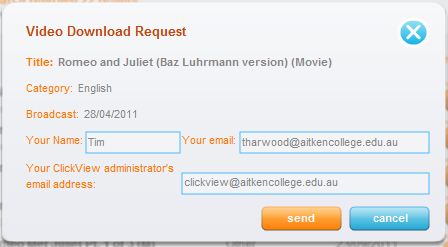
2. Click the request button (pictured below).

3. In the box pictured below, put in your name, your email address and the email address of the school’s administrator: clickview@aitken(remove this)college.edu.au

4. Click send.

This will send a request to Silvia to download the program onto our server so you can stream it over the network.

Playing the program

As mentioned at the beginning of this post, you will need to get the player installed on your computer before you can use ClickView.

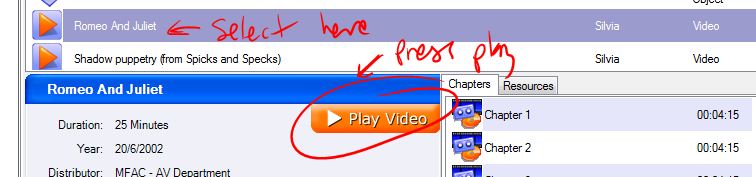
Once you have the player, simply open it up, select the folder (if you have requested it, it will be in the ‘Silvia’ folder until we get it properly set up) and click the ‘Play Video’ button (pictured).

Done!

Posted in ClickView | Leave a comment

ICT PLT posts

In order to share the work that we have been doing in our PLT group, we have put together a series of posts about the technologies that we have each been working with. These posts describe what we were using, what it does and how to go about using it in the classroom yourself.

Posts

For information on Diigo and how John used it, click here.

For information on OneNote and how Kim used it, click here.

For information on Powerpoint (lesson delivery) and how Peter used it, click here.

For information on PowerPoint (teaching its use) and how Sheridyn used it, click here.

For information on creating video and how Wendy used it, click here.

More information

You can also find all of them by clicking the PLT link in the list of categories on the right-hand side of this page.

We would love to help you to use these technologies yourself so, if you want to have a chat about it with anyone in the group, don’t hold back!

Posted in PLT | Leave a comment