Creating and sharing video presentations

As part of the ICT PLT Wendy has been working with videos and, in particular, attempting to use them as a collaborative alternative to in-class oral presentation.

Why video?

Wendy wanted an alternative to putting her students through 30 oral presentations. She also wanted a creative and collaborative way to show her students each other’s work. As a result, she devised a task where students would create a video and then, in groups of six, watch and comment on the work of the others in their group.

Creating the videos

While her students enjoyed the creative element to making videos, issues arose in the number of formats that were used in their creation. This had ramifications in the second part of the assignment where the movies had to be viewed all together.

If you are having your students create their own video, make sure they know (or you teach them) how to create videos in the format that you want them in or how to convert videos into this format. In the case of the former, cover it before they start filming and tell them which devices you want them to use (the black Canon digital cameras in the library record in a friendly format). In the case of the latter, many students will want to use their own devices and will be able to convert the files by themselves. If you want all the students to do this, book some lab time at the end of the creation stage, make sure you have the appropriate software and show them how to convert their files.

Many of the students are already comfortable with this technology and will be able to submit their work to you on DVD or on a stick. If you aren’t intending to view them in groups this is fine. If you are, see below.

Showing the videos

Putting the videos somewhere where they can easily be seen by your students but not by the public can be challenging. This is because video files are really big. Another problem is allowing access to all the videos at the one time.

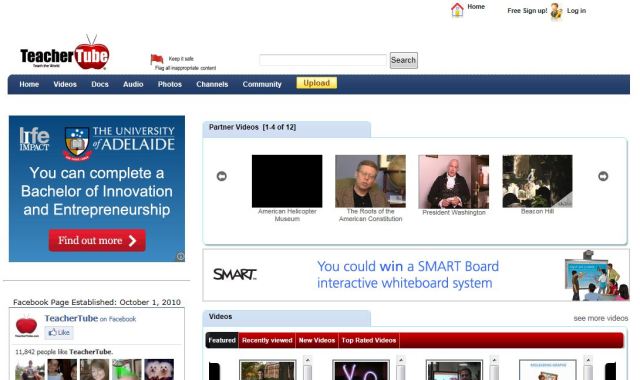
While 30 memory sticks, burnt DVDs with the content on them or putting them on the network are all options, the easiest way to do it would be to put all of the videos onto TeacherTube and have them protected (so that only someone with the link can view them), then email each group of kids the links to their videos.

For more info on how to put videos on TeacherTube, see this post.

Posted in PLT, Videos | 1 Comment

Video purge

In line with fitting out all the classrooms at the school with data projectors and getting rid of VCRs, the library is redistributing our video collection.

Representatives from many of the departments have already come and worked out which vids they are taking and which ones we can get rid of but if you are concerned about a resource, come and get it.

Once videos have been removed from our system, they will be housed in the different departments around the school. While this is ok for the meantime, there will be less and less facilities to play them so we should be seeking to replace them in the near future.

We can just burn them to DVD, right?

As educational institutions we have special powers that allow us to show audio-visual materials to our classes but this doesn’t mean that we can automatically create copies of them.

As a library, under section 200AB of the copyright act, we are allowed to make a copy from a video to a DVD to maintain our collection if it is not available to purchase in a timely manner for a reasonable commercial price (it is a bit more complicated than that but that is generally the gist). However, in the case that we do so, we have to make and keep a written declaration that we have checked that this is the case.

In most cases it is much easier to source a new copy.

So what do we do?

The first place you should look is the ClickView Exchange. If it is there then we will all have access to it across the network by next week.

If the resource you want is not on the exchange, you can see if it, or something like it, is available on YouTube, TeacherTube or some other online source.

If neither of these options work, you can try to source the video on DVD. This might involve searching for it on the internet, contacting the video’s original suppliers or contacting the producers.

If all of these fail, this might be a special case whereby we would make an investigation and so on as above.

What then?

Once we have taken our videos off the system, we can find something more productive to do with them…

Posted in Copyright, Videos | Leave a comment

Using OneNote as a lesson organiser

As part of the ICT PLT, Kim has been experimenting with OneNote as an organiser and lesson delivery tool.

Why OneNote?

OneNote is so effective that many schools have integrated it into their classes at an institution level. A well put together OneNote document can act as your term planner, lesson plans, a container for associated resources and a workbook and revision tool for your students (wow!).

How is it different from a word document?

A OneNote notebook is never meant to be printed out, it is a multimedia document and, as a result, it has more functionality when it comes to inserting different types of information from videos to links to images. It has great features when it comes to annotating a research session on the internet allowing screen captures that include the time, date and place of where they come from. It also embeds most things rather than linking to them so, even though the file sizes are huge, your notebook contains all the things that you need in it and these will go with it when you transfer the file from PC to PC.

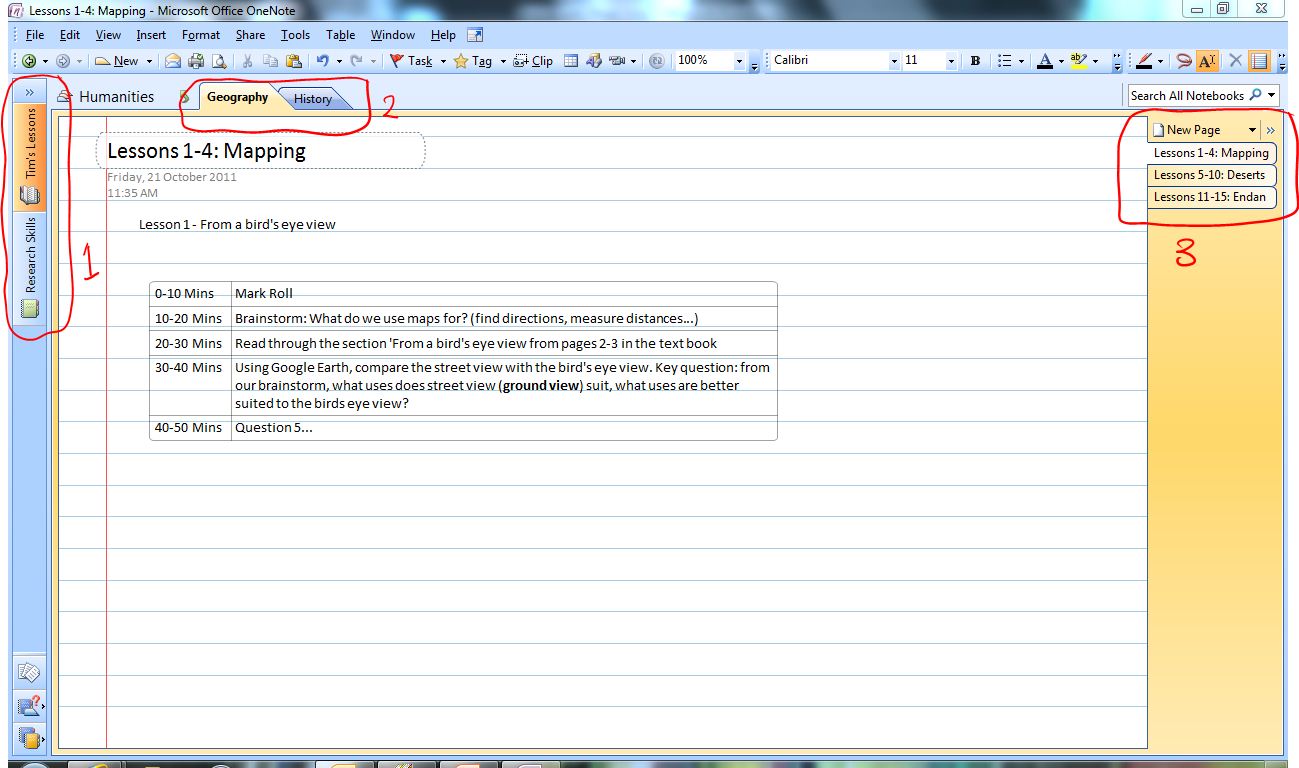
The other great thing about OneNote is its organisation (pictured).

Notebooks (1) are divided up into Sections (2) which contain Pages (3). This allows you to put all of your Humanities subjects into the one notebook, give each subject its own section (History and Geography) and divide the subjects into topics or individual lessons by giving them their own page.

How will I find it again?

OneNote is constantly saving the notebook that you are working on and, because of the organisational features listed above, you will only have one OneNote on your computer that is divided into all the sections you need. This means an end to searching for different Word documents saved all over the place*.

* But if you have Word documents saved all over the place, putting links to them from your notebook will make them easier to find.

Learn more

Here is the same thing that I have just written but with some daggy music and a guy with an American accent:

Posted in OneNote, PLT | 1 Comment

Using PowerPoint as a lesson delivery tool

As part of the ICT PLT, Peter has been experimenting with PowerPoint as a lesson delivery tool.

Why PowerPoint?

PowerPoint is an excellent tool to use in the delivery of presentations to students as PPs can be created quickly and easily. They also have the benefit of being able to be created in advance and reused, as opposed to written board notes which cannot be. Another reason to use PowerPoint is the ability to add videos, links and other media to your presentations simply.

PowerPoint presentations can add also add a bit of colour to your lessons as you can see in the example below.

Developing concepts

A presentation can begin with simple examples that develop into more complicated ones through the use of animation. By using animation you can reveal and conceal certain information in line with your lesson. While you are doing so, as you do not need to be writing it out on the board with your back to them, you can interact with the students, answer their questions and catch the paper aeroplanes that they throw at you.

Reusable and sharable

As they are saved in an electronic format, you can keep your PowerPoints, develop and update them year-to-year and reuse them – making them a good investment of your time even if they take a while to put together in the first place.

You can also share them with your students if they are having trouble understanding a concept or you would like them to go over a concept for revision.

Taking it to the next level

By using a voice recorder you can create podcasts of your lessons and share the whole thing with your students.

PowerPoint also has plug-ins that allow you to import your PP into Movie Maker and create a film out of it (that can incorporate the audio from your podcast).

Another way to make a bit of a show out of your PP is to use Auto-timing (from the Animations Tab, Advance slide> Automatically after…). Then, when you save your PP as a PowerPoint Show (Windows button>Save as>PowerPoint Show), your presentation will automatically open in the Slide Show view and progress by itself.

Posted in PLT, PowerPoint | 1 Comment

Creating a copyright compliant atmosphere

I have just been to a few sessions run by the Australian Copyright Council on copyright. The presentations covered sections under the Copyright Act that specifically deal with schools. As an educational institution we have some special abilities when it comes to using, copying and sharing resources. Beyond this we also have a responsibility to maintain a copyright compliant atmosphere.

You will find more information under E for Education – Copyright Basics on the Browse by A-Z page on the ACC’s website.

The good news (AV, text and images)

There are various sections of the Copyright Act that apply specifically to schools and the way that we can use resources. This involves our ability to copy and show TV and radio that has been broadcast on both free-to-air and pay TV under Part VA. We also have provisions to show AV material to our classes under Section 28 and in various extra-curricula scenarios through the school’s Co-curricular Licence. For more information on this, the ACC have a specific fact sheet that you can download in E for Educational – Using AV Materials on their website. Regarding print material, through Part VB we have a CAL licence that means that we can copy and distribute an amount of textual material. Furthermore, we can reproduce images in digital form and images that are associated with text in print form.

In addition to this we have various rights regarding the hand writing of copyright material (as much as you can endure really) and the ability to use resources in and from exams.

Our students also have special privileges under the Research and Study clause in the “Fair Dealing” section of the Copyright Act. This means that they can use copyright material without permission as long as it is for the purpose of research or study.

How much can we copy? (Text and images)

Under the CAL licence, we can copy 10% of a book or one chapter, whichever is greater. We can also copy one article from a periodical and any other articles on the same topic (that is, if New Scientist has two articles on space exploration, you can copy both or if Space Exploration magazine has two articles on the Hubble telescope, go for it but you can’t just copy the whole of a Space Exploration magazine).

It gets a bit more complicated with uploading this information to eWorkSpace. We can only put 10% of a given work on their at one time so, if two subjects want to use different parts of the same work (and this comprises more than 10%), it is not allowed. To get around this, we can either make that information alternately available (one in Semester 1, one in Semester 2; or, one for two weeks then the next) or give one part of the book out as a handout and put the other part on eWS.

More good news (AV, text and images)

There are also stipulations under the act that mean that, if a work is unable to be purchased in a reasonable time and for a normal commercial price, we can usually make a copy of it (except DVDs).

The neutral news (Copyright expiry)

Copyright lasts for a certain amount of time depending on the resource but this is – even for the shortest time – still a really long time (25 years) so unless you are using something because it is old, you should probably not be holding out for things to fall out of copyright so that you can give a copy of the entire thing to your students.

The bad news (DVDs and videos)

Certain resources have particularly strict and binding copyright rules applying to them. In particular, videos and DVDs that we have purchased and other items that have terms and conditions that you have agreed to.

DVDs in particular can be shown to a class in their entirety and streamed over the network but they cannot be copied under most circumstances. This is because to do so would necessitate breaking their Technological Protection Measures. Videos on the other hand do not have TPMs and so we are allowed to copy them if our copy is damaged, lost or stolen as long as we cannot purchase another copy in a reasonable time for a normal commercial price.

The Australian Copyright Council states on their website that people who are found to infringe copyright may be liable to provide compensation and those who do so for commercial purposes may face criminal charges. There should be no reason that someone should, through the course of conducting their work at the school be liable for damages through infringing copyright or face criminal charges. If you want more than one copy of something that is protected under copyright, buy that number of copies.

If you specifically agree to Terms and Conditions for a resource (when you buy it or as part of viewing it) then you are bound by them. This does not include those warnings at the start of DVDs and videos that say that they cannot be viewed in schools – because we have the legal right to under Section 28.

The maybe good, maybe bad news (YouTube)

What you can do with YouTube clips depends wholly on the rights given to you by the producer. If the producer has used material that infringes copyright, like having a song in the background that they don’t have the rights to, any copies of this would also be infringing copies. If the producer has the rights to everything in the clip then they can stipulate what you can do with it. This means that they may say that you can use or copy it in the text associated with the video. If you would like to use a YouTube clip in your class, read the information about it or, if there is no information about how the clip can be used, contact the producer and see if they will let you show it, copy it, turn it into an homage to Freddy Mercury, etc.

Posted in Copyright | Leave a comment

Teaching PowerPoint skills to students

As part of the ICT PLT Sheridyn has been working with PowerPoint and trying to improve the quality of her students’ presentations when using this tool. Her approach was to spend some time before the assignment where the students would be creating a PP covering some of the basics of the program with her Year 7 students. They discussed the qualities of a good PowerPoint presentation and those of a bad presentation. Sheridyn also reinforced this with several videos sourced from YouTube that cover some PP dos and don’ts.

Sheridyn’s resources

A short video with music.

This is a longer one with in-depth comment about mistakes.

She also shares with her students an excellent example of an excellent PowerPoint presentation which you can see here.

My own preachy editorialising – How to Teach PowerPoint

As with all technology (and everything really), when teaching PowerPoint it is important to remember that your students will come to you with different abilities. It is crucial that you don’t assume that they will all have excellent skills already. How you plan around this is up to you but you should aim to provide all of your students with a basic level of knowledge.

One way to do this is to put the skills you want them to have at the end of the assignment in the assessment criteria. When you cover the criteria as you are introducing the assignment you can then invite the students to investigate areas that they don’t understand yet. In this way, if a student puts his hand up and asks how to add custom animation to a slide you can direct him to a video that explains it, pair him up with a student who already knows how to do this or show him how it is done yourself.

There’s more to it than that

Of course, there aren’t any hard and fast rules about how to create a good PowerPoint and how to create a bad one. The quality of a presentation depends on how the tool has been used and how much effort has gone into it.

Make sure that the medium suits the message. If you are creating a PowerPoint to impart a message on its own (i.e. without an accompanying oral presentation) that will be viewed on a PC by one user then you will need to put a great deal of information on each slide and the text will, by necessity, be smaller. If, on the other hand you are  making an oral presentation to a class and using the PP to keep your audience on track while you deliver it, each slide will have much less writing on it and it will be in a bigger font. Similarly, if you are trying to get people revved up about your topic, playing The Final Countdown by Europe might be appropriate whereas Cyprus Hill rarely would be.

Examples

For examples of good PowerPoint you need go no further than Kerri Batch’s presentations from our staff meetings. If you were teaching PowerPoint you could do worse than to get Kerri to come in and show your students the most exciting thing that she has worked out recently.

Furthermore, there are examples of good PowerPoints in the resources that Sheridyn shared above.

The internet is also littered with examples of bad PowerPoint presentations. Here is a particularly fun and uninspiring one.

Lead by example

Of course, there is nothing better than leading by example when it comes to PowerPoint. Make sure that the PowerPoints you show the students reflect what you expect from them in theirs. If you want them to use images correctly, make sure the images you use are sourced from copyright free sources (our students shouldn’t be seeing or showing watermarked photos) and are of a high enough quality that they don’t go all fuzzy when you put them on the big screen.

Copyright issues

If your students create a really great PowerPoint they may wish to share it online. To do so they have to make sure that their PowerPoints do not contain materials that are protectex from copyright. In practical terms, this means taking their own photos to use, sourcing music from creative commons sources (you can get photos from here too) and attributing quotes correctly.

Posted in PLT, PowerPoint | 1 Comment

Clickview Update

I have been peddling some false information about ClickView and wanted to take this chance to clear the air. I wrongly told you that we need access to the ClickView Digital Video Library in order to get any of ClickViews services. Actually, by subscribing to ClickView alone we have access to the ClickView Exchange. This means that we don’t have to get the Digital Video Library but we will still have access to all the content that has been shown on free-to-air television. The post below outlines what ClickView is and how it will operate in the school.

The Exchange

The ClickView Exchange is an online archive of video resources that have been broadcast on free-to-air television, recorded and then added to the Exchange. By subscribing to ClickView we will be able to access videos on the Exchange across the network by request.

Requesting Videos

If you find a video on the Exchange that you would like to show your class, you will be able to click a button from the Exchange page to request our ClickView Manager, Silvia, to download the program onto our server so that you can show it across the network to your class.

Requesting programs that aren’t on the Exchange

The Exchange is maintained by schools who are recording individual programs using a capture card and also some schools who are recording all free-to-air TV for the previous 30 days. In this way, some schools may have recorded the program that you want but haven’t added it to the Exchange. Through various channels, we can request these schools to add shows that aren’t already on the Exchange to it. Obviously, the closer to the time the show has been aired on television, the more likely we will be to be able to get it.

Requesting shows that haven’t yet aired

Aitken College will have a capture card of our own. This means that we will be able to record programs ourselves and put them on our server to that they can be shown over the network.

To do this, put in a request with Silvia and she will record the program for you. Similarly, if you give her plenty of notice you will be more likely to get your show as we will only be able to record one channel at one time. If there are two requests for the same time, the second one will have to rely on the video being added to the Exchange.

ClickView’s other functions

ClickView has the facility to show particular parts of a show, attach worksheets to a program, view shows over the web and edit clips for your students to watch. On top of this, students will be able to watch different things at the same time in your classroom allowing you to tailor lessons to individuals.

We will be getting a more complete view of the possibilities of ClickView when our trial starts mid-November. If you have any questions about it, please post them below.

Posted in ClickView | Leave a comment

Inappropriate self-serving post about summer camp…

Forgive me for misusing the voice that I have been given (especially since the staff day when everyone on staff had to sign up for emails – thanks Kerri!) but I am volunteering as a leader at a summer camp this year and want to spruik it.

If you have kids aged 12-17 whom you think would enjoy 10 days in the Gippsland Lakes over summer, consider sending them to Camp Icthus. I have been involved with the camp since I was a camper myself in high school and now I help to organise and run them. The organisation is not-for-profit and all the other leaders and organisers, like myself, are volunteers.

The camp is located on a beautiful site on the Banksia Peninsula which juts out into Lake Victoria. When we are in camp, we start each day with a swim and have organised games and activities. A fair bit of the camp though is spent out on ‘overnighters’ when we go bushwalking in the Mitchel River National Park, sailing across the lakes or canoeing on the Tambo and other local rivers. For more of an insight into the fun that we have, check out the photo gallery from last year’s camp.

Junior Camp (12-14 years old) runs from the 15 to the 24th of January and Senior Camp (15-17yo) goes from the 3rd to the 12th of January.

If you have kids in this age group or know someone who does, visit www.campicthus.org.au

Thanks!

Posted in Camp Icthus, Other | 2 Comments

Sharing websites with Diigo

As part of the ICT PLT this year, John has been using a site called Diigo. Diigo (if you’re wondering, according to edutopia it’s pronounced dee’go and stands for Digest of Internet Information, Groups and Other stuff) is a site where you can keep, organise and share websites.

Using Diigo in the classroom

As you can see from the image above, John has used Diigo to share websites with his VCE History students and asked them to comment on the sites that he has shared. As he pointed out, it is not only an easy way to disseminate information, but also one that caters to different learning styles. Through using Diigo in the classroom he has been able to elicit responses from students who would not normally participate readily in a class discussions.

Setting up a Diigo account

In order to use Diigo in your classes, set up a free account here and get your students to do the same. Make sure that they use a username that protects their identity* but also allows you to identify them easily such as the standard Aitken College username format: John12345 (first name student number).

* While Diigo groups are accessed by invitation only, we have to assume that anything that is published online may at some time be made public. For example, there is no way to stop members of the group copying the page and pasting it elsewhere as I have done above. As a result, we should make sure that our students are not identified and that they moderate what they write on the page.

Creating a group

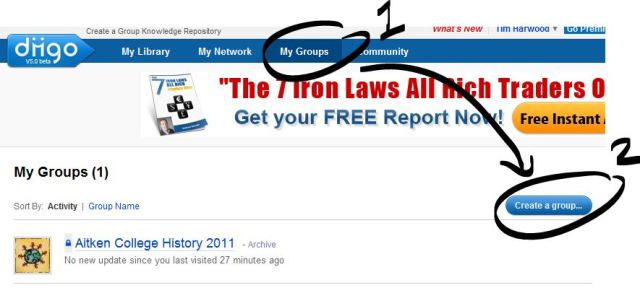
Once you have signed up, go to the My Groups page and click the Create a group… button (pictured below).

The Create a group… button will take you to a page where you can specify the settings for your group. These settings dictate who is allowed to access your group and the ways that members can contribute to it. If you have successfully conveyed to your students the importance of protecting their identities and their responsibilities when publishing online, there is no reason why the page couldn’t be made public. This means that you will be contributing to the global discourse on your given topic – which your students might get a buzz out of (‘Look mum, I’m online!’).

Keys to success

In order to make your group successful, ensure that you contribute to it regularly including responding to the comments that your students make. You can also build contributions from your students into their work requirements or ‘contribution to class discussion’ grades. If you are doing so, make sure that you outline your requirements clearly to the students before you use it.

Posted in Diigo, PLT | 1 Comment

Aitken College on YouTube

Aitken College has made its official YouTube debut!

Thanks to Joyce and Michael and their students for sending through these video.

Joyce’s kids take us on a tour of the Melbourne Zoo in Indonesian. The students did everything here from writing the script to taking the photos!

Michael’s students took their inspiration from silent movies in creating this clever little film about a rustling plot gone awry.

If you have any videos that the kids have created (without borrowing photos or music from the web) please forward them on to me and I’ll publish them to the world.

And, while we’re on the subject of YouTube, check out this amazing vid of this toddler trying to use gesture controls, learnt from her iPad use, on a magazine. The. Future. Is. Now.

Posted in YouTube | Leave a comment