New Excel Stuff

I have just updated the post ‘Pure Excel-lence‘ to include more clear instructions for shading every other column (sorry about my impatience at the PD last week) and a whole new section on changing the direction of the text within a cell.

You can find the updated post by clicking the link above or going to the Excel link in the list of categories on the right.

Don’t forget to use the web version of these posts rather than the email one to ensure that you are getting the most up-to-date information!


Posted in Excel | Leave a comment

Scootle

Scootle is the web portal for accessing ‘Learning Objects’ from the Learning Federation. You can browse these objects here: http://www.scootle.edu.au

What is a Learning Object?

Learning Objects are photos, films, games and websites that relate to areas of study. If you are doing a unit on gold, for example, you can search the Learning Federation for Learning Objects on gold and browse the resources that are available. Once you have found a resource that you want to use you can either set up a learning pathway for your students with that resource in it or download the resource and distribute it elsewhere.

What is the Learning Federation?

The Learning Federation is a collection of Learning Objects relating to the Australian Curriculum. It is provided free to all Australian Schools. We used to have the whole collection on CD ROM but, as it has now grown to thousands of resources, it is accessed through a website called Scootle.

How can I access this fantastic resource?

You can browse the resources at Scootle. If you would like to use one of the objects, you will need to set up and account. Staff at Aitken College can register for a Scootle account using this link:

http://www.scootle.edu.au/ec/register.action?key=PIoowwPE

Posted in Scootle | Leave a comment

How to basically function using Excel

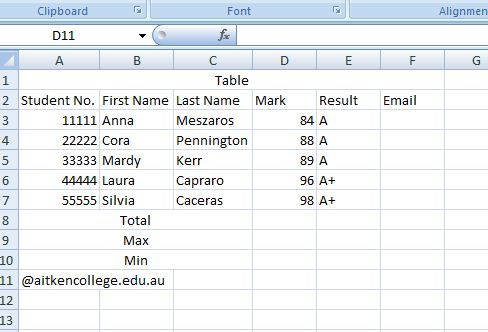
Excel has a range of functions that can be used in your spreadsheet to manipulate your data. Some of the simple things you might like to do are to work out the sum of a column, the highest and lowest numbers in that column and to merge two cells together. In order to do this, I will be using the table below.

Showing leading zeros

As you can see from the table above, I have been tricky and avoided the whole leading zero issue by using student numbers without them. You will probably have some students in your class who have a zero or zeros at the front of their student number and, for various reasons, you want to see them. Here’s how it’s done:

1. Select the cell range (in this case A3:A7).

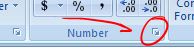
2. Click on the button in the bottom right-hand corner of the numbers bit of the ribbon (pictured below).

3. This will open a dialogue box and should already be in the numbers menu. Select Custom and in the field under the word ‘Type:’ enter five zeros.

This will tell Excel that these cells should have a five digit number in them irrespective of zeros at the beginning.

Sorting the data A-Z

The first thing that I want to do is to put my students into alphabetical order but Excel wants to have them sorted by Student no. (actually, Excel is a computer program so who knows what it wants). In order to sort them by last name I…

1. Select from cell A2 down to F7.

2. Right-click the data that I have selected.

3. Select Sort> Custom Sort

4. In the ‘Sort by” drop-down menu in the dialogue box that appears (that Excel has cleverly filled with the information that you have put in the second row), select ‘Last Name’.

5. Click ok and your table should be organised alphabetically by last name.

Getting a total

This is not a spectacular example of a table that you would want a total figure for but the principle is the same for all equations. To get a total of the marks column, do the following:

1. Select the cell where you want to total to appear, in this case D8.

2. In the formula bar or the cell itself (pictured above), type =SUM(

3. Using the mouse pointer, select the range you want to add up by clicking the first cell in the range and dragging down to the last cell. This should then flash blue.

4. While it is flashing hit enter. This will complete the equation and the total should appear in the designated cell.

Alternatively, you can type the whole equation in the desired cell like this: =SUM(D3:D7)

Other equations

Follow the same process for the following equations using the formulas below:

Minimum occurring number: =MIN(Cell range)

Maximum occurring number: =MAX(Cell range)

Average of a column: =AVERAGE(Cell range)

So what’s with the cell that says “@aitkencollege.edu.au”?

That was a mistake. But it was there to illustrate that there is this really handy function called concatenate. Cancatenate will merge the data in two cells into a third cell. This is handy if you have the students first name in one column and their second name in the second. You can concatenate these two columns of data into one column that includes both bits of information. Extremely handy when you are setting up job lots of student accounts and you want to use their user number and first name for their username. Here’s how:

1. In a cell next to your table (in the example above that would be F3) create the formula: =CONCATENATE(A3, B3)

2. Fill down by holding the mouse pointer over the bottom, right-hand corner of the cell (the fat white cross will turn into a thin black cross), click and drag to the bottom of your table. This will automatically put in the formula for the rest of the cells.

Separating two field with a comma will put them next to each other without a space. If you want a space, use this format (A3, ” “, B3).

If you want to create an email list, write the formula like this and then fill down: =CONCATENATE(A3, “@aitkencollege.edu.au”)

Posted in Excel | 1 Comment

Staff Day 26/08/11

Here are the slides from the presentation:

https://docs.google.com/present/view?id=ddhzmtx4_4d8zv9jhn

And here is the talk:

https://docs.google.com/document/pub?id=1gbjcdLshIcAES4exB28Ulr3NxabsxKOVBX3R_s1Ar0U

Posted in PD | Leave a comment

ClickView

What’s on the server (primary and secondary only): http://www.clickview.com.au/videolibrary/

What’s on the exchange: http://exchange.clickview.com.au/

Posted in ClickView | Leave a comment

Pure Excel-lence

In order to create spreadsheets in Excel it helps to know a few basic functions. These include merging cells, inserting data, formatting columns and rows and using borders and shading to easily identify groups of data.

To begin with, it helps to understand a bit of Excel jargon. The top row of menus are referred to as tabs (Home, Insert, Page Layout, etc.). This post will only be using the Home tab.

The menu that appears beneath the tab is called ‘the ribbon’. The ribbon contains the buttons you use to execute tasks (like Merge Cells).

Creating a heading by merging cells

To create a heading that runs over the top of a whole table:

1. Decide how wide the table will be roughly, you can always change it later.

2. Select the cells in the top row (rows go sideways, columns go up and down).

3. Hit the Merge & Center button.

To get a student list from eWorkSpace into your spreadsheet

1. Open eWorkSpace in Internet Explorer

2. Select Student Management on the left-hand side of the home screen.

3. Select Student Attendance Lists on the left-hand side of the Student Management page.

4. Select the class. Your list will appear below.

5. Highlight the students’ names in the list and copy (Ctrl+C)

6. Open the spreadsheet and select the first cell under your heading (probably A2) and paste (Ctrl+V)

Resizing the cells

By now your students’ names will be hanging over the edges of their boxes so we need to resize the A column. To do so, put the cursor between the A and the B column at the top and double-click. This should automatically resize column A to the width of the longest student’s name.

If you want to resize a range of cells to a particular size manually, select the range of columns or cells at the edge of the table (see diagram below), right-click and select resize column/row. This will open up a dialogue box where you can enter the width of you require (say 10 or 20, just play around with it).

Adding a row or column

If you want to enter a new student or a second tier of headings, insert a new row or column by right-clicking the letter or number at the edge of the table (see above) and selecting Insert. This will put a new row above the row you click on or before the column you select.

Adding a border

Excel spreadsheets look like they have a border around them already so you might be surprised, when you go to print them, that they actually don’t. To put one in, select the area you want the borders to be around from top-right to bottom-left then click the arrow next to the Border button on the Home tab (pictured below). This will open a drop down menu where you can choose how many sides your border has. Select All borders.
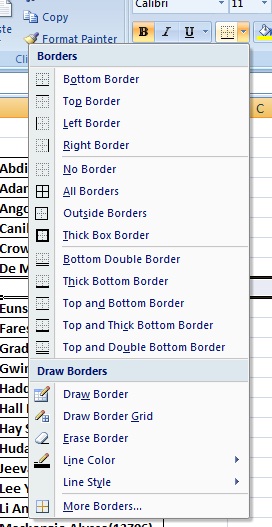
The borders will appear (and print out) the range that you select so if you go beyond the limits of your data, you will get a print out of heaps of pages of empty cells.

Adding Shading

You might also like to make your data more readable by adding shading. To do this, follow the steps below:

1. Select the range of data you want to format. Since you probably don’t want to include the heading row, start from the first row that contains data.

2. Click the Conditional Formatting button (pictured below).
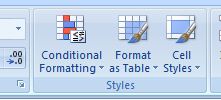
3. This will open a menu. Select ‘New Rule…’

4. From the six options that appear in the dialogue box that this has opened, click the last one, ‘Use a formula to detemine which cells to format’.

5. This will change the bottom of this dialogue box so that a field appears labelled ‘Format values where this formula is true:’. Into this cell, copy and paste the following formula: =MOD(ROW(),2)=0

6. Below this field, click the Format button. By selecting the Fill tab in the dialogue box that opens, you can choose the colour that will be applied to every other row.

7. Select the colour then click ok on all the dialogue boxes that are open to make them go away and to apply your zippy shading.

Changing the text direction

Excel has a button just for this. It looks like this:
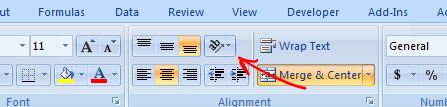
Clicking this button will open up a drop-down menu where you can specify whether you want the text to appear: on an angle, coming from the top going down, bottom up, etc.

Posted in Excel | 1 Comment

Accessing the eLearning Blog

Email versions of posts to the eLearning blog may be out of date. The reason for this is that I usually give posts a more thorough proof-read after the initial posting (a bad habit I am trying to get out of) and I often moderate pages based on the feedback that I get about them. Further to this, things change and I add to posts to reflect these changes.

When I change a page; however, a new email is not sent out. As a result, the version in your inbox might have mistakes or contain untrue or unnecessarily complicated information.

Make sure that you use the link in the email to view the post live online. This will ensure that you will be seeing the most current version of the information. Furthermore, if you see something in the eLearning blog that has become out of date (incorrect, complicated, slanderous…), please let me know and I will update it.

Posted in Blogs | Leave a comment

The power of positive googling

In my job I am constantly stumped by things that I can’t do for some reason or another using my PC. I am also constantly surprised by how often this can be overcome by putting the question to Google.

We do (and should) teach a range of search techniques to our students and let them know that Google is not the be-all-and-end-all; however, knowing how to use Google effectively is certainly a useful life-skill.

The reason the technique of asking Google the question in plain speech works is because people have either asked it before (on sites like Yahoo Answers) or the smart people at the internet have worded their help pages with the question in them so that they can be easily found. The example that follows isn’t related to either of these things, it merely showed up because my question had the keywords in it.

The question that I wanted an answer to was: how do I get rid of the blank page that follows the table that I have created in Word? It is a really annoying problem that happens all the time and I finally cracked it and did something about it. So I Googled something of the sort (how do you stop a second page coming up after a table in word?) and the first result took me to a TechRepublic help page on just that topic. If a suitable answer hadn’t come up, I would have preformed the same search in inverted commas so that it searched for that exact phrase, then, failing that, I would have used keywords. If you want to know how to fix this annoying Word thing, click the ‘just that topic’ link for the solution. Or Google it yourself.

Along with turning it off and turning it on again, Googling something has become a catch-all solution for IT geeks the world over. So much so, in fact, that if you really want to put someone in their place (in a sarky, IT geek kind of way) you can send them an answer to their question from LMGTFY (Let Me Google That For You).

p.s. As an interesting(!) afterword, neither ‘Googled’ nor ‘Googling’ came up as spelling mistakes when I checked this post!

Posted in Google | Leave a comment

Teaching Kahootz

Kahootz is a great program for creating animations simply. Once you get the hang of the different tabs it is very easy to use the preset objects and their movements to tell stories.

In order to develop these skills, the makers of Kahootz have put together a series of lessons, each aimed at teaching a different skill. You will find these lessons here.

Each lesson has a PDF that takes you step-by-step through the lesson. They have also included a completed ‘expression’ based on the lesson that can be downloaded and played.

We have a site licence and Kahootz is loaded onto most of the computers in the College. Our students experience Kahootz in Year 5 as part of the Primary IT program and in Year 6 in the ICT curriculum. Many of our students in the secondary years, however, will not have experienced Kahootz and will need to be taught it from scratch if you want to use it in the classroom.

Posted in Kahootz | Leave a comment

A+ eWorkSpace

eWorkSpace has two areas that are accessible to our students and understanding where you (and they) should put things will dictate whether or not they will be available for use. The two areas are the subject area and the class area.

When resources are put into the subject area, they are available for all of the classes in that subject(i.e. all of Year 7 English). If a resource has been put into the class area, it may only be accessible to that class (only 7A).

The wider implication of this is that, as the class names change from semester to semester (particularly in VCE) and year to year (7A to 7someoneelse), those resources will no longer be available if they were attached to a class.

To publish resources in the subject area, rather than the class area, go to the class (by clicking on the hyperlink on your eWorkSpace home screen) and then click the Subject Home button (pictured below) at the top, left-hand side of that screen. You should have the same options – Publication Area, Blog, etc. – but the frame around the page will have changed from blue to green. Publishing in this area will mean that all classes in this subject will have access to these materials.

To review how to add resources to the Publication area, check out this post, to create a blog using eWorkSpace, click here.

If you have any questions about this rather baffling topic, please post them below.

Posted in Blog, eWorkspace, Homework Tasks, Publication Area | 2 Comments