
The SLAV Bright Ideas blog has put up a recent post about ‘Power Searching’ – using Google to more effectively target your search. You can view the post here or view the videos below…
Power Searching – Part 1
Power Searching – Part 2
Thanks SLAV!
The SLAV Bright Ideas blog has put up a recent post about ‘Power Searching’ – using Google to more effectively target your search. You can view the post here or view the videos below…
Power Searching – Part 1
Power Searching – Part 2
Thanks SLAV!
If you are interested in the content of the latest installment of Call of Duty, have a look at the iCyberSafe blog! They have posted a review of the game from Commonsense Media which describes, in some detail, the content of the game.
The review can help us to know: what our students are up to (and a great deal of them play CoD), how much violence that are being exposed to (lots) and what sort of history lessons they are getting from the games (America was at war(ish) with Russia!?!, torture is ok, etc.). Great for facillitating discussions with them!
Ivanhoe Grammar School has been running a blog on CyberSafety for the last year or so that has developed into a terrific resource on the subject. iCyberSafe.com looks at all sorts of issues relating to CyberSafety and computer use by students and educators. It is regularly updated so that it contains the most current information and can help us to keep up-to-date with issues both online and in the media.
In the most recent post, Renata Rowe has put up some information about sexting and included links to articles in the Sunday Age that many of you would have, no doubt, heard of. The articles relate to the individual cases of the young people who were mentioned in the article on the front page as having been found guilty of child porn offences – interesting reading and well worth a mention to any student who you may feel is behaving inappropriately with their mobile phone. You can go directly to the post here.
If you want to subscribe, just visit the blog and enter your email into the subscription field at the top right-hand side of the page.
eWorkspace has an area dedicated to homework tasks. This area allows you to set tasks, upload assignment sheets and prescribe due dates.
Finding the Homework Tasks area
You can get to the Homework Tasks area by clicking the link to the class in the ‘Classes’, then clicking the Homework Tasks link (pictured below).

Setting a homework task
To add a task for your students to complete, follow these instructions:
1. Login to eWorkspace.
2. Select the class by clicking that class’s link in the ‘Class’ tab.
3. Click on the Homework Tasks link (pictured above).
4. Click the ‘Add New HomeWork Task’ button – this will open a new window.
5. Name the task, set a start and due date, add directions as to how to complete it in the text field, click the ‘Save HomeWork Details’ button. Handouts can be added following the steps below.
It will now appear in that class’s homework tasks area for you and the students.
Attaching a file to a homework task
Assignment sheets and other documents can be shared with students using the Publication Area in eWorkspace. They can also be added directly to the task by following these steps.
1. In the homework task’s window, click the Document Manager button (pictured below) – this will open a new window.
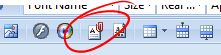
2. In the Document Manager window, click the ‘Upload’ button (pictured below) – this will open a new window.
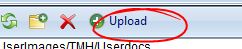
3. In the Upload Window, browse for files to attach by clicking the ‘Select’ button. Once you have found the right file, click ‘Upload’.
4. Back in the Download Manager window, make sure the file is selected (it will be highlighted in orange) and click ‘Insert’.
Viola!
eWorkspace has an area for electronic resources to be shared with your classes. This area is called the Publication Area. The publication area can be used to publish assignments and revision sheets as well as sharing other types of files to support your units. Adding resources to the publication area is easy by following the steps below.
Remember: if you want something to be available to everyone enrolled in a class and still be available the following year, put it in the subject area. For instructions on how to do this, see this post.
Finding the Publication Area
1. Login to eWorkspace.
2. Choose the class for whom you want to publish the resource by clicking the link in the classes area of the home screen.
2a. Click the Subject Home button to go to the subject page rather than the class page (7 English rather than 7REng) if you want all the classes to have access to it or you still want to use it in future.
3. Go to the Publication Area.

Once you are in the Publications Area you can publish resources for any class (including those that you don’t teach) by clicking the ‘Select/Change Publication Area button.
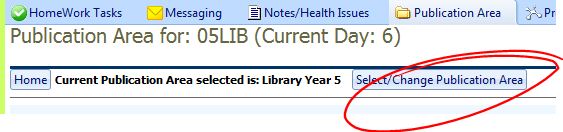
When you have found the Publication Area there are two tasks that you can execute, creating a sub folder or publishing a resource.
Creating a sub folder
Some of the subject areas haven’t been completely set up yet. In order to create a sub-folder you will need a parent folder. These have to be created by department heads or SAC. If you need one to be set up, get in touch with one of them. Once you have the structure there:
1. Click the parent folder (the one you want the sub-folder to be in) which will turn yellow.
2. A new section will appear below it with a link labelled ‘Add a sub Folder in (parent folder’s name)’
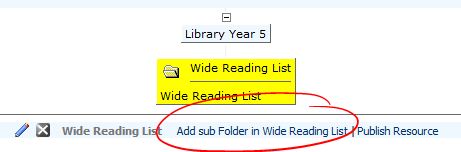
3. Click this link and a pop-up window will appear where you can name and describe the new folder.
Publishing a resource
Not all folders can be added to by everybody. I only have access to the second tier of folders where I can create sub folders and publish resources. You may need to get in touch with SAC or your dept head before you can publish resources. Once you have done so, the publish resource link is next to the sub folders link. Clicking this link will put the resource into the folder that you have selected.
1. Click the ‘Publish Resource’ link.

2. This will open a pop-up where you can browse for your file, name it and describe it.
3. Click ‘Publish Resource’.
As a final note, don’t leave anything to chance. If you can get a student to try to open it before you absolutely need it in order for your class to go ahead, it might save your class from not being able to go ahead. Yeah.
The data projectors (hereafter referred to as dps) have proved to be pretty user-friendly but, as we are using them more and more, some funny little problems are popping up. I have divided these into two categories below: sound and vision.
Vision
If there is nothing at all on the screen, then it is a User Related Power Switch Operation Error. Turn the dp on.
In order for everything to work properly the dp needs to be plugged into the power and turned on, your laptop needs to be turned on, the laptop needs to be plugged in to the dp with the VGA cable (which has a slightly D shaped plug) and the sound cable needs to be connected from the headphone socket in the laptop to the corresponding socket in the wall.
If you just have a blue screen but everything is plugged in and turned on, the most likely cause is that the dp is not ‘talking’ to the laptop. To get them to be friends, go to the desktop (Windows Key + D)> right-click> select Graphics Options> Output To> Monitor + Display. As Kerri points out in the comments, Windows Key + P should do the same thing.
Note: Your laptop will also have a shortcut key for this but, unfortunately, all laptops are different in this regard. On the regular laptops it is Fn + F8 (on the tablets it’s Fn + F10). This will switch between the monitor only, monitor + dp and dp only.
If the data projector is only displaying part of the screen, you might need to change the screen resolution. To do this, go to the desktop (Windows Key + D)> right-click> select Graphics Properties. This will open the Graphics Properties menu. On the right-hand side of this menu you can change the resolution to 800 x 600. Hopefully, everything that you want to appear on the screen now does. To return your laptop to the regular resolution, change it back to 1366 x 768 for a laptop, 1280 x 800 for the tablets and 1440 x 900 for the pcs.
No sound, huh?
If you don’t have sound (and all the cables are plugged in correctly), the two main causes of this are volume settings and the speakers in the room themselves.
The main issue with the volume settings are that each program has their own. As a result you should check that: the laptop is not muted and the volume is turned up and the volume on the program you are using is not muted and turned up. The first is easy, click the little speaker icon in the bottom right-hand side of your screen and see if the box is checked. If it is, uncheck it. Slide the slider all the way to the top and it will be at full volume. Most program will also have a volume control somewhere, get someone to find it and turn it up.
Even though the rooms all have slightly different setups, they all fall into one of these two categories: Some have speakers with a volume nob that also turns them on and off. The good thing about these is, if they are on, they will have a blue light glowing. Others have an on and off switch next to the control panel for the dp and the volume can be adjusted using that panel.
When all else fails…
If you are having trouble, call us in the library or send an ITAG to come and get us and we will (hopefully) sort it out and show your ITAG how to fix it in the process.
If you have any other problems or, better yet, solutions, post them below.
Windows Movie Maker is really easy to use as long as you have video already in a format that it accepts. For a list of these click here. The easiest way to create a video in one of these formats is to use Movie Maker itself to do so. If you want to get out a bit there are other ways to make video that are easy too, just follow the advice below. Or don’t. See if I care.
In Movie Maker
In the pane on the left-hand side of the Movie Maker interface (if you have a webcam, and on the laptops you do) there is a link at the top of it that says something like ‘Create a video using something-or-other’. When you click this it will run a little wizard and open a window where you can record from the webcam. Once you have finished and click the bottom of the screen it will automatically dump this into Movie Maker ready for you to work with.
If you are using a desktop the process is the same but you will need to attach a webcam to your PC if it doesn’t already have one.
Elsewhere
If you want to take your filming to the field, you will need a camera. The best ones to use at the school are the black, digital Canon PowerShots. These can be borrowed from the library. The advantage of these over the Kodak ones is that they create a movie in .avi format which is supported my Movie Maker.
To get videos off these things (in my experience) you just plug it in to your laptop and it’ll start a wizard and do it itself. Once you have done that, find it using the import video link in Movie Maker.
I wouldn’t start from here
What you don’t want to do is record something using the school’s video cameras. These will not talk to the laptops and, once you have created a DVD with them it’ll be a nuisance to try to convert it to anything that Movie Maker will recognise. If you have created a DVD, the best thing to do is throw it out and start again (which I have done for you Simon. You’re welcome).
In earlier posts I have discussed creating video content and uploading it to the web, now it’s time to look at how to make it watchable.
Computers in the school have a program on them called Movie Maker. This is a very basic program for editing video and can be used to integrate video, still images (photos), music and other audio.
The Interface
The key to using Movie Maker effectively is to become accustomed to the interface. If you learn best by watching someone do it, here is a video of someone doing just that.
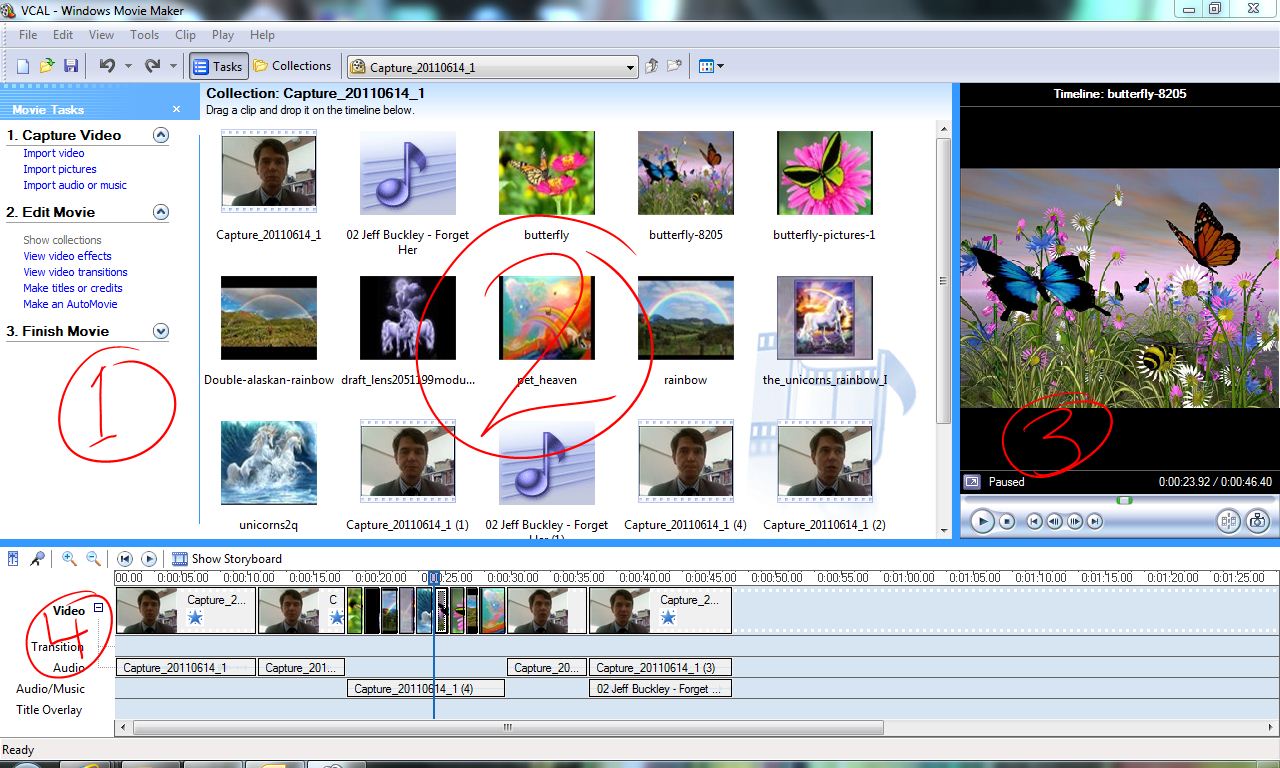
1. This pane allows you to import video, pictures and audio. Once you have imported it, it will appear in the ‘Collections’ pane.
2. This is where all the elements that will become your film are stored before they are edited in the next section (3) or added to the timeline.
3. This is where you can watch or listen to media and edit it into the pieces that will make up your video. The buttons from left to right go: play, stop, jump back a bit, previous frame, next frame, advance a bit, split and capture image.
4. Once you have got all the bits ready, just drag them into this area to add them to your movie. You can add video to the video row to show the sound and vision from a piece of video. You can also drop a video into the audio row if you just want the sound from it. Drag photos into the video row to show an image and select and drag the ends of it to dictate how long it will appear on the screen. Add music and other audio by dragging it into the audio row. Effects can be added to elements of your video by right clicking it and selecting Video Effects, selecting the effect, clicking add then ok.
Creating a video
Here is how I went about creating this video in just four steps (!):
1. I created a little script and storyboard of what I wanted to do.
2. I filmed the footage that I was going to use all in one shot.
3. I imported the video using the Import Video link in pane 1.
4. I used pane 3 to split the video into its various parts (me talking, the part where I want you to hear my voice but not see me, etc.).
4.a. I dragged the intro onto the video part of the timeline.
4.b. I dragged the next bit where I still wanted you to hear and see me onto the video timeline.
4.c. I dragged the next bit where I wanted you to hear me but see pictures onto the audio part of the timeline.
4.d. I went and found images on the net, saved them on my W:, imported them using the link in pane 1 and then dragged them onto the video part of the timeline resizing them so that they coincided with the audio.
4.e. I dragged the talking bit before the slow-mo shot into the video part of the timeline.
4.f. I dragged the slow-mo shot onto the video timeline, split the audio track so that it was just the opening of the song, dragged that to the audio part of the timeline.
4.g. I added the video effects to the bits that needed them (right-click>Video Effects> select effect> Add> Ok).
4.h. I saved the whole thing as a project (File> Save Project As) just in case I want to work on it again and then saved it as a video (File> Save Movie File) to get the file that I could upload to YouTube.
Easy!
 Tim the Librarian