Using Filtering to sort your mail in Outlook

If you want Outlook to automatically sort your mail, all you need to do is set up a filter. This will direct Outlook to put any mail from a particular sender or with a designated expression in the subject field into a folder of your choice.

This can be used to automatically put your payslips into a folder or, by getting your students put an identifier in the subject field (i.e. Year 8 Endangered Species), you can set aside a group of assignments.

In order to do this you need to first set up a folder and then create a rule. Just follow the steps:

1. Create a new email folder by opening Outlook and rightclicking over your inbox. Select New Folder and name the folder (i.e. Payslips).

2. Rightclick an email of the type that you want to go into this folder (i.e. a payslip email from Maureen) and choose Create Rule.

3. Select whether you want Outlook to put items into this folder based on the sender or the subject.

4. Select Move the item to folder and select folder.

5. Click ok.

Done!

Posted in Outlook | Leave a comment

Professional Development Sessions

Once a fortnight I will be running a PD session for anyone interested on an issue relating to IT use in the College.

When and Where?

The sessions will be held from 3:30-4:30 on Day 4 in IT3. The same session will be repeated if needed the following Thursday at lunchtime.

Who?

Any staff member is welcome to attend these sessions but please indicate your interest beforehand. Attendance will count as one hour towards the 100 hours that are required by the VIT to renew your registration.

What?

I have a number of ideas for sessions: creating a Prezi, using PowerPoint, creating a Delicious account, using Excel to create marking spreadsheets, using the Interactive Whiteboard and using the new eWorkspace. Also, if you have a gaping hole in your knowledge, let me know about it and I’ll swot up and run a session on it.

Notes?

Notes will be published here, often with step-by-step instructions so if you can’t make it or you want a refresher, check here.

Timetable out soon!

I will be putting out a timetable for Term 1 soon so keep an eye out and I hope to see you there!

Posted in PD, Thursday Sessions | 1 Comment

Information Technology Action Group (ITAG)

What is an ITAG, who are they and where can I get one?

ITAG is the acronym that will be replacing ITCH (because of the possible negative connotations attached) and stands for Information Technology Action Group. We have taken this program from Brighton Primary School in South Australia and it is the brainchild of their eLearning coordinator David Henty-Smith.

The program aims to put student IT knowledge to use by calling on students to volunteer to be classroom IT helpers. These students should come to the program with an established knowledge of computing and be able to help teachers to set up hardware and software and troubleshoot when things go wrong.

Homeroom teachers have been asked to call for volunteers in homeroom and each homeroom should have an ITAG representative within the next couple of weeks. Due to the different structure in Brookhill, each English teacher has been asked to get an ITAG so their will be about 18 ITAG students spread out throughout the Brookhill School. 

What do they do?

If you are having trouble with IT ask the students who the ITAG rep is and see if they can fix it.

If they can, ace!

If they can’t, they can ask if someone else in the classroom can do it.

If they can, ace!

If they can’t, they can call us in the library and we will come and show them how to fix it next time.

I will also be running training sessions for the ITAG students that will cover common IT problems and setting up a forum for them to post and answer their own questions.

Any questions?

If you have any questions or thoughts about the ITAG program or IT in the school, please let me know.

Posted in ITAG | 6 Comments

Downloading Youtube videos for use in the classroom

Downloading

There are a range of sites that allow you to download videos from YouTube. Below are step-by-step instructions to doing so with Zamzar and a brief rundown of the copyright issues involved.

1. Find the clip that you want to download on YouTube.

2. Copy the URL.

3. Go to zamzar.com

4. Choose the Download Videos tab and follow the steps:

  • Paste the URL into the field in Step 1.
  • Choose the format that you want your video to be in.*
  • Put in your email address – this is where they will send the link to the page where you will download the video.
  • Click Convert.

5. Zamzar will download and convert the file and send you and email once it is finished.

6. Follow the link from the email and click on the Download Now button – this will open up a dialogue box where you can select where you want it to be put (if you intend to use it in a PowerPoint presentation, save it in the same folder as the presentation).

* The file that you want will depend on how you want to play your video. If you are putting it into a PowerPoint presentation you will find a list of acceptable formats here.

Copyright

The Australian Copyright Council (http://www.copyright.org.au/) says that it is ok to download a video from YouTube as long as:

  • You cannot get it elsewhere.
  • You have not agreed to the Ts and Cs on the YouTube website (i.e. created an account).

There is a bit more to it so if you want to see what they have to say about it in their own words, click here.

Posted in Copyright, Downloading Video | Leave a comment

Creating a simple MindMap using Inspiration

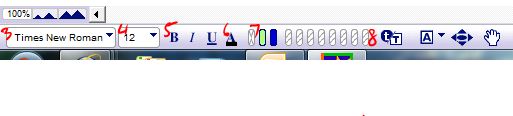
Inspiration can be used to create mindmaps that allow students to brainstorm ideas and create plans for assessment tasks. The mindmaps that it creates can show ideas in different colours or shapes and include images. To create a mindmap, follow the steps below.

1. Define the main idea by writing it in the central bubble.

2. Turn on Rapid Fire (the lightning bolt button on the top row labelled 1 in the diagram below) and create your second tier of bubbles – these will be your subheadings. Alternatively, you can create new bubbles using the create button (2).

3. Choose one of these ideas to expand upon. Format it using the tools along the bottom of the screen (font = 3, font size = 4, bold, italics underline = 5, font colour = 6, fill colour and line colour = 7) and then select Set Default in the tT menu (8).*


4. Turn on Rapid Fire again and work on that idea. Continue until all the ideas are complete.

5. To inset an image, simply copy and paste it from its destination or right-click on the desired location, choose insert graphic and select the image from your drives. Images should be free from animation.

* The tT button allows you to create bubbles that are formatted in the same manner as another selected bubble. Set Default allows you to set the characteristics of bubbles that will be created in future while Apply Default turns the selected bubble into the formatting that has been previously set.

Posted in Inspiration | Leave a comment

Inserting Videos and Sound into PowerPoint Presentations

Videos:

It is easy to insert a video into your PowerPoint presentation. Just follow the steps below.

1. Make sure your video is in one of the file formats that is acceptable to PowerPoint. For a list, click here.

2. Save your video in the same location as you are going to save your presentation (on a memory stick is best).

3. Open PowerPoint, click on the Insert tab and then the Movie button. This will open up a dialogue box where you can browse and select your video. By double clicking your video, this will insert and ask you whether you want it to start automatically or when clicked.

4. Select Automatically if you want the video to start when you open you slide or When Click if you want to discuss it first.

Sound:

The process for inserting sound is much the same as inserting a video. The greatest differences are the file formats and whether you want the sound to continue across slides or be restricted to just one slide.

1. Make sure your audio is in one of the file formats that is acceptable to PowerPoint. For a list, click here.

2. Save your audio in the same location as you are going to save your presentation (on a memory stick is best).

3. Open PowerPoint, click on the Insert tab and then the Sound button. This will open up a dialogue box where you can browse and select your audio. By double clicking your audio, this will insert it and ask you whether you want it to start automatically or when clicked.

4. Select Automatically if you want the audio to start when you open you slide or When Click if you want to discuss it first.

5. In the Sound Tools tab you can change whether you want the sound to begin automatically, when clicked or play across slides by using the drop down menu.

6. The Sound Tools tab also allows you to hide the little sound logo and loop the sound continuously.

Don’t forget to share your successes and failures with me!

Posted in PowerPoint, Sound, Video | 2 Comments