CyberSafety

This is a transcript of the CyberSafety presentation given at the staff meeting on 23/03/11:

The school has, through the Wellbeing Committee and Life Skills program, developed a thorough and well thought out program on CyberSafety. This has been the work of many individuals who are to be thanked for their efforts in this new and challenging area. The school should be recognised where it has arranged for time to be given to staff working in this area and individuals should be thanked for their involvement when this has come from their own time. For this message to reach our students, we have relied predominantly on the homeroom teachers. They have done a great job in delivering this and should also be thanked. Finally, any teacher who has engaged in the topic with a student deserves our recognition too.

Why all the thanks? We have had no major incidents where a student’s well-being has been compromised due to a lack of knowledge about Cybersafety. Furthermore, our students are practicing good CyberSafety online. On that, a while ago I was going to talk to the staff about your privacy settings on facebook but, after looking up as many staff as I could I found that your pages were consistantly well protected. A similar survey of student pages yesterday found the same thing.

Now that we are feeling good about ourselves let us look to the future to consider how we continue to make this program effective and relevant. To aid us in this, we can take into account the findings of the study published last week by Monash University ‘Teenagers, Legal Risks and Social Networking‘.*

* and here is the link to the article in The Age

Student message

The study shows that, as we do, schools should furnish students with knowledge that will assist them in managing the risks faced in the online world. All teachers at the school should stick to delivering a consistent and uncomplicated message. That is:

  • The internet is not a dangerous place but there are those who use the internet dangerously
  • If you would not do it in public, do not do it online (and sometimes even if you would do it in public, do not do it online)
  • Students are bound by the school’s Acceptable Usage Agreement

We would be doing our students a disservice if we were to convince them that the online world is a dangerous place as it provides a rich environment for us to communicate and learn. Similarly, by overemphasis the dangers we are alienating ourselves from our students who will write off our advice as ill-informed or irrelevant. While this is true, there are a small minority of internet users who may attempt to exploit the vulnerable and our students need to use common sense in order to avoid becoming one of their victims.

We need to continue to deliver the message that behaviour in the online world should mirror behaviour in the real world and that strategies used to protect yourself when you are offline are equally valuable when you are online – you wouldn’t stand in a park at night-time and shout out your age sex and location so why would you do it online?

And, finally, that our students, while they are a student of the school are bound by the school’s Acceptable Usage Agreement which is available somewhere but I can never find it but covers taking and using photographs of other students and so forth.

Risks

While it is important that we do not overly focus on the risks, we must recognise them and share them with the students. These risks can be broadly divided into two categories: Personal risks and legal risks.

Personal Risks

  • Bullying
  • Grooming
  • Stalking

In order to avoid our students falling prey to these types of risk, we should emphasise the message that: you should be aware of the type of information that you put online and the possible ways that the information may be used once it is out there i.e. if you wouldn’t do it in public don’t do it online.

Legal Risks

  • Privacy
  • Intellectual Property Infringement
  • Defamation
  • Criminal Offences

To protect ourselves from falling foul of the law we need to ensure that we are aware of our responsibilities online. These involve not sharing our information with strangers, not sharing things that aren’t ours, not saying things that aren’t true and not threatening to kill people. And on that note, as teachers we must not do anything to implicitly or explicitly advocate breaking any of these laws by being careful about using copyright material in the classroom for example.

Conclusion

The report has found that, while students already have a very good understanding of issues relating to CyberSafety, only one per cent will talk to a teacher or parent when they have an issue. As a result, we have to make sure that we provide them with the knowledge to protect themselves and make sure that our message is clear, well-informed and everywhere.

Posted in CyberSafety | 2 Comments

Thursday Sessions

The following topics will be covered during the PD sessions this semester. Each topic will first run on Thursday after school (3:30-4:30) and then be repeated on Tuesday during lunchtime (1:30-2:00). These usually take place in IT3. Please note that as Tuesday’s session is shorter, we probably won’t get through as much. Also, if you have a yard duty during the session, please don’t forget to get someone to cover it beforehand.

Schedule

31/03 – Screencasting *No Thursday session due to P/T interviews*

07/04 – Screencasting: This session, only running on the Tuesday, will look at how to create a video of your computer screen in order to create instructional videos for your class.

28/04 – Creating and uploading videos to YouTube: We will learn to create a video using a webcam or screencast and then upload it to YouTube

03/05 – YouTube rerun

12/05 – Creating a wiki: Discover what wikis can be used for, set up an account with one of the many free sites and create a wiki about a topic of your choice.

17/05 – Wiki rerun

26/05 – Blogging: When wikis are too pagey, maybe you need a blog. Learn why people blog and how to set one up and get shown some ace education blogs to follow.

31/05 – Blogging rerun

09/06 – Podcasting: Tired of repeating yourself? Podcast it! This session will cover using the hardware to create a podcast and where you can put your podcast once you’ve made it.

14/06 – Podcasting rerun

23/06 – Survey Monkey: If you want to run a group of people through a series of multiple choice questions there is no better place to do so than Survey Monkey. We will look at setting up and running surveys and interpreting data.

28/06 – Survey Monkey rerun


Posted in PD, Thursday Sessions | Leave a comment

Keyboard Shortcuts for Windows

Windows have included a number of keyboard shortcuts that allow you to execute simple tasks quickly. We all know about Ctrl+c for copy and so on and some of us have reached black belt level by finding Windows Logo+e to open Windows Explorer but if you want to get really tricky check out this list here.

Here is a sampler:

  • Windows Logo: Start menu
  • Windows Logo+R: Run dialog box
  • Windows Logo+M: Minimize all
  • SHIFT+Windows Logo+M: Undo minimize all
  • Windows Logo+F1: Help
  • Windows Logo+E: Windows Explorer
  • Windows Logo+F: Find files or folders

But my favourite from the list is this one – CTRL+Windows Logo+F: Find computer (!)

p.s. The rerun of the session on screenshots will take place tomorrow at lunchtime (1:30) in IT3. Hope to see you there!

Posted in Shortcuts, Windows | 3 Comments

Taking and Using ‘Screenshots’

A screenshot, also known as a screengrab or a screendump, is an image of the screen that you are looking at. This can be created as easily as pressing the Prt Sc key and then pasting (Ctrl+v) it into a word document. There are also some tricks that can make your screenshot more suited to what you want to use it for. By following the steps below, you will be able to more efficiently work with screentshots in the various applications.

Word and PowerPoint

1. A shot can be taken of the full screen simply by pressing the print screen key (labelled Prt Sc in the top right-hand corner of your keyboard).*

* If you only want a shot of the window that you are working in, use Alt+Prt Sc.

2. The screenshot can then be added to the Word or PowerPoint document by right-clicking the area you want the image to appear and selecting paste (or pressing Ctrl+v).

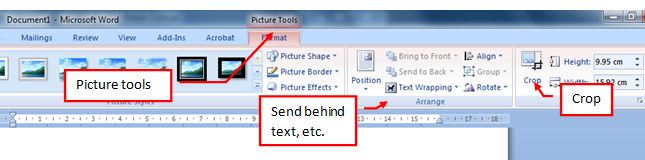
The screenshot can then be edited using the Picture Tools menu (below) allowing you to crop it, send it behind text and so on. To access this menu double-click the picture and it will appear at the top of the screen.

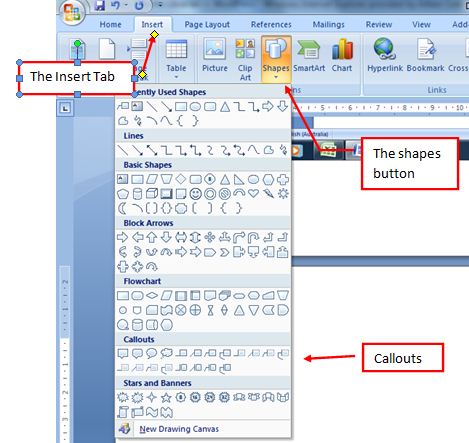
You can also highlight different sections by inserting shapes such as arrows, boxes, text boxes and callouts from the Insert tab by clicking Shapes button.

Smart

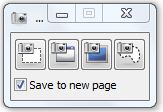
If you are creating stuff for the Interactive White Board, the Smart software can take screenshots for you using the Camera tool. This appears as a camera in the toolbar across the top.

1. By selecting the camera tool, from left to right  you can: 

  • Draw a rectangle around what you want captured.
  • Capture part of the screen – move the mouse over the section you want, it’ll turn grey, click it.
  • Capture the whole screen.
  • Draw around a shape that you want captured.

2. When you take a screenshot it will automatically be pasted onto your Smart worksheet where it can be resized, drawn all over and so forth.

Screenshots for the web

If you want to upload your screenshot to a blog or wiki, you will usually need your screenshot to be in an image format like jpg. You can do this by taking the screenshot, pasting it into MS Paint and then saving it as a jpg or, if you have Windows 7, you can use the Snipping Tool and then save it as a jpg with that.

The Snipping Tool has some other cool features such as the ‘Record steps to reproduce a problem’ which allow to take a series of shots to show a process and then save them as an html file. If you want to know more about this, come and see me.

 Happy snapping!

Posted in Online Publishing, PowerPoint, Screenshots, Smart, Word | Leave a comment

Trouble downloading videos from Youtube with Zamzar

We have had some trouble downloading videos in the PD sessions using Zamzar and here’s why: Zamzar has a limit of 100MB on their free page. This means that if the video is over that size, it will not download. Unfortunately it does not seem to do the helpful thing and send you a message that says ‘this is over the limit’ it just seems to work and then sends you a video that plays for three seconds then blacks out.

How can I tell if my video is over 100MB?

It is a bit tricky to work out how big the movie is. I had a look at two movies that I have, one a grainy small clip and one a larger nicer vid, that are both about 2 mins and they were thirtysomething and sixtysomething MBs respectively.

Have a look at the video:

  • Is it over three minutes? It’s probably too big.
  • Is it high quality? It is probably too big.

And try downloading it. If it doesn’t work then it is too big.

But I want it!

If you really want the video and it is too big, you can sign up for an account with Zamzar (or lean on your fac to do so) which increases the size of the videos that you can download ($7/month=200MB, $16/month=400 & $49/month=1GB).

Alternatively, you can trawl the internet for other sites that download videos. There is a list of some of them from Mashable here. Unfortunately, many do not convert the file at the same time so you would have to convert them yourselves. Which is easy. Just ask me.

Happy downloading!

Posted in Downloading Video | 2 Comments

Adding a Learning Object from Scootle to your Online Learning Page

Any learning object can be added to your online learning pages from Scootle in just a few simple steps.

Downloading the Object

1. Find the object that you want to add to your page on Scootle (‘Man, I was totally looking for something on shapes and when I deselected all year levels, selected grades 3-4 and then put mathematics in the drop-down menu in the subject field on the left-hand side, it was the first thing that came up!).

2. Click the link to the object and then click Download on the right-hand side – it will ask you to login here.

3. Unzip the file – by creating a new folder with the same name it will automatically put it there.

4. Put this folder into the appropriate folder in the K drive. Now you are ready to link to this object on your online learning page.

Updating your Online Learning Page

5. Find the page that you want to add the object to using Windows Explorer (it will be an HTML Document, not a folder).

6. Right click the file and go to Open With>Adobe Dreamweaver CS3. This will open the page and allow you to edit it.

7. Create some text or an image from which you desire the object to be linked.

8. Select the text or image and then edit the Link field at the bottom of the page by clicking the folder at the end of it. This will allow you to browse and select the file that opens the object (labelled ‘Index’).

9. Save the page, open it in your browser and test it out then let me know and I will update the page on the server.

There are more comprehensive instructions on the S drive at: S:\Professional Learning Resources\WebPage Design

Posted in Dreamweaver, Online Learning, Scootle | 1 Comment

Delicious Style Guide

Faculties can help staff to manage online resources by setting up a faculty page at Delicious. Delicious is a place where individuals and groups can store bookmarks online. It is great for sharing resources and keeping track of sites if you use multiple computers. By maintaining a faculty page, teachers and students will be able to store, share and find resources easily wherever they are.

The main way that resources are categorised is by tagging. Tagging allows us to see all the resources that share a tag by clicking on that tag, searching for it in the search box or adding it to the URL.

In order to maintain consistency in our tagging, I suggest that we follow this style guide. The guide will help you tag items so that they can be retrieved quickly by yourself and understood by others.

N.B. Tags must be one word or else delicious will separate them into two tags. If you want a space, use_underscore, otherwisejustrunthewordstogether.

1. The first tag should relate to the year level and subject being taught (i.e. Year12_Chemistry).

This allows a student to see all the resources that a teacher has found for their year level and subject. If you separate these tags they will either be able to see all the resources relating to Year 12 irrespective of topic or all the resources relating to Chemistry irrespective of year level.

2. The second and following tags name the topic give specific information on the resource (i.e. Electrochemistry, Animation).

Teachers and students will be able to browse these in the list of tags on the right-hand side of the screen, add the tag to the URL (i.e. delicious.com/aitkenscience/electrochemistry) or search for the tag in the search box.

If you want to see what a delicious page looks like, check out mine at: www.delicious.com/tmh1136 – I wish I had been more consistent with my tags…

Please let me know about your success and failures using Delicious!

Posted in Delicious, Style Guide | 1 Comment

Sending messages to parents in eWorkspace

eWorkspace can be used to send messages to staff, students and parents. The following describes the steps involved in sending a message to all the parents of students in a particular class:

The Parents By Class button is currently not working in eWorkspace. If you want to message a parent, the best way to do so is to go to the student’s details window and click on the parent’s email. To do so, follow the instructions below:

1. Log in to eWorkspace

2. In the top right-hand corner of the screen select students and the field next door will change into a drop down menu where you can select the student (pictured below).

3. Select the student. This will take you to their details. The mother’s email address is about half way down the left-hand column and the father’s email in the same spot in the middle column. Both of these are links and will open a new Outlook email where you can write your message.

Note: this will only work on a computer on which you have Outlook set up. If you don’t have it set up on the computer on which you are working, copy and paste the email into a new message in the online email system.

1. Log in to eWorkspace.

2. Go to My Messages in the menu on the left-hand side of the screen.

3. Click the New Message link (the green plus below the Inbox tab). If a new window doesn’t pop-up look for the message that appears about pop-ups, click it and allow pop-ups from the site.

4. Click the To button.

5. Select Parents By Class. This will create a field down the bottom of this screen with a list of all the classess.

6. Select the class that you want to send a message home to (i.e. 5LIBR) and click Add.

7. Click Return to Message. The selected class should appear in the To field and you can complete your message and send it.

Thanks LCB for the question! Let me know if this works.

Posted in eWorkspace, Messages/Emails | 1 Comment

Using Wikispaces

Wikispaces is a really easy to use tool for creating wikis and there is loads of help to set them up on the Wikispaces website. In order to create a wiki for your students to post their thoughts and comments on each others ideas, follow the steps below:

1. Go to wikispaces.com. If you already have an account, sign in. If not, create an account by clicking the Wikis for Individuals and Groups button and follow the prompts.

2. In field labelled ‘Wiki Name’, name your wiki (i.e. mrhenglish).

3. Your wiki will automatically be on the trial ‘Super’ plan so you need to change it to the free plan for teachers. In order to do so click Manage wiki on the left side of the screen> under Settings click Subscriptions> Scroll to the bottom of the page and click Request an Education Upgrade> wait.

4. While you are waiting, you can build your page. By clicking the title of the page (mrhenglish) you will be taken to a front page that gives you tips on how to get started. These will disappear when you edit this page so here is a copy:

Getting Started

  • Click on the edit button above to put your own content on this page.
  • To invite new members, click on Manage Wiki and Invite People.
  • To change your wiki’s colors or theme, click on Manage Wiki and Look and Feel.
  • To set who can view and edit your wiki, click on Manage Wiki and Permissions.

It also advises that if you need help you can click here.

5. Once your page is ready, you will need to create accounts for your students to join. In order to do this you must have an educators account. I am still waiting on mine but here is how it is done in theory:

  • If you are a teacher and need to add a whole class’ worth of student accounts, you can do it all at once by going to Manage Wiki > User Creator. You will be able to make accounts for all of your students, even if they don’t have email addresses.Keep in mind that every Wikispaces username must be unique. Try using numbers, or initials, or a first name-last name combination to create unique usernames.

Have fun with it and let me know about your successes and failures!

Posted in Wikis, Wikispaces | Leave a comment

Staff Meeting (23/02/11)

Click the following for more information on:

And don’t forget to let me know if there is something that you want help with!

Posted in ITAG, PD | Leave a comment