Conducting research

When you are given a new research assignment, the first thing that you will want to do is panic. Then, following a period of not knowing where to start and wallowing in self-loathing and the unfairness of the school system, you will rush off something the night before it is due and fail to live up to expectations. Or…

There is a more methodical, guilt-free approach to conducting a research assignment that will not only feel better while you are doing it but, importantly, allow you to achieve your academic goals. Follow these steps to stress-free, excellent work: deciding, finding, using, presenting, evaluating.

Due dates

Before we begin, in order to manage your stress and create your best work, you might like to think about submitting work before its due date. WHAT!?! No really. This is like those people who are always on time because they set their watches 3-minutes fast. Everything always takes longer than you think. Aim to have an assignment done two or three days before a due date and you will be prepared for the re-write that becomes necessary as you get two-thirds of the way through completing your work.

Deciding

When you are given a topic, work out what you know about it or gain a general understanding using online encyclopedias and then work out what the main issues are and, of those issues, which one you will form an argument about. You will need to have a clear idea of this as all the information you present will be relevant to this argument and, hopefully, persuasive to your angle on it. Once you have decided on your argument (also called your contention), write an essay plan that identifies paragraph-by-paragraph the points that will make up your argument.

Finding

Now is the time to move from the general to the specific. Sites like Wikipedia and search engines like Google will be able to give you a general idea about a topic but only academic resources (published books, text books, encyclopedias, sites produced by academic institutions, journals and newspapers) will be reliable enough to fill out the specifics of your argument. Using primary sources – those arising from the event itself – is double-plus good for supporting your argument and will get marks literally dumped on you by a truck but these are hard to track down. Speak to your teacher about what primary documents might be around for the topic that you have chosen.

To find both primary and secondary resources, carry out a subject search on the library’s catalogue and use some advanced Googling. Secondary resources should be published by a reliable organisation, free from bias, error-free and current. The author should tell you where they have gotten their information from and give you references to follow up. For your own piece of mind, you should be able to confirm information by using other sources, especially regarding contentious points.

Using

You will not have the time to read everything that was ever written on a subject so don’t try. Well written information will include a topic sentence at the beginning of each paragraph – if that sentence is not relevant to your argument, move on.
Referencing

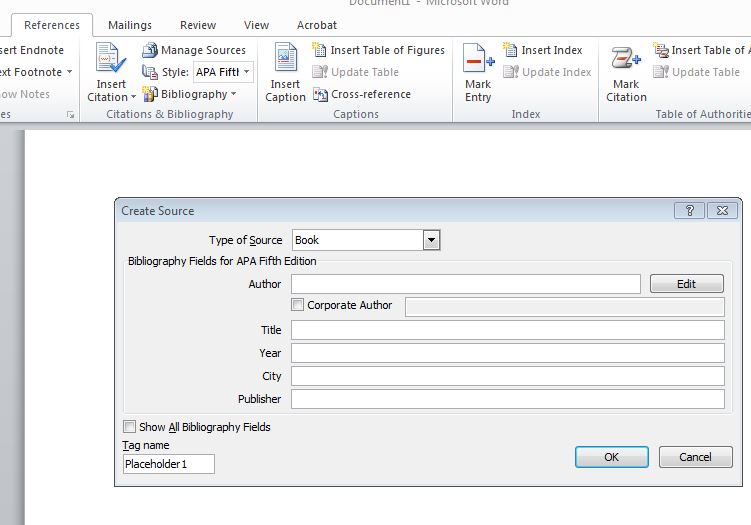
Make notes on your plan that link pieces of information and quotes to your arguments. You will need to know the publisher, date of publication, author, place of publication, page number and, of course, the title in order to write a proper bibliography. For websites, you will need to also know the date that you viewed the information and the URL. Use the bookmark function on your browser or online bookmarking sites like Delicious to keep track of these so you will have the information when you need it. Different subjects have slightly different requirements for the format of this information so make sure that you check with your teacher what these are – there are generally marks to be had if you do this well and you can certainly lose marks if you do this poorly. MS Word has excellent facilities to create your citations and bibliography for you so there are really no excuses.

There will be restrictions on how much of another person’s work you can use. Generally no more than %10 of your work can be taken from another source. Parroting from one source will not gain you marks anyway, you add value to information by analysing it or synthesising it with other information – if you haven’t done this, you haven’t created anything. Use quotes sparingly and link ideas to support your arguments. If you are worried that you might have gone a bit quote-crazy, run your assignment through something like PaperRater, a website designed to detect plagiarism in academic work to ensure that your work is sufficiently made up of, well, your work.

Presenting

The nature of your presentation will be explained by your teacher. Use the information about the assignment to guide your work. There is no point in spending heaps of time creating diagrams, for example, if you are only going to marked on what you write. Marking rubrics, assignment sheets, feedback on previous pieces of work and presentations that the teacher gives will inform you of what they are looking for – ignore this at your own peril.

The work you submit should have been read through in it entirety before it is submitted. You will not want to do this because it will mean that you will need to change things. Do not worry, it is never as bad as you think and you will generally be surprised by how wonderful you are. Get your mum, dad, older brother, tutor, friend to read through it and give you feedback but make sure that they have read the assignment information first.

Evaluating

Take the time after you have been given work back to read the comments. These should form a picture of the type of student you are. If you are regularly being told that your work lacks research, do more pre-reading, if it is covered in red underlining, work on your expression and proof-reading.

If you are unhappy with your result, make sure that you discuss it with your teacher and ask about the possibility of a resit. Only do this if you really intend to address the issues raised by the teacher – if you intend to do exactly the same thing you did the first time then don’t bother. Sometimes a resit will not be possible and you will need to make sure that issues with the piece are improved upon in future work.

Good luck!

There is no need to let yourself get overwhelmed by research. Following the steps above will help you to break your task down into manageable parts. Have fun with it and don’t forget, it’s your library!

Posted in Research Skills | 1 Comment

Teaching Vocabulary

Following on from Hugh’s and Di’s presentation yesterday, I had some thoughts about integrating what they were talking about into the school’s teaching frameworks.

GANAGing vocabulary

When is the best time to introduce new terms? New terms will be encountered at all stages of the GANAG process, of course, but teaches can strategically introduce new terms to different ends.

G – The beginning of a unit can involve an introduction to new terms. You might put a vocabulary teaser into this section, include terms that will be learnt into an advanced organiser or you might decide to keep them up your sleeve for reasons that will become clear later in this post.

A – A discussion about prior knowledge will always bring up some terms which will be new to some of the kids. Write them down (in real life or online) and have a go at defining them. Don’t forget the strategies that Hugh and Di covered for defining words – look for similarities with other words (comparing the root of the word to other words, for example), look for other, different sounding words with a similar meaning; or, when a satisfactory definition cannot be identified, generating a hypothesis about what the word might mean and then come back to it later when you have explained the concept.

N – New information is where your lesson gets really exciting. You might want to save big and exciting terms for this part of the lesson rather than covering them at the start. Build up the new words that are coming at the beginning of the topic (without letting the cat out of the bag) and then, BAM, unleash them here.

A – Here is the opportunity for the students to put these new words into use: make sure that use of appropriate vocabulary is built into your rubrics so students see the value in applying these new words in the form of higher grades. This is also the time to explain words that relate to the process of completing tasks. These are the Tier 2 terms that Hugh mentioned. Ask yourself, do the students properly understand what it means to analyse, contrast, predict, manipulate, estimate or interpret?

G – Review new terms in the goal review – Did we learn new terms? Do we know what these terms mean? Can we use these terms properly?

Applying instructional strategies to teaching vocabulary

Many of the instructional strategies covered in Classroom instruction that works are directly applicable to the teaching of vocabulary.

Nonlinguistic representation

The most effective strategy covered in Pollock’s work – identifying similarities and differences – is also one of the most powerful strategies in learning new words. Students will often know other words with the same root that will help them to understand a new word (photosynthesis: photograph, photocopy = something to do with light). Alternatively, students can attempt to find other words with a similar meaning (conscientious: dedicated, hard-working). Students can also learn new words through the comparison to their opposite (conscientious – careless).

Summarizing and notetaking can be used to record new words, their meaning, synonyms, antonyms and root words. Similarly, new words can be outlined in advanced organisers. It is critically important that these notes or organisers are revisited in class, as homework, as part of completing the assessment task or through preparation for exams.

Students should be recognised and rewarded for using adventurous vocabulary both during formative assessment – by making positive written or verbal comments – and summative assessment by including vocabulary on marking rubrics.

Non-linguistically representing new words is a powerful way for learners to internalise new words. They also show the students how they relate to other terms in the topic (see Photosynthesis, above).

Another key strategy to learning new words is predicting what they mean. This involves generating a hypothesis through the strategies covered in identifying similarities and differences and then testing that hypothesis (replacing the word you don’t know for a word you do and seeing if the sentence makes sense, for example).

These strategies all have a proven effect size on student learning meaning that students will learn beyond what they would learn if you were not implementing these strategies. These are simple ways that you can improve student performance and develop literacy skills along the way.

Teaching literacy all the time

It is important to remember that, unless students have strong literacy skills, they will not be able to interact with the written content in any of their subjects. As such, it is in all teachers’ interests to teach students strategies to improve their vocabularies. Many of these strategies seem innate but, as Hugh and Di covered, they are not.

Students need to be taught at least 400 new words per year in order to properly develop their reading comprehension.  Further encouragement of reading for 25 minutes a day will improve a student’s vocabulary by 1000 words. This is particularly important in the senior school where students are not reading as part of the literacy program.

New words are exciting, fun and productive. Use and encourage a varied vocabulary with your students and they will thank you for it with better results.

Posted in Literacy | Leave a comment

It’s your library

Welcome to the Hoppers Crossing Secondary College Library.

It’s your library. We try to do everything we can to support your pursuits while at school. If you can see a way that we could do something better, tell us.

Collections

In the main library we have our fiction and non-fiction collections. These include books that you can use to study, read for pleasure or pursue your interests.

Our fiction is divided into general fiction, humour, romance, horror & supernatural, graphic novel, dystopian and fantasy & Sci-fi. On the spinners we have quick reads and near the entry we have a range of magazines that can be enjoyed in the library.

Non-fiction is organised by topic using Dewey Decimal Classification. Looking for books on robots? 62o-30 is the place to find them. Ballet? 792. To discover where your topic might be, ask the SEARCH computer or one of the friendly library staff.

We also have both fiction and non-fiction on our eBook platform. Check it out. And access to the whole Encyclopeadia Britannica through the library’s tab on the homepage. Yes, the whole thing.

Using the library

You can borrow 3 books at a time. The period for loans is 3 weeks. Overdue books will attract a scowl.

If you lose a book, you will need to pay for it. This money could be spent on sugar or social networking or whatever it is that you kids do with money these days. Think about it, would you rather give us your money and end up with nothing or use it to buy Slushies or iPhandangles or whatnot?

Books need to be returned through the return chute. DO NOT PUT YOUR BOOK BACK ON THE SHELF.

Other resources

The library is home to a photocopier that you can use with your username and password. Instructions on how to use the photocopier to copy or scan are on the wall behind the machine.

The library has four PCs for student use but these are not connected to the printer.

Hanging out

You can come into the library to study, read or use your netbooks before school, recess, lunch and after school. Remember: students use the library to study, read and use their netbooks so don’t do anything that will disturb them.

No eating.

Posted in Uncategorized | Leave a comment

How to: Set up a quiz

Matt Kuhn has been showing a group of us some technology ‘that works’. Among the many applications and pedagogical considerations that he has been covering, he has shown us this quiz builder from Infuse Learning – a dynamite website to set up quizzes to run in the classroom.

IL8

What’s so good about it? Infuse Learning allows you to create free quizzes, gives you a range of question types from multiple choice to text response, gives you real-time feedback as to how your students are going while they take the test and allows you to download results as soon as the test is finished.

Question Types

IL4

The website allows you to select the type of question from the list above. If you are curious about what the Likert Scale is, there is a handy wikipedia article on just that here.

Real time feedback

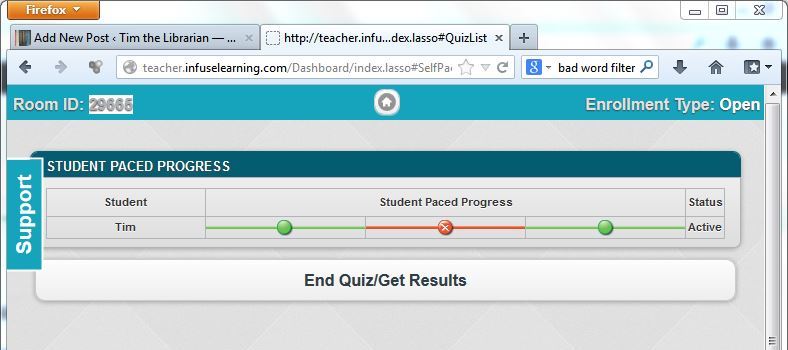
As your students take the test you can see who is logged on and monitor their progress (pictured below).

IL

Results

IL2

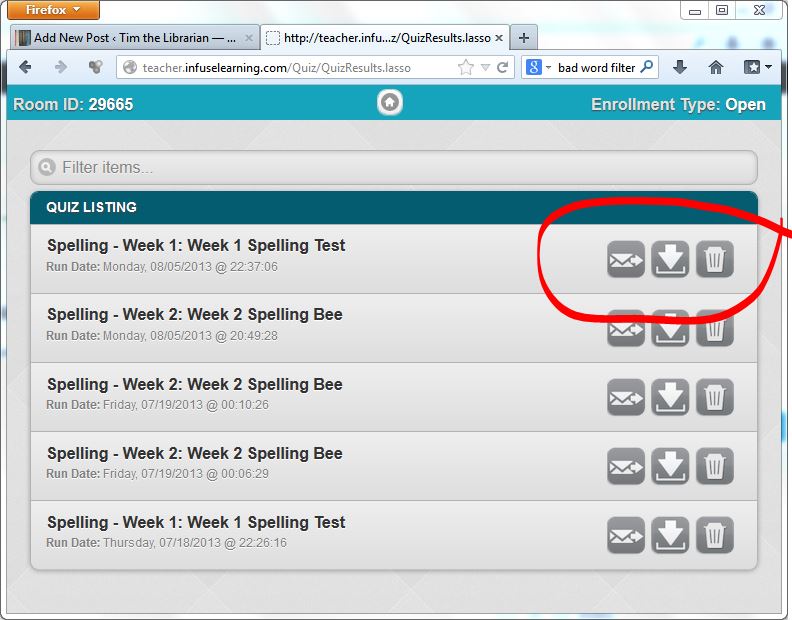
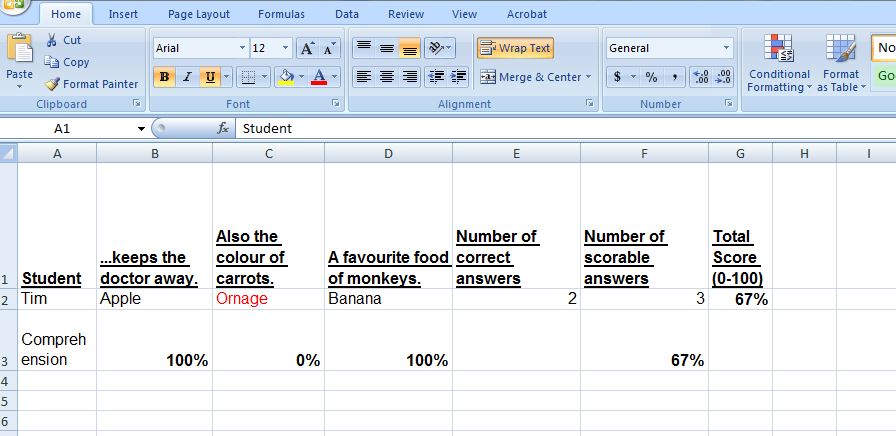
Once you hit the End Quiz/Get Results button, the site will take you to the page pictured above where you can mail yourself a report, download an Excel spreadsheet with the results (pictured below) or delete any record that that running of the test ever occured.

IL3


How it’s done

If you would prefer your information to be accompanied by a picture of an owl or you want to see how Prezi works while you learn about this website, you can use this how-to instead of mine below.

1. Create an account. You can do that here.

2. Create your quiz by going to teacher.infuselearning.com.

3. Under the heading, Quiz Management, click on My Quizzes. Click Add New Quiz to start editing.

4. Give your quiz a title (eg. Year 8 Science – Sustainability) and description (eg. Topic test for Year 8 Sustainability Unit).

5. Turn Shuffle Questions on if you want to prevent over-the-shoulder inspiration (cheating) or leave it off if the sequence of the questions is important. Set the Bad Word Filter (I have no idea…). Set the Display Results depending on if you want your quiz to be formative (on) or summative (off).

6. Click Add New Question

IL5

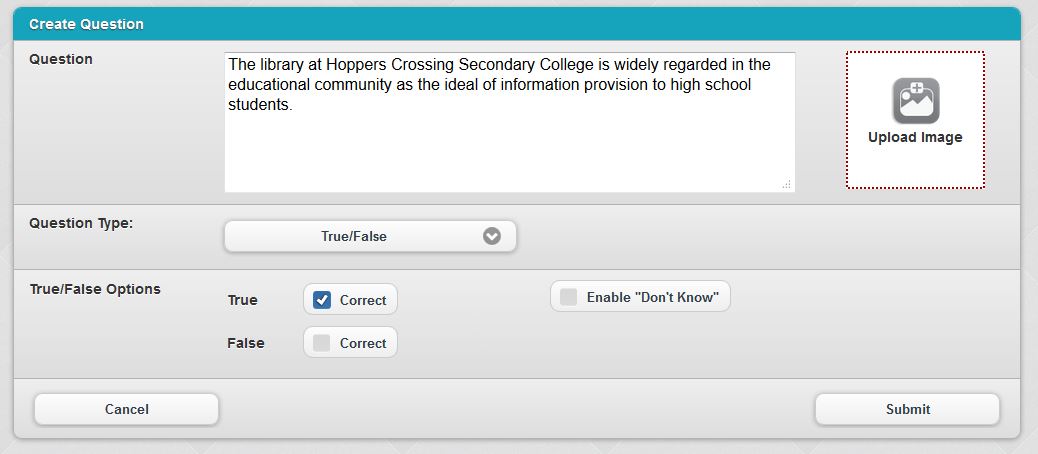
7. Write your question, add an image, set the question type and then enter your answer(s). Click Submit.

8. Repeat steps 6 and 7 until your quiz is complete.

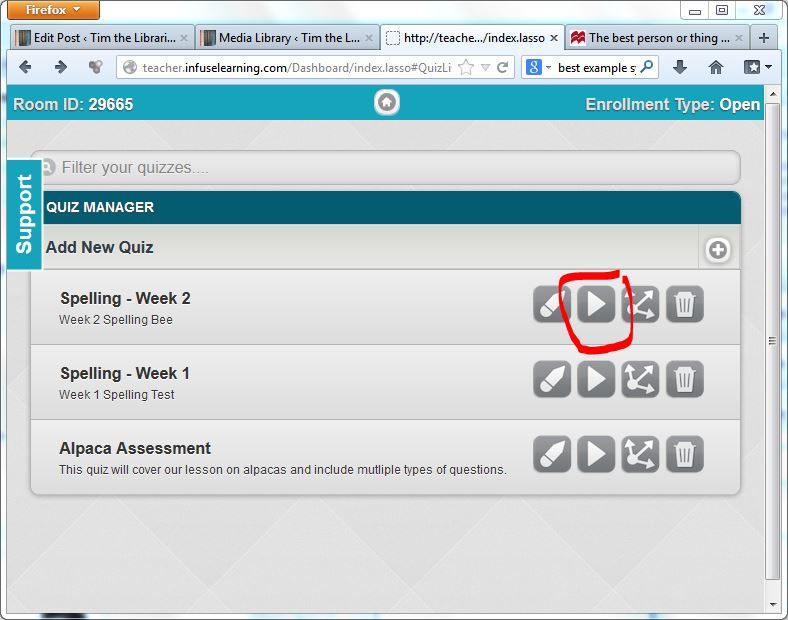
9. When you are ready to start, click Run Quiz (the play button circled below).

IL6

10. On a computer other than the one on which you are running the test, (eg. their netbooks), get your students to go to: http://student.infuselearning.com/

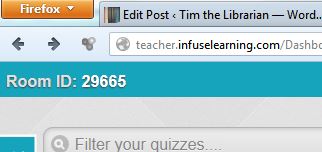
11. Have them put your room ID into the Room ID field, this is the number at the top left hand corner of the browser when you are logged on as the teacher (pictured below), and their name into the name field (this will come up on your report).

IL7

12. Your students should be able to select the quiz that you have created. In the teacher window you will see who is logged on, what question each student is up to and whether he or she is getting the answers right or wrong.

13. Once your students have finished, the students will need to review their answers and click Submit. Once they are done, you can click End Quiz/Get Results.

13. Download the results, write reports, go on holidays.

Posted in Assessment, Quiz | Leave a comment

How to: Borrow an eBook

In order to borrow books from our ePlatform, students will need to create and Adobe username and password and log in to accept their Terms and Conditions.

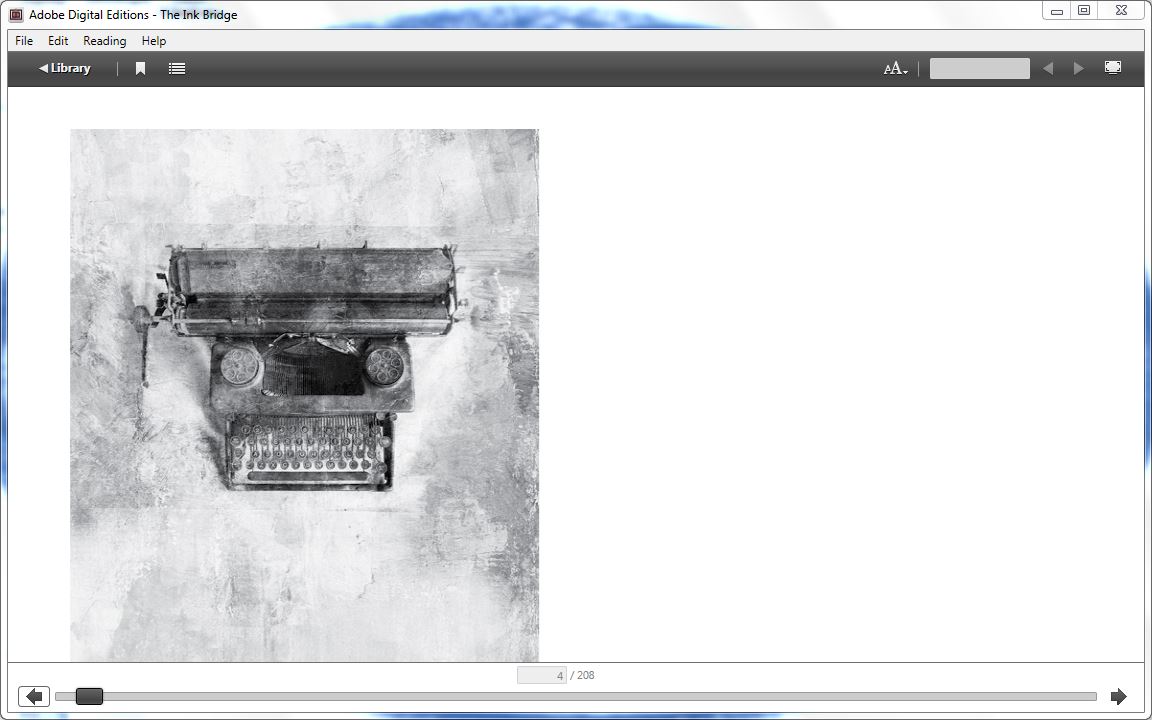
ADE

Adobe Digital Editions (ADE)

Your netbook should already have Adobe Digital Editions installed on it so all you will need to do is create a username and password with Adobe and then accept their terms and conditions. If you need to get Digital Editions for a home computer or other device, click this link and follow these instructions: http://www.adobe.com/products/digital-editions/download.html

Under the heading, ‘Adobe Digital Editions 2.0 Installers’, click the link that says ‘Windows (5.6 MB)’.

The downloader will pop-up at the bottom of the screen, click Run.

Do the Accept, Next, Next, Install, Close dance. This will open Adobe Digital Editions.

N.B. At this stage and at any time that ADE opens, a Windows Security window will open needing your network username and password. Sometimes this will open behind ADE and behind any open browser windows. If things don’t seem to be working, minimize all open windows and see if the Windows Security window is lurking somewhere waiting for a username and password and obstructing your progress.

Creating an Adobe username and password

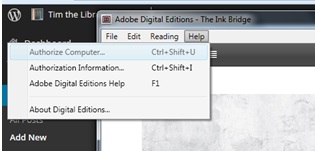
With Adobe Digital Editions open, click Help (I know, right?) and then Authorize Computer.

Authorize

This will open a browser window where you can enter your details. I suggest using your school email address and your network password. You will not need to log in to your email account to authenticate your account, you will, however, need to log in to Adobe online in order to do so.

In order to log in to Adobe online, click this link (https://www.adobe.com/account/sign-in.adobedotcom.html), enter the username and password you just created and accept the Terms and Conditions.

Everything is now ready for you to borrow an eBook.

Borrowing an eBook

Go to: http://hopcross.wheelers.co/

Login using your network username (not your email address) and password.

Find a book that you would like to read.

Click ‘Borrow Now’ and then ‘Download Now’. This should open ADE and begin downloading the book.

N.B. Please do not download a ‘practice’ book that you don’t intend to read – we only have the rights to download most of our title 25 times before we have to buy them again and each title can only be loaned to one student at a time.

Posted in eBooks, ePlatform, Library resources, New Books, Reading | 12 Comments

English Dept. Holiday Reading

Thank you all for enduring my rushed presentation at the English Faculty staff meeting yesterday evening. I thought I would follow up with a few longer form notes on the books that I spoke about and some that I didn’t.

books

Firstly, I have written reviews of Nanberry: Black Brother White by Jackie French and Crow Country by Kate Constable that you can access by clicking the links.

The ACARA website has some advice on selecting literary texts here. This page also includes a helpful list of links which aren’t very helpful (such as a link to the Victorian PRC Booklist where you can narrow down your list of potentials to a mere few hundred or the broken links to Asia Education, dreamtime.net and the State Library of Queensland).

The other books that I talked about were Stolen by Lucy Christopher (Shona Cowell had read that) and Run by Tim Sinclair (Leah Christou had read that). Also at the conference where I saw Tim speak, I saw Alison Croggon talk about her new book, Black Spring, which is her interpretation of Wuthering Heights and Gab Williams talk about her new book, The Reluctant Hallelujah, which is about some kids who find Jesus’ corpse in their Sydney cellar. Sounds really funny. We will be getting both of those books next term.

I also spoke about the more high-interest books Don’t call me Ismael by Michael Gerard Bauer and The Hunger Games by Suzanne Collins. Don’t write these off out of hand, there is a lot to be said for the way that high-interest texts can create positive attitudes to reading. We really want kids to leave school wanting to pick up a book.

I hope I’ve given you guys something to think about. If you want to talk about any of these books some more, feel free to come and see me. Also, if you want to borrow any of them, drop into the library.

Posted in Reading | Leave a comment

Reading Matters 2013

Rarely do we get to get to know our nerds authors in such an up-close and personal way as at Reading Matters. The kids who run the Centre for Youth Literature (the very same kids who are behind INSIDEaDOG) somehow manage to draw hot authors to their party like students to free milk (homework club runs every Wednesday from 3:05. Free milk!).

This year’s haul included Inky longlisted authors, graphic novelists and a YA writing librettist (it’s a thing). I won’t bore you with listing all the authors but lets just say that my reading list has just gotten a bit longer.

While we were there ‘working’ (read: schmoozing, enjoying amazing danishes, hanging out with other librarians), Julie managed to sidle up to Libba Bray. This was the result…

Libba Bray to Thomas, ‘I bow to you’

Over the next few weeks and months we will be purchasing books written by the fantastic authors at the conference and adding them to our shelves and e-book platform. Keep an eye out for them and feel free to come and ask us for a recommendation that will appeal to your mien.

Posted in ScreenCasting, Synergy, Uncategorized | Leave a comment

ClickView – SchoolBag

This post is now outdated. ClickView videos are now available online. For updated information, see this post.

ClickView SchoolBag allows students to transfer videos from our ClickView Server onto a USB stick so that they can watch ClickView content without needing network connection (from home, for example).

To use this function, students will need to install the ClickView Player onto their netbooks and transfer the video from our ClickView Server to a USB stick.

Installing the Player

To install the ClickView Player onto a netbook, follow these steps:

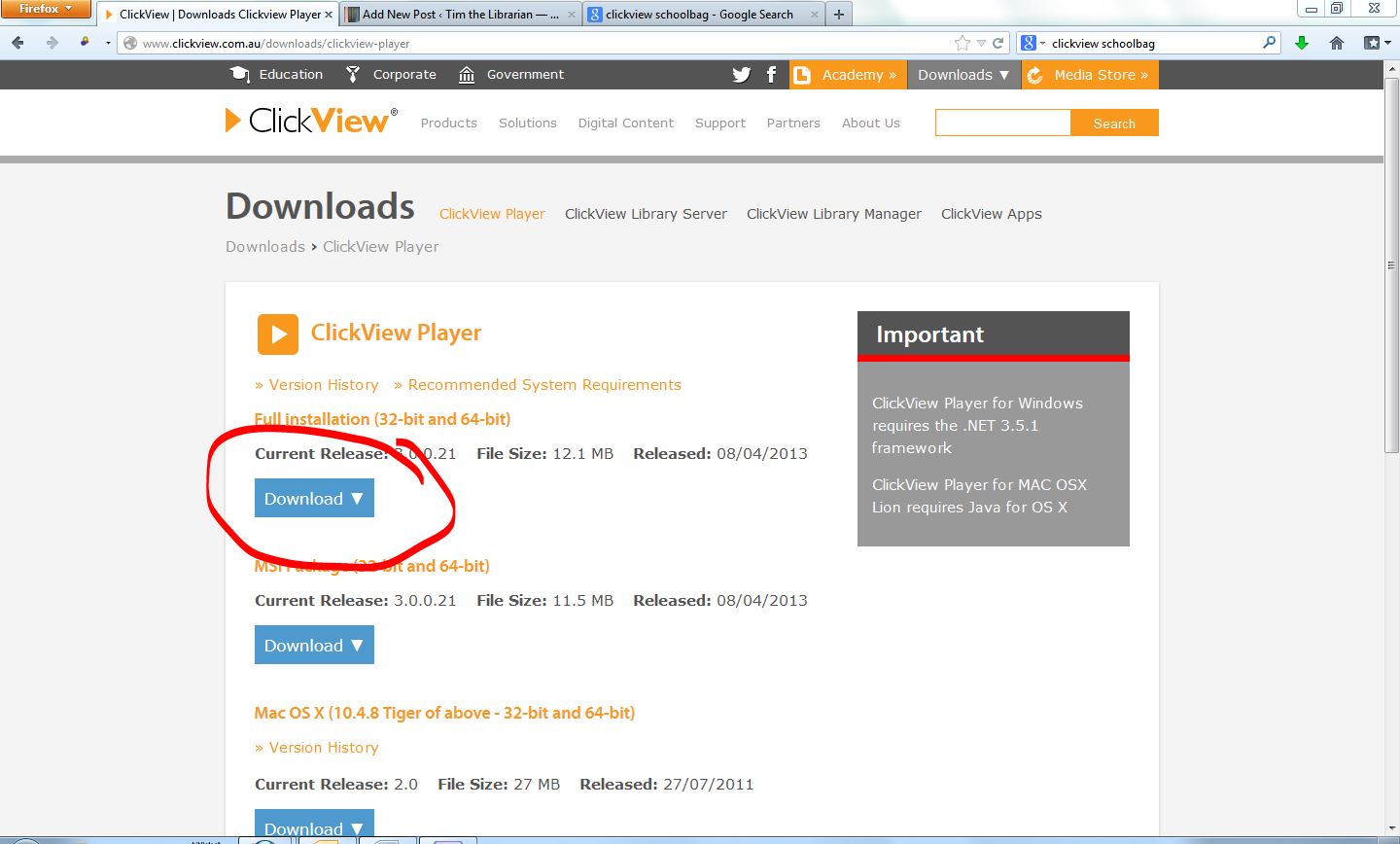
1. Go to: http://www.clickview.com.au/downloads/clickview-player

2. Click the button to download the full version (pictured).

Download ClickView

3. Select Save File in the dialogue box that opens up. This will save the installation file in your downloads.

4. Open your downloads folder (top-right for Firefox, bottom-left for Chrome, popping up at the bottom of the screen for IE or Start Button, search ‘Downloads’ or Windows+E, top-left,…).

5. Double-click the ClickViewPlayerSetup.exe file and click Run in the dialogue box that opens up then do the next, tick, next, finish dance.

6. A window should open in your browser that says ‘Installation Complete!’. Well done!

You will now have a ClickView Player icon on your desktop which looks like this:

cv4

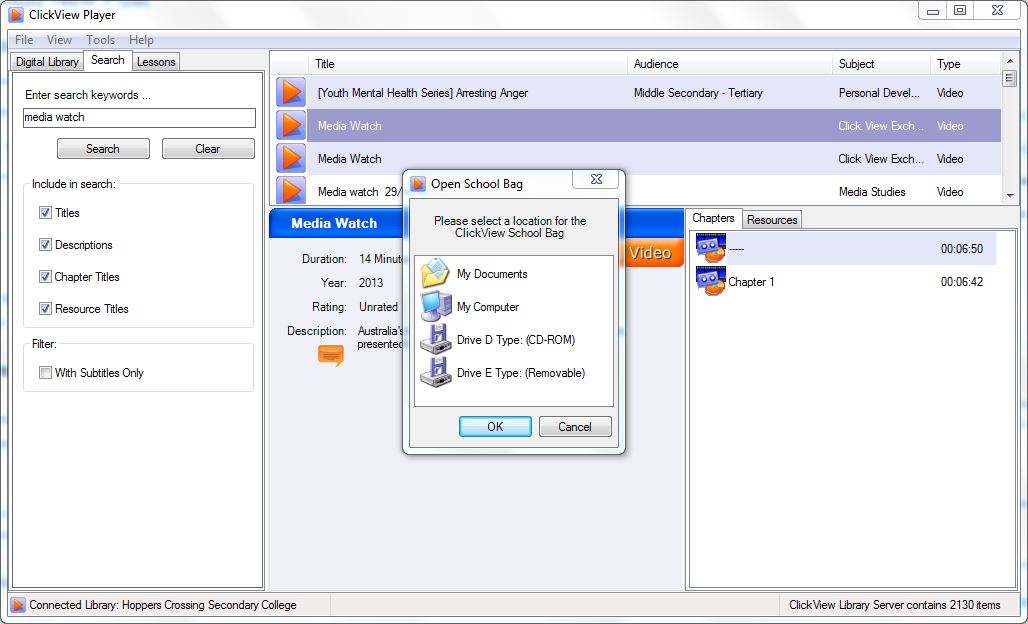
Important: The first time you open this you will get a box that will bother you with the ‘Where do you want me to something, something..?’ question. The correct answer to this is: clickviewsvr

Putting videos on netbooks or sticks

To transfer a video from the player onto your netbook:

1. Create a folder called ‘Schoolbag’ on your desktop (Windows key + D to navigate to your desktop > Ctrl + Shift + N to create a new folder)

2. Open the Player.

3. Browse to the video or search for it by title.

3. Right-click the title in the right-hand pane (pictured).

cv5

4. Select ‘Add to School Bag’.

5. Browse to the Schoolbag folder that you have created (My Computer > Desktop > Schoolbag). Once you have set the destination it will begin downloading your video.

To transfer a video from the player onto your USB:

1. Skip Step 1 then follow Steps 2-4 above.

2. Select your USB stick (labelled Drive E: Type (Removable) above), click Ok.

Playing videos from your School Bag

With the ClickView Player open:

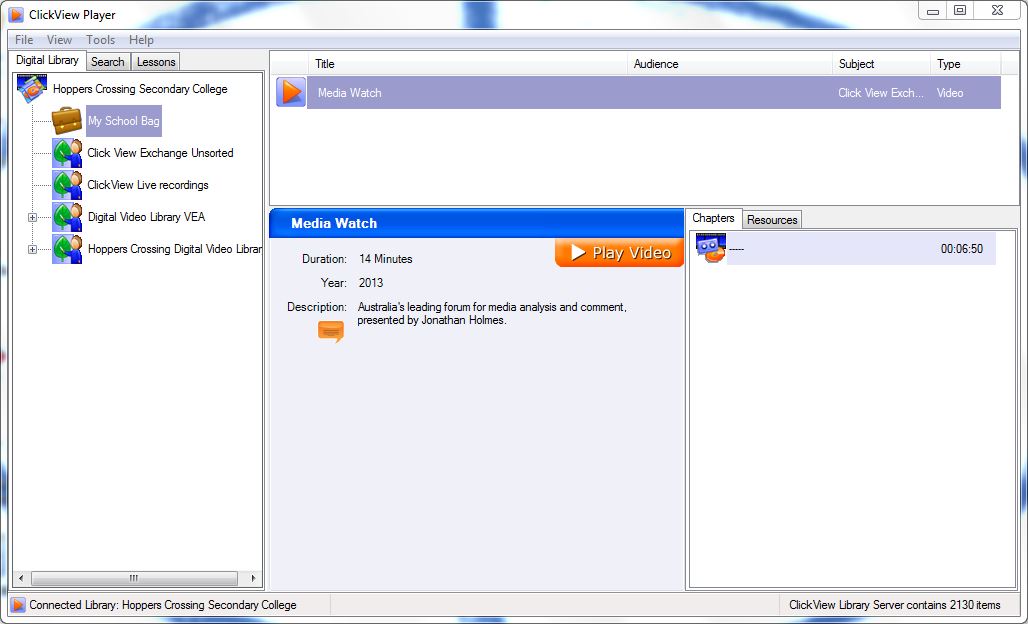
1. Ctrl+O to open the school bag. This will open a dialogue box where you can browse to your desktop or select your memory stick.

2. Click the School Bag that has now appeared in your Digital Library (pictured below), select your video and click the big orange ‘Play Video’ button to play.

cv6

3. Watch your video, get good grades, succeed, extol ‘the power of school libraries’ in your autobiography.

Posted in ClickView | 1 Comment

TLT Blogs

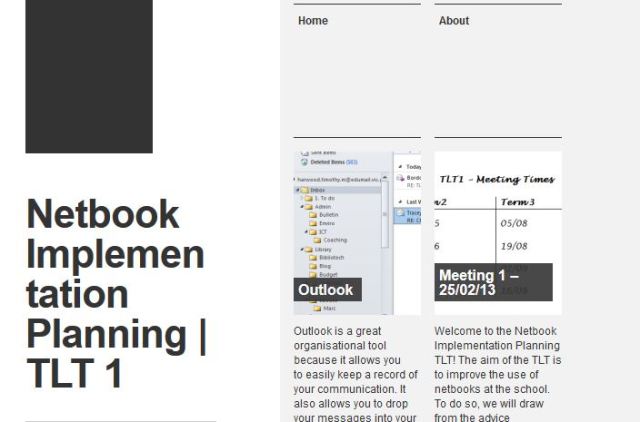
Two new blogs have been created to support the two Netbook Implementation Planning TLTs!

TLT1

The blogs are located at:

TLT1 – http://netbookimplementation1.wordpress.com/

TLT2 – http://netbookimplementation2.wordpress.com/

These blogs will provide agendas, notes and information about the applications covered in the sessions. If you are in one of these groups, you can get posts sent to your inbox by clicking the ‘follow’ icon at the bottom of the page.

Posted in Uncategorized | Leave a comment

Can’t hurt to ask…

As has been ably demonstrated by this guy, it can’t hurt to ask when are wanting to give your students real experience with key players. He has just managed to set up a skype chat with Kevin Rudd. In the past he has managed to land a chat with Aung San Suu Kyi. I don’t know whether it is his appealing love of plaid, his gratuitous flattery (he apparently called Kevin Rudd the ‘most socially networked and digitally interactive politician on the entire planet’) or his audacity to just ask but whatever he is doing definitely seems to be working.

Plaid

If you have a burning desire to connect your students with world leaders, experts in your field, inspiring people or a bunch of other students, why not ask? Can’t hurt.

Posted in Other | Leave a comment