Advanced Search – Google

Research can be a real pain in brain if you’re not prepared. There is nothing worse than getting to the end of a project and trying to write the bibliography with no idea of which source an idea came from, let alone details!

The following post will provide you with some helpful tips to get you prepared for your research and allow you to find things faster and easier.

You are not alone

Everyone feels overwhelmed at the start of a project but there are loads of resources available to get you from here to that amazing moment when it passes out of your hands some time around the due date.

The State Library have published resources on Research Skills on their Ergo website (along with ones on Essay Writing and Study Skills). These pages give you step-by-step instructions on the different stages of the research process.

There are also good resources put out by the School Library Association of Victoria that I will look at in more detail below.

Starting out

When beginning your research it is essential that you start by getting a basic understanding of it. You will need to know the main players involved, key ideas and historical context. There is nothing wrong with using Wikipedia for this. Wikipedia will give you a broad overview and point you in the right direction. Remember that you shouldn’t use wikipedia for quotes though.

Once you have a grasp of the basics, you can do further investigations using keyword searches in Google or on Encyclopeadia Brittanica (accessed from the library menu on the hopcross website).

Searching

To improve your searching, take a look at the videos in this post put out by SLAV.

Keeping track

While carrying out research it is challenging to keep track of all the places that you have been to. Using the bookmarks on your browser or an online bookmark site like Delicious can help you to organise your sources and can be invaluable when compiling your bibliography.

Good luck!

Posted in Research Skills | 1 Comment

On the Twitter

The library is now pressing your buttons on Twitter too! You can read our junk and follow whatever we find interesting enough to retweet here.

‘What will you say?’ You say.

We will be writing about new acquisitions, posting links to book reviews and new book news, sharing musings from our favourite authors and mouthing off about library stuff in an over-sharing, blowhard kind of manner.

If you want to get a glimpse at what we are doing before you go all the way and sign up, just follow this link. If you want to join yourself, you can go to the twitter homepage to do so. It will ask you what your name is (in our case HCSC Library) and what you would like your username to be (that would be ‘itsyourlibrary’ because it won’t take punctuation marks and ‘it(possessive apostrophe)syourlibrary’ was too long – this becomes part of your URL: htts://twitter.com/itsyourlibrary).

If you are already on the Twitter, make sure you follow us and we might follow you. Also, feel free to cruise our followings as we’re following YA authors, publishers, bookshops, events and other worthwhile oddbods. It’s your library.

Posted in Twitter | Leave a comment

Eclipsed!

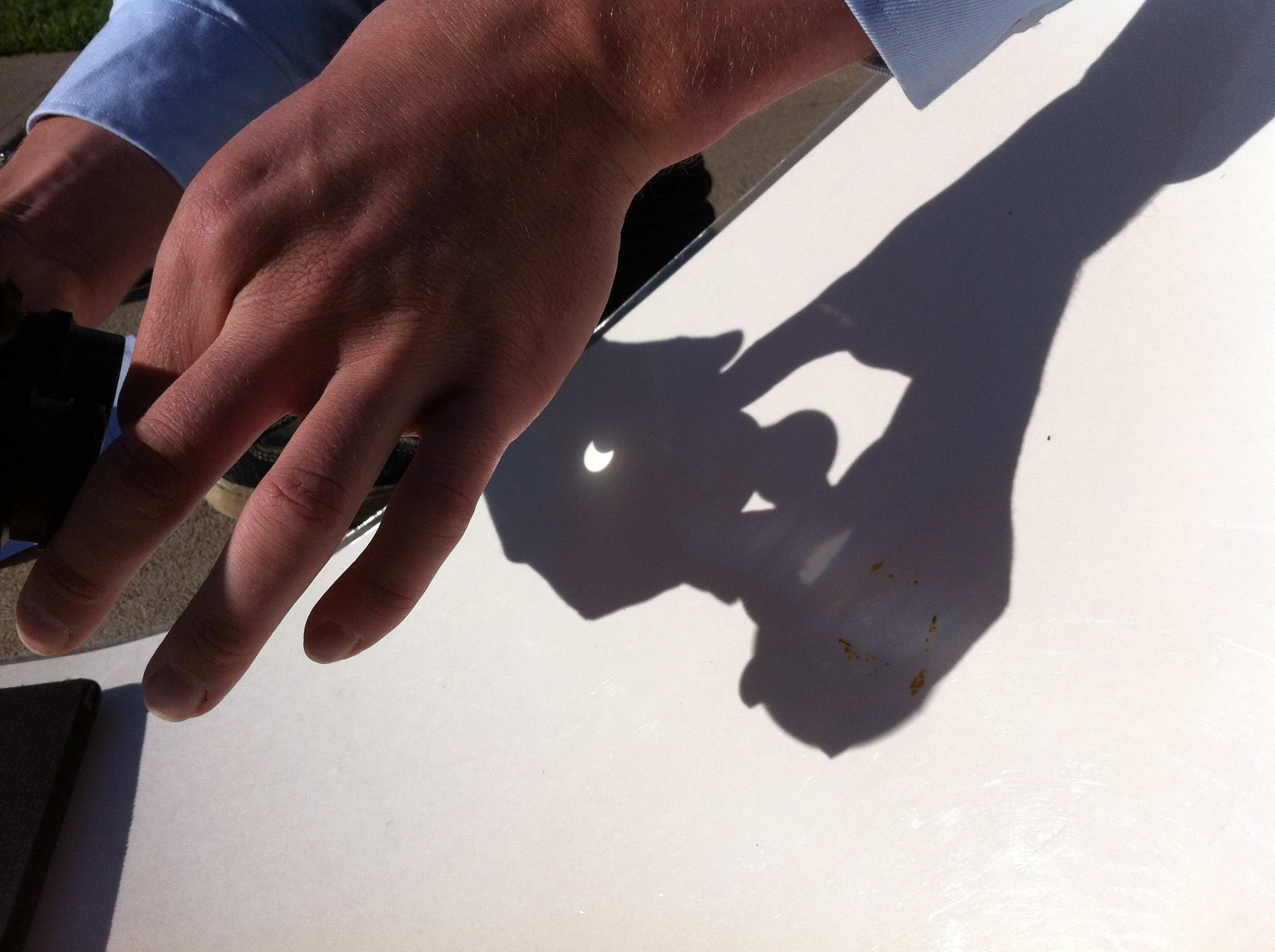
As everyone is now no doubt aware, we were in thrall to a 52% eclipse this morning at 8:06am. Some of you may have seen me stalking around the grounds with my home-made eclipse viewer (a piece of cardboard with a pinhole in it). JH was out there with some more sophisticated equipment and, piggybacking on his expertise, I was able to catch this photo…

In the middle of JM’s shadow puppets you can clearly see the sun with its upper right-hand side obscured by the moon as it passes away from covering more than half of the sun’s surface just after 8:06am. ‘We’ were able to catch this by projecting an image of the sun through one side of a pair of binoculars onto a piece of paper. Others observed the moment with cameras mounted with special lenses and the lucky ones were able to watch it directly though a welding mask. Wish I had a welding mask.

If you want to know more about the eclipse including when the next one is going to go over Australia (Sydney 22/07/2028) and what will happen when it does (birds will think it’s night-time), check out this page or watch this video that I saw someone showing their class this morning. Relaxing, no?

Posted in Eclipse (Nov 2012) | Leave a comment

Installing the ClickView Player

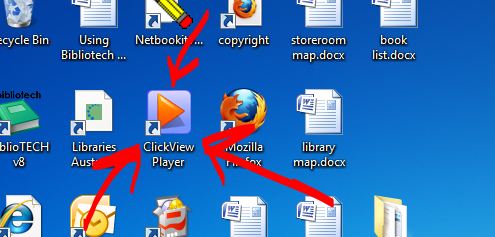
If you don’t have the ClickView Player (icon pictured below) on your desktop then you should. Installing the player allows you to share all of the amazing resources on ClickView with your students. Once you have the player you can search our server for video resources or browse by subject, then you just double-click the video and it will start to play!

ClickView Player Icon

If you find that you haven’t got the player on your desktop, installing it is easy. The installer lives on the common drive at L:\ClickView Player. To get there, open Windows Explorer (Windows Key+E or click the little folder icon on your taskbar) then go to common>ClickView Player then double click the ClickViewPlayerSetup file. This will open a wizard where you do the next, agree, next, finish dance and viola! Almost.

Now you should have the Clickview Player icon on your desktop (now pictured above). Double-click the icon and you will be asked to enter an IP address or something. In that window, type clickviewsvr. Now you are good to go!

If you want anything put onto ClickView – especially anything that has been on commercial television in the last two weeks – let me know. If it was on longer than two weeks ago all is not lost, we can have a look and see if some good person has done the work for us and uploaded it to the Exchange so that we can grab it from there.

Posted in ClickView | Leave a comment

WWotW: C.S.I. Canine Sniffer Intelligence

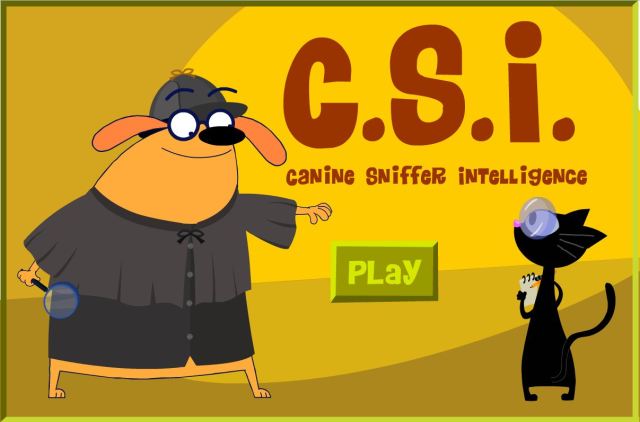
This week’s WebLinks Website of the Week is C.S.I. Canine Sniffer Intelligence!

Fans of Where in the World is Carmen Sandiego? may feel that software technology has taken a step backwards since the eighties but we don’t really want our students spending hours and hours and hours staring at EGA graphics and listening to 8-bit music, do we? Anyway, this game is much shorter and more focussed on the topic at hand.

The game allows students to get an elementary look at the basics behind forensics. Students are given the information about a crime that has been committed and can use various forensic techniques to narrow down suspects and uncover the culprit behind the crime. It will work on an interactive whiteboard too if you want to get the whole class involved.

Ok, it is pretty daggy but hopefully while you and your students are laughing at it they will be learning a bit about forensics and not realising it…

If you’ve found something good on WebLinks, let me know and I’ll share it through the WWotW. To get to WebLinks, go to the hopcross website, select Educational Links in the Library drop-down menu, then click WebLinks.

Posted in Forensics, WWotW | Leave a comment

WebLinks Website of the Week (WWotW)

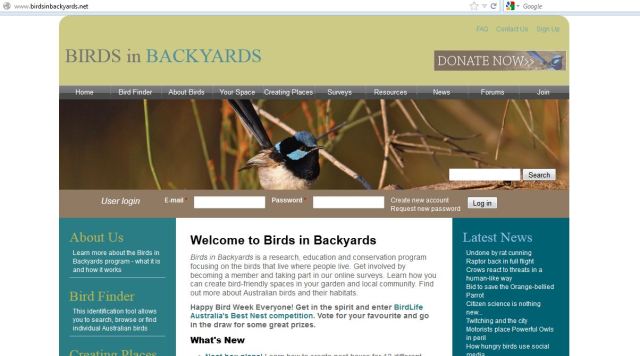
This week’s WebLinks Website of the Week is Birds in Backyards!

This great little site provides information on the type of birds you might be seeing at home, on your way to school or around the school grounds. It also gives you news about birdy stuff, a forum to discuss sightings and some tips on how to conduct a bird survey yourself.

The Bird Finder on Birds in Backyards is a very user-friendly tool for working out the name of the bird you just saw. Using various defining features like body shape, size and colour you can narrow down your sightings easily.

Sites like this have various applications in the classroom ranging from learning about traits and characteristics (science), building a nest box (tech), looking at distribution patterns (maths), expository writing (english) and conservation (everything).

If you’ve found something good on WebLinks, let me know and I’ll share it through the WWotW. To get to WebLinks, go to the hopcross website, select Educational Links in the Library drop-down menu, then click WebLinks.

Posted in Weblinks, WWotW | Leave a comment

Bring Your Book to School Week

We have created Bring Your Book to School Week as a fun way to get some of our overdue books back before we start really pestering people towards the end of the year.

Feel free to make a big deal out of it in your classes by encouraging students to bring back their books or renew books if they still want them. There will be details about events and prizes and such in the bulletin throughout the week.

It is also a good opportunity to talk about wide reading in your class, discuss books that you have liked and impress upon your students the value of reading. According to the opinion of someone on the internet, ‘Reading encourages thinking, reflecting and the cultivation of the truth, but image driven cultures tend toward subjectivism, superstition, hedonism and propaganda’.  There are actual statistics available that tell us that readers are more likely to (insert positive attribute here) from participating in volunteer work to community involvement to sport participation (!) and so on.

Thanks for your support in this endeavour – we are very excited by the prospect of seeing some of our long overdue books again. If you can think of anything that I can do in return for your support in this please let me know, after all, it is your library.

Posted in Overdue Books, Reading | Leave a comment

Double-sided printing

With students in the throes of exams, I thought it would be timely to do a quick post on how to print double-sided. At the moment the library is going through at least three reams of paper every day – equal to a whole tree worth of paper every three weeks (not to mention the 214 litres of water per day that it takes to make that much paper). Our aim is to cut this number in half.

2-sided printing – here is how it is done:

1. Open the document.

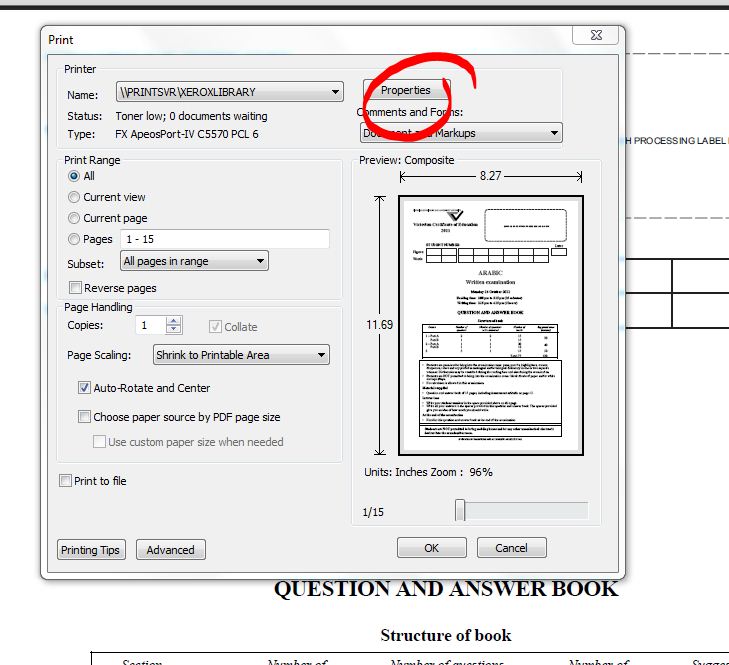
2. In Word, select File and Print (if you click the printer icon, it will automatically print 1-sided). In Adobe PDF Viewer, click the printer icon (pictured). This will open the Print dialogue window.


3. In the Print dialogue window, click Properties (pictured).


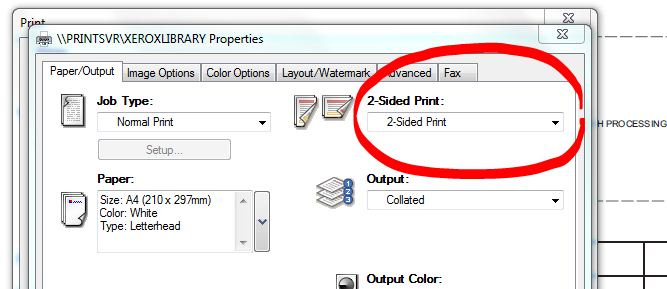
4. In the Paper/Output Tab (the one that comes up automatically), click the arrow below the heading 2-Sided Print (pictured). This will reveal a drop down menu where you can select 1-Sided Print, 2-Sided Print or 2-Sided Print, Flip on Short Edge (for printing landscape documents 2-sided). Select 2 Sided Print then click OK, OK.

5. Collect your printing and imagine David Suzuki feeling quietly proud of you.

Finally, if you are wondering how I put together such an amazing little how-to guide, I used the Snipping Tool to take the pictures and a drawing tablet to draw the nifty arrows and circles.

Posted in Printing, Snipping Tool, Tablet | Leave a comment

Trusty searching – Weblinks

When asking the students to conduct research it is handy to have something up your sleeve when the inevitable ‘You just copied and pasted this straight from Wikipedia’ conversation arises. WebLinks is the answer.

What is WebLinks?

WebLinks provides a search opportunity where students can choose from a list of sites that have been pre-approved by the magicians at WebLinks. Sites indexed on WebLinks have been deemed to meet the following criteria:

  • Authority
  • Suitability of content to curriculum
  • Is the content up to date, relevant and free from bias?
  • Does the site present different points of view?
  • Does it uphold social justice principles?
  • Does it meet the needs of users?
  • Does it have a reasonable level of detail?
  • Are there links to other sites?
  • Is the reading level, language style, and interest level suitable for schools?

How is this the solution to any of our problems?

WebLinks provides a search of sites that have been found to satisfy this criteria. As a result, students should be rewarded with a range of sources which all meet these requirements. These can be used to carry out tasks beyond copy and paste research and higher up the Bloom’s food chain such as: comparing, analysing, synthesising and evaluating.

This sounds great, how do I get on it?

I’ll be sending out a DL to staff with the username and password that you and your students can use to access WebLinks. We are also working on getting a link added to the library’s page on the website so that we can all access it directly.

Website of the week

To further promote WebLinks, I will be selecting a Website of the Week. If you find something good on WebLinks that you would like to share, please let me know. I’ll be promoting this through this blog, the daily bulletin and to anyone within hearing distance at the time. Gather ’round.

Posted in Research Skills, Weblinks | Leave a comment

Selecting text – keyboard shortcuts

Some may play it fast and loose with the term nerd but once you overuse it, what word will you use to describe someone with a preference for keyboard-over-mouse?

That being said, if it weren’t for these extreme dorks, we may not have our latest slew of keyboard shortcuts – ones that help us to select text like. a. ninja. Oh yes.

To get the full list, click this link but here is a taster of what is in store for those after the jump:

  • Want to select individual letters? Hold down shift and hit the appropriate arrow key (Shift + ←/→).
  • Whole words? Hold down control, shift and press the arrow key (Ctrl + Shift + ←/→).

If you are finding this exciting, you can also revisit this post on keyboard shortcuts from last year.

Posted in Shortcuts, Word | Leave a comment